MCP server · Design tools
Mindmap MCP server
by YuChenSSR
Turns your notes or outline into a clickable mind map your AI builds for you.

This is a small helper that lets your AI turn plain notes into an interactive mind map. You paste in an outline or some Markdown text, and it hands back a mind map you can open in your browser. It is handy if you think in pictures and want your notes organised visually instead of as a wall of text.
What is an MCP server? The 30-second version
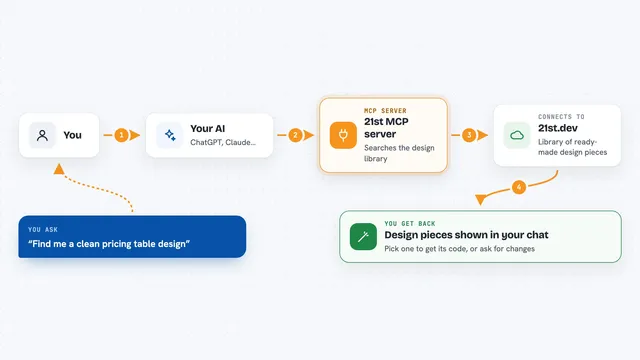
On its own, your AI can only chat with you. An MCP server is a small helper program that gives your AI one extra skill. This one gives your AI the skill of drawing mind maps from text. So when you ask for a mind map, your AI passes your text to this helper, and the helper builds the picture for you.
What this MCP server does
You give your AI some text, usually with headings and bullet points. Your AI sends that text to this helper program. The helper uses a tool called markmap to turn the text into an interactive mind map. You then get either the mind map itself to preview, or a file saved on your computer that you can open in your browser. The branches follow the structure of your headings, so a main topic becomes a big branch and sub-points become smaller ones.
 Click to zoom
What you can do with it
- Turn a meeting outline into a mind map
- Convert a study plan or syllabus into a visual map
- Build a mind map from a project plan with phases and tasks
- Save the mind map as an HTML file you can open later
- Preview the mind map right inside your AI chat
- Hide the toolbar if you want a cleaner picture
- Ask your AI to think through a topic and map it out
Try asking your AI
- “Give me a mind map of this outline, using the mindmap tool: # Project Planning ## Research ### Market Analysis ### Competitor Review ## Design ### Wireframes ### Mockups”
- “Turn these notes into a mind map and save it as a file called study-plan.html”
- “Think about how to plan a two-week trip to Japan and give me a mind map of it”
- “Make a mind map from this list of onboarding steps and hide the toolbar”
What it gives back to you
You get back either the full mind map to preview inside your AI chat, or a file path if you chose the file option. The mind map is interactive: you can click branches to fold or unfold them. If you saved it as a file, you open that file in your browser to see the same picture. The structure follows your headings, so it is easy to spot how your ideas fit together.
Before you start
What you need
- A computer with Python or Docker installed
- Node.js installed if you use the uvx or python method
- An MCP client like Claude Desktop that can add this server
- A folder path if you want to save mind maps as files
Good to know
If you save mind maps as files, they land in the folder you set up, so pick a folder you are happy to have files written into.
Install it with your AI
Add Mindmap MCP server to your AI, no technical skills needed
You don't install anything by hand. You copy one prompt, paste it into an AI that can work on your computer, and it checks, installs and connects the server for you, asking you when it needs something.
Sign in to get the install prompt
Members get a ready-made prompt that lets the Claude desktop app check Mindmap MCP server, install it and connect it for them, step by step. You don't need any technical skills: you copy, paste and answer a few questions. Your connected AI can also find and install any of the 4,361 MCP servers here for you.
Who it's for
Anyone who likes to see ideas laid out visually, such as students, planners, writers, and project leads.