MCP server · Analytics
OpenObserve MCP server
by alilxxey
Let your AI search your OpenObserve logs, traces, dashboards and stream schemas for you.

This is a small helper that connects your AI assistant to OpenObserve, the tool where your team keeps logs, traces and dashboards. Once it is set up, you can just ask your AI questions about what is happening in your system instead of clicking around the OpenObserve website. It is handy for anyone who looks at logs or dashboards, even if you are not the person who set OpenObserve up.
What is an MCP server? The 30-second version
On its own, your AI can only chat with you. An MCP server is a small helper program that gives your AI a new skill or a connection to another app. This one connects your AI to your OpenObserve account, so it can look things up there when you ask. You stay in the chat, and the helper does the fetching quietly in the background.
What this MCP server does
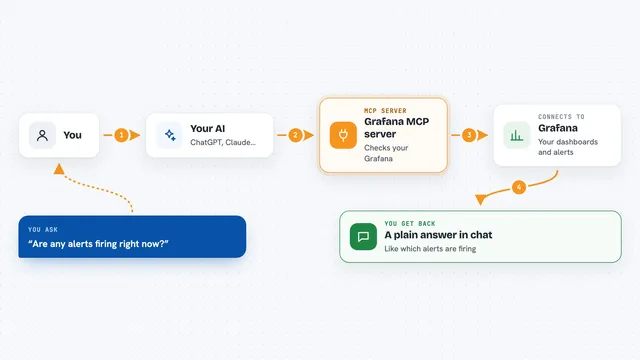
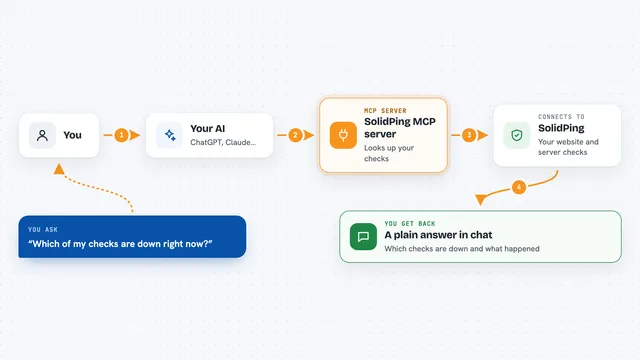
You ask your AI a question in plain words, like what errors happened this morning. The AI passes that request to this helper program running on your computer. The helper talks to your OpenObserve instance using its normal web address and your login details. OpenObserve sends back the matching logs, traces, dashboards or schema information, and the helper hands it to your AI. Your AI then explains the result to you right in the chat.
 Click to zoom
What you can do with it
- List the streams (data sources) available in your OpenObserve account
- Show the fields and structure of a stream
- Search logs for a word, error or time range
- Look at logs around a specific moment to see what happened before and after
- Find the different values a field takes, like all service names
- List your dashboards and open one to see what it contains
- Fetch the most recent traces to follow a request through your system
Try asking your AI
- “List all the streams in OpenObserve”
- “Show me the schema of the logs stream”
- “Search the logs for errors in the last hour”
- “What happened around 10:15 this morning in the logs”
- “List my dashboards and tell me what the main one shows”
What it gives back to you
You get answers in the chat, not files to download. Depending on what you asked, that could be a list of streams or dashboards, a table of matching log lines, a summary of a schema, or the newest traces. Your AI can also explain what it found in plain words if you ask it to.
Before you start
What you need
- An OpenObserve Community Edition instance with a web address you can reach
- A username and password (or a token) for that OpenObserve account
- Python and the uv tool installed on your computer
- An MCP client like Claude, Codex or OpenCode
Good to know
This helper can only read from OpenObserve, so it will not change or delete anything, but the logs and traces it shows may contain private or sensitive information from your systems.
Install it with your AI
Add OpenObserve MCP server to your AI, no technical skills needed
You don't install anything by hand. You copy one prompt, paste it into an AI that can work on your computer, and it checks, installs and connects the server for you, asking you when it needs something.
Sign in to get the install prompt
Members get a ready-made prompt that lets the Claude desktop app check OpenObserve MCP server, install it and connect it for them, step by step. You don't need any technical skills: you copy, paste and answer a few questions. Your connected AI can also find and install any of the 4,361 MCP servers here for you.
Who it's for
Anyone who checks logs, traces or dashboards at work and wants to ask questions in plain words instead of clicking through the OpenObserve website.