
MCP server · Developer tools
Jenkins MCP server
by avisangle
Lets your AI start Jenkins jobs, check build status, read logs, and fetch build files for you.
This is a small helper that connects your AI assistant to Jenkins, the tool many teams use to build and test their software automatically. Once it is set up, you can ask your AI in plain words what is running, what failed, or to start a job, instead of clicking around the Jenkins website. It is handy for anyone who works with Jenkins but does not want to memorize all the menus and job names.
What is an MCP server? The 30-second version
On its own, your AI can only chat with you. An MCP server is a small helper program that gives your AI a new skill or a connection to another app. This one connects your AI to your Jenkins server, so it can look up jobs, check builds, and start things for you when you ask. You stay in the chat, and the helper does the clicking behind the scenes.
What this MCP server does
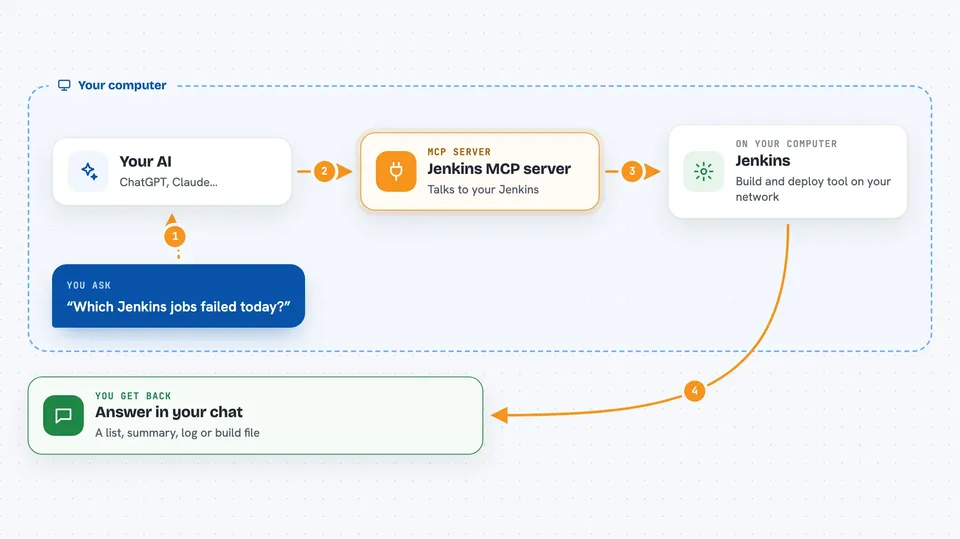
You ask your AI something about Jenkins, like which jobs failed today or what a build is doing. The AI sends that request to this helper program running on your computer. The helper talks to your Jenkins server using your account and a special token, then brings the answer back. You see the result in the chat, as a list, a summary, a log, or a file. If you ask it to start a job, it tells Jenkins to run it and reports back what happened.
 Click to zoom
What you can do with it
- List your Jenkins jobs, including ones inside folders
- Search for jobs by name or pattern
- Start a job, with or without parameters
- Check the status of a build or a whole pipeline
- Read and summarize build console logs
- List and download build artifacts (the files a build produces)
- See what is waiting in the build queue
- Start several jobs at once and watch them
Try asking your AI
- “List all Jenkins jobs in the team-alpha folder”
- “What is the status of the last build of build-project?”
- “Show me the console log for build 42 of backend-service”
- “Trigger the deploy job with BRANCH set to main”
- “Which jobs failed in the last 3 days?”
What it gives back to you
You get answers right in the chat. That can be a list of jobs with their status, a summary of a build, the console log text, or details about a pipeline stage. If you download a build file, you get its content or a note that it is a binary file. When you start a job, it tells you whether the request went through and gives you a way to check on it.
Before you start
What you need
- A Jenkins account with an API token (a kind of password for apps; you create it in your Jenkins profile settings)
- The address of your Jenkins server, like http://your-jenkins-server:8080
- Node.js 14 or newer and Python 3.12 or newer installed on your computer
- The Claude desktop app or another AI tool that supports MCP servers
Good to know
It can start jobs and download build files using your Jenkins account, so anything you ask it to do happens for real on your Jenkins server.
Install it with your AI
Add Jenkins MCP server to your AI, no technical skills needed
You don't install anything by hand. You copy one prompt, paste it into an AI that can work on your computer, and it checks, installs and connects the server for you, asking you when it needs something.
Sign in to get the install prompt
Members get a ready-made prompt that lets the Claude desktop app check Jenkins MCP server, install it and connect it for them, step by step. You don't need any technical skills: you copy, paste and answer a few questions. Your connected AI can also find and install any of the 4,361 MCP servers here for you.
Who it's for
Developers, testers, and anyone on a team that uses Jenkins to build and release software.



