
MCP server · Developer tools
CircleCI MCP server
Let your AI check CircleCI builds, read failure logs, and rerun or start pipelines for you.
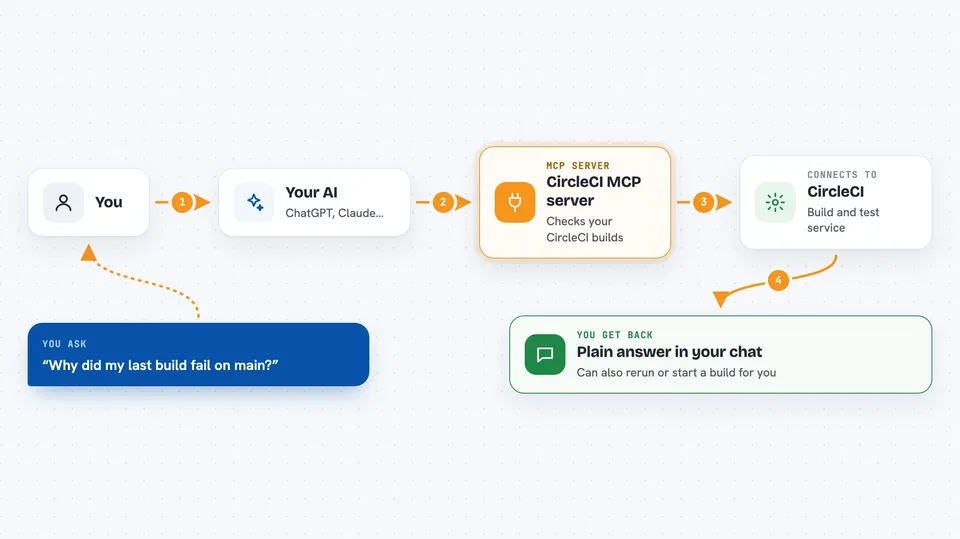
This is a helper that connects your AI assistant to CircleCI, the service that runs your automated builds and tests. Once it is set up, you can ask your AI in plain words what broke, why it broke, and even ask it to run things again. It is handy for anyone who keeps an eye on build results but does not want to click through the CircleCI website every time.
What is an MCP server? The 30-second version
On its own, your AI can only chat with you. An MCP server is a small helper program that gives your AI a new skill or a connection to another service. This one connects your AI to CircleCI, so it can look up your projects, pipelines, and build results, and carry out a few actions there when you ask. You stay in your chat window, and the helper does the talking to CircleCI behind the scenes.
What this MCP server does
You ask your AI something about your CircleCI builds, like why the latest run failed. The AI passes your question to this helper program. The helper logs into CircleCI with your token and fetches the details, such as failure logs, test results, or the status of the newest pipeline. Then the AI reads that information and explains it back to you in the chat, in normal words. If you ask it to, it can also start a pipeline or rerun a workflow.
 Click to zoom
What you can do with it
- Check the status of the latest pipeline on a branch
- Read the failure logs from a broken build
- Look at test results and spot flaky tests
- List the artifacts a job produced
- See which projects you follow
- Rerun a workflow from the start or from the failed job
- Trigger a pipeline or a rollback
Try asking your AI
- “Why did my last build fail on the main branch?”
- “Show me the test results for the latest job and tell me which tests are flaky.”
- “Rerun the failed job in my most recent workflow.”
- “List the artifacts from my last successful build.”
What it gives back to you
You get answers in the chat, not raw files. The AI can show you the status of a pipeline, a summary of a failure log, a list of tests that keep breaking, or a list of artifacts. When it starts or reruns something, it tells you what it did and usually gives you a link or an ID to follow.
Before you start
What you need
- A CircleCI account
- A CircleCI personal API token (a kind of password for apps; CircleCI gives you one on your settings page)
- An MCP-compatible app like Claude Desktop, Cursor, VS Code, or Windsurf
- Node.js 18 or newer if you use the npx setup, or Docker if you use the Docker setup
Good to know
It can start, rerun, and roll back pipelines on your CircleCI account, so ask your AI to confirm before it changes anything, and keep your CircleCI token private.
Install it with your AI
Add CircleCI MCP server to your AI, no technical skills needed
You don't install anything by hand. You copy one prompt, paste it into an AI that can work on your computer, and it checks, installs and connects the server for you, asking you when it needs something.
Sign in to get the install prompt
Members get a ready-made prompt that lets the Claude desktop app check CircleCI MCP server, install it and connect it for them, step by step. You don't need any technical skills: you copy, paste and answer a few questions. Your connected AI can also find and install any of the 4,609 MCP servers here for you.
Who it's for
Developers, testers, and anyone on a team who watches CircleCI builds and wants quick answers without opening the CircleCI website.



