MCP server · Productivity
Gryzzly MCP server
Log your work hours and fill your Gryzzly timesheet just by telling your AI what you did.
This is a small helper that connects your AI assistant to Gryzzly, the time-tracking tool your team uses. Once it is set up, you can type things like "log 2h30 on Alyxa yesterday" and the hours land in your real timesheet. It is handy for anyone who has to fill in a timesheet every week and keeps forgetting.
What is an MCP server? The 30-second version
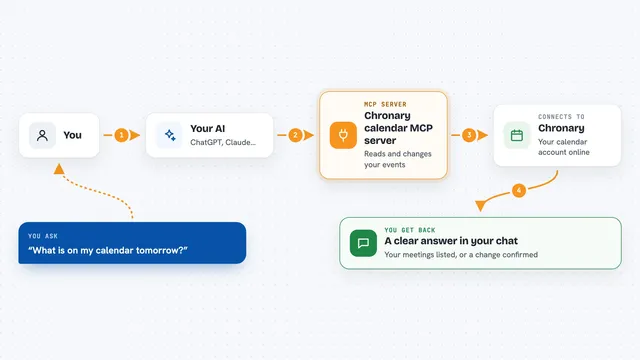
On its own, your AI can only chat. An MCP server is a small helper program that gives your AI a new skill or a connection to an app, and here that app is Gryzzly. This helper sits between your AI and Gryzzly: your AI asks it for things, and it talks to Gryzzly for you. So instead of clicking around the Gryzzly website, you just tell your assistant what you did and it takes care of the rest.
What this MCP server does
You ask your assistant something in plain words, like logging time or checking your week. The assistant passes that to this helper program. The helper figures out which project you mean, turns 2h30 into the seconds Gryzzly expects, and sends it to Gryzzly's system. Then it tells you back what happened, for example that Thursday now totals 7h30. It also knows how to show your week at a glance and point out days that are short.
What you can do with it
- Log time by describing it, such as 2h30 on Alyxa yesterday
- See your whole week totalled per day and per project
- Spot the days you forgot to fill in
- Change or delete a time entry you logged by mistake
- Look up projects, tasks, customers and the people on your team
- Record days off and leave periods
- Keep it read-only so nothing can be changed
Try asking your AI
- “Log 2h30 on Alyxa yesterday, pairing on the importer”
- “What did I miss last week?”
- “Show me my timesheet for this week”
- “Who am I in Gryzzly?”
What it gives back to you
You get plain answers in the chat, not raw data. Ask it to log time and it confirms the entry and tells you the day's new total. Ask about your week and it shows a short breakdown with hours per day and per project, plus a note about any day that falls short. It can also list projects, tasks or people when you ask.
Before you start
What you need
- A Gryzzly account with time tracking
- A Gryzzly API key, which you create in Gryzzly under Administration, then API keys
- Your Gryzzly email or user ID, so the helper knows whose timesheet it is filling
- An MCP client such as Claude Desktop or Claude Code, plus the helper program installed (the instructions build it with Rust, but a Docker option is also described)
Good to know
It can change or delete entries in your real timesheet, so use the read-only setting or confirm carefully before letting it write.
Install it with your AI
Add Gryzzly MCP server to your AI, no technical skills needed
You don't install anything by hand. You copy one prompt, paste it into an AI that can work on your computer, and it checks, installs and connects the server for you, asking you when it needs something.
Sign in to get the install prompt
Members get a ready-made prompt that lets the Claude desktop app check Gryzzly MCP server, install it and connect it for them, step by step. You don't need any technical skills: you copy, paste and answer a few questions. Your connected AI can also find and install any of the 4,609 MCP servers here for you.
Who it's for
Anyone who has to fill in a Gryzzly timesheet each week and would rather just describe what they did.