MCP server · Developer tools · official
GitKraken MCP server
by gitkraken · official
Lets your AI work with your Git repos, issues, and pull requests for you.
This is a helper from GitKraken that connects your AI assistant to your code projects and your task trackers. It is meant for people who already use Git and services like GitHub, GitLab, or Jira and want their AI to help with everyday chores there. If you have never used those tools, this one will feel advanced.
What is an MCP server? The 30-second version
On its own, your AI can only chat with you. An MCP server is a small helper program that gives your AI a new skill or a connection to an app. This one connects your AI to GitKraken and to the places where your code and tasks live, like GitHub, GitLab, and Jira. Once it is set up, you can just ask your AI to look something up or do something there, and it will use this helper to make it happen.
What this MCP server does
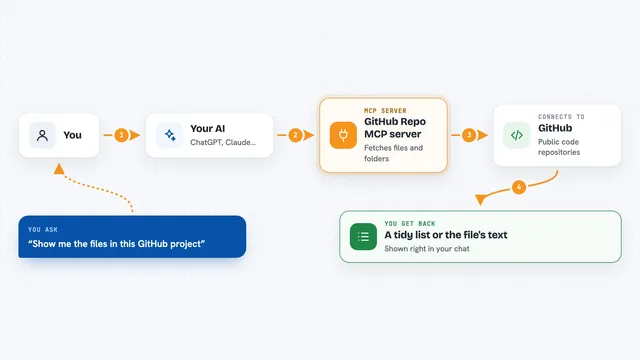
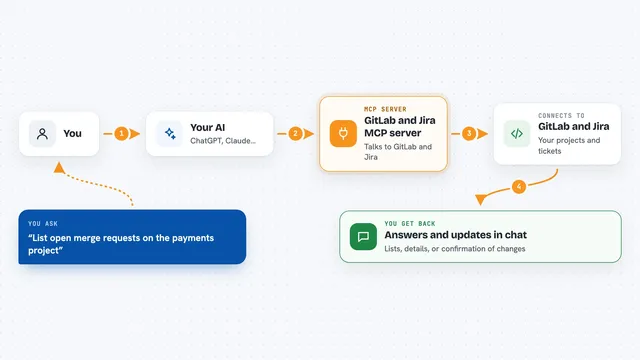
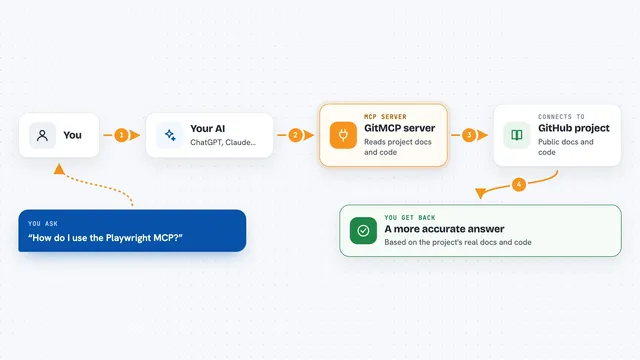
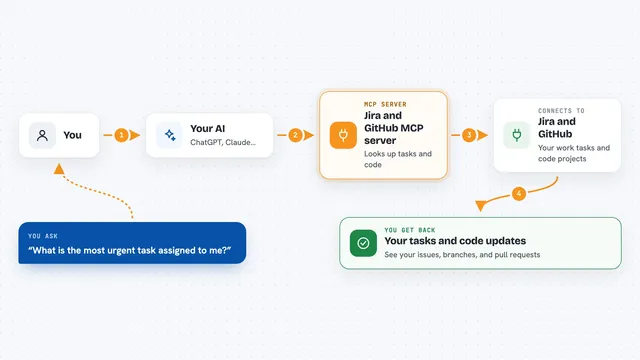
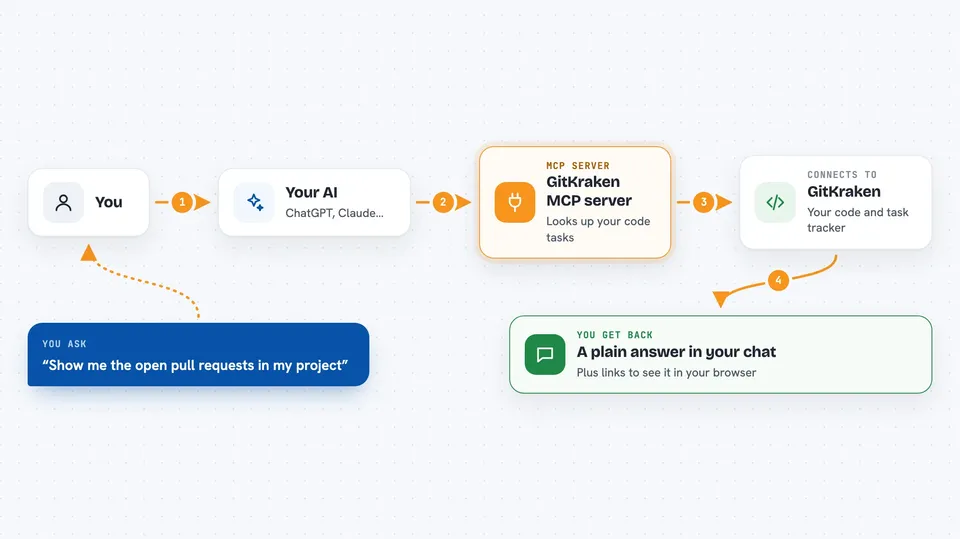
You ask your AI something about your code or your tasks. The AI uses this helper to talk to GitKraken and to your code host or task tracker. The helper fetches what you need, like a list of open issues or the status of a pull request. It can also make changes, like creating a commit or opening a pull request. Then the AI tells you what it found or what it did, right in the chat.
 Click to zoom
What you can do with it
- See your open issues and pull requests across your projects
- Create a new work item to group related tasks
- Write a commit message for your changes with AI help
- Push your changes to the remote repository
- Open a pull request with a generated description
- Look at the commit history of a repository
- Work with multiple repositories at the same time
Try asking your AI
- “Show me the open pull requests in my project”
- “Create a work item called Fix login bug and add my current repo”
- “Write a commit message for the changes I just made”
- “Open a pull request for my latest branch”
What it gives back to you
You get answers in plain language, like a list of issues or a summary of a pull request. When the AI makes a change, it tells you what it did, such as the commit it created or the pull request it opened. Some actions also give you links you can click to see the result in your browser.
Before you start
What you need
- A GitKraken account (you can sign in with your existing GitHub, GitLab, or Bitbucket account)
- The GitKraken CLI installed on your computer
- Your AI app set up to use MCP servers (follow the instructions for your app)
Good to know
This helper can change things in your repositories and task trackers, like creating commits or opening pull requests, so check what it did before you rely on it.
Install it with your AI
Add GitKraken MCP server to your AI, no technical skills needed
You don't install anything by hand. You copy one prompt, paste it into an AI that can work on your computer, and it checks, installs and connects the server for you, asking you when it needs something.
Sign in to get the install prompt
Members get a ready-made prompt that lets the Claude desktop app check GitKraken MCP server, install it and connect it for them, step by step. You don't need any technical skills: you copy, paste and answer a few questions. Your connected AI can also find and install any of the 4,361 MCP servers here for you.
Who it's for
Developers and technical team members who already use Git and services like GitHub, GitLab, or Jira.