MCP server · Developer tools
GitLab and Jira MCP server
by HainanZhao
Lets your AI read and update your GitLab projects and Jira tickets for you.
This is a helper that connects your AI assistant to two work tools many teams use: GitLab (where code lives) and Jira (where tickets live). Once it is set up, you can ask your AI things like what is in a merge request or what is the status of a ticket, and it will go look it up. It is handy for developers, project managers, and anyone who spends their day jumping between these two apps.
What is an MCP server? The 30-second version
On its own, your AI can only chat with you. It cannot see your GitLab projects or your Jira tickets. An MCP server is a small helper program that gives your AI a new skill, and here that skill is talking to GitLab and Jira. You install this helper once, tell it your login details, and from then on your AI can look things up or make changes in those two tools when you ask.
What this MCP server does
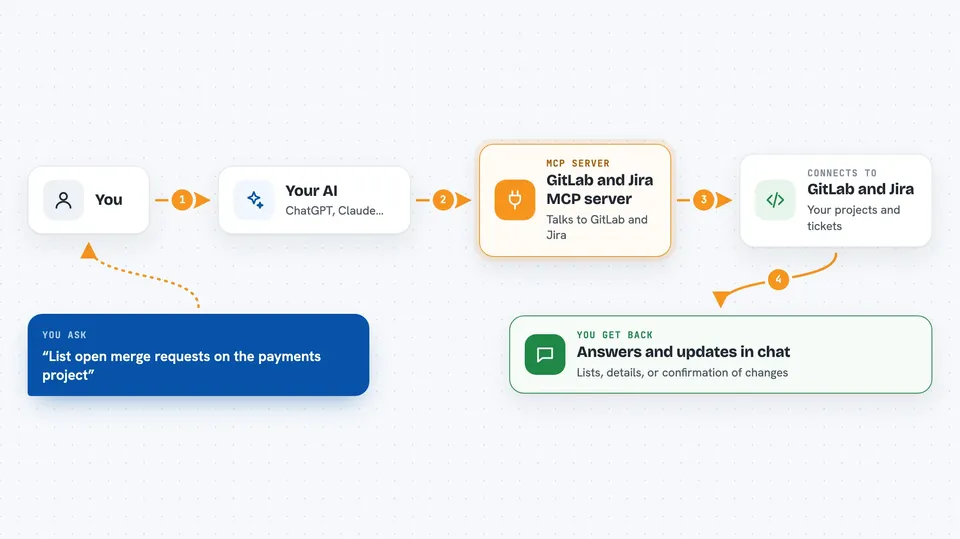
You ask your AI a question in plain words, like what merge requests are open on a project. Your AI passes that request to this helper program running on your computer. The helper then talks to your GitLab or Jira account using your login details. It brings back the answer, like a list of merge requests or the details of a ticket, and your AI shows it to you in the chat. If you ask it to do something, like add a comment or move a ticket to a new status, the helper makes that change for you.
 Click to zoom
What you can do with it
- List your GitLab projects and merge requests
- Read a merge request's details, including the code changes
- Add comments to merge requests and issues
- Check pipeline status and read job logs
- Create, update, and close GitLab issues
- Look up Jira tickets and read their comments
- Create Jira tickets and move them to a new status
Try asking your AI
- “List the open merge requests on the payments project”
- “Show me the details of Jira ticket PAY-142”
- “Add a comment to merge request 87 saying the tests need updating”
- “Move ticket PAY-142 to In Progress”
- “What is the status of the latest pipeline on the main branch”
What it gives back to you
You get answers right in the chat. That can be a list of projects, merge requests, or tickets, or the full details of one item, like a ticket's description and comments. If you asked it to change something, it tells you what it did, like that a comment was added or a ticket was moved. For code, it can show you the changes in a merge request.
Before you start
What you need
- Node.js 18 or newer installed on your computer
- A GitLab personal access token (a kind of password the GitLab website gives you for apps)
- Your GitLab address, like https://gitlab.com or your company's GitLab link
- A Jira API token and your Atlassian site name and email (Jira gives you the token for free in your account settings)
Good to know
This helper can change things in your GitLab and Jira accounts, like creating tickets, adding comments, and deleting branches, so check before you say yes to an action.
Install it with your AI
Add GitLab and Jira MCP server to your AI, no technical skills needed
You don't install anything by hand. You copy one prompt, paste it into an AI that can work on your computer, and it checks, installs and connects the server for you, asking you when it needs something.
Sign in to get the install prompt
Members get a ready-made prompt that lets the Claude desktop app check GitLab and Jira MCP server, install it and connect it for them, step by step. You don't need any technical skills: you copy, paste and answer a few questions. Your connected AI can also find and install any of the 4,361 MCP servers here for you.
Who it's for
Developers, project managers, and anyone who works with GitLab code and Jira tickets every day.