MCP server · Notes
Graphlit MCP server
by graphlit
Lets your AI gather content from Slack, Drive, GitHub and more, then search it and answer questions from it.

Graphlit is a service that collects content from places you already use, like Slack, Google Drive, GitHub, Notion and websites, and keeps it in one searchable project. This MCP server connects your AI assistant to that project. It is handy if you keep information scattered across many tools and want to ask questions about all of it in one place.
What is an MCP server? The 30-second version
On its own, your AI can only chat with you using what it already knows. An MCP server is a small helper program that gives your AI a new skill or a connection to another service. This one connects your AI to your Graphlit project, so it can pull in content, look things up and bring answers back to you. You just ask in plain words, and the helper does the running around.
What this MCP server does
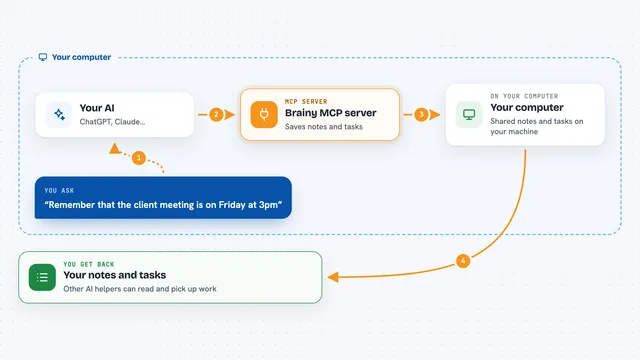
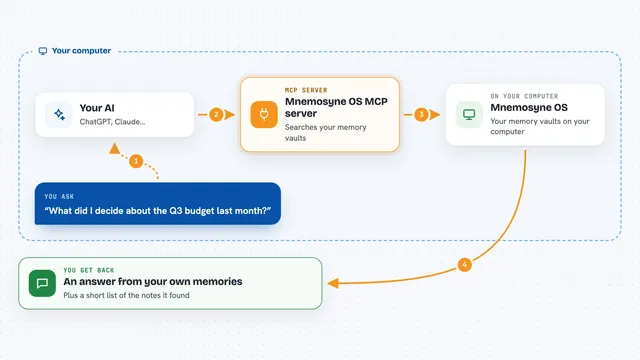
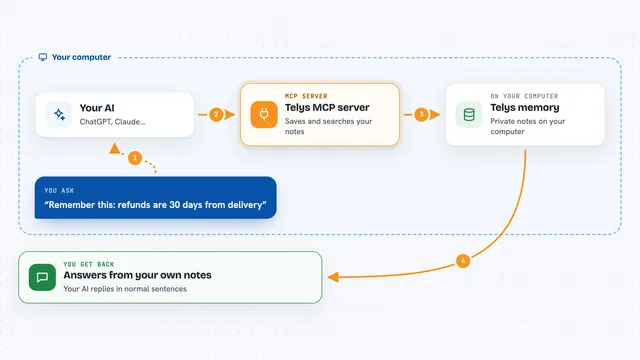
You ask your AI something, like what your team discussed about a project last month. The AI uses this helper, which talks to your Graphlit project. Graphlit has already gathered content from your connected tools, such as Slack messages, emails, documents and web pages, and turned it into something searchable. The helper finds the relevant pieces and hands them back, so the AI can answer you in the chat.
 Click to zoom
What you can do with it
- Pull in files, web pages, emails, messages and issues into your Graphlit project
- Search across everything you have gathered and get the most relevant sources back
- Ask questions and get answers built from your own content
- Crawl a website or run a web search without adding another tool
- Turn text into structured information, like pulling details out of a long document
- Create audio or images from your content
- Send notifications to Slack, email or a webhook when something happens
What it gives back to you
You get answers in the chat, written in plain words, often with the sources they came from. It can also give you lists of items, like your Slack channels or Notion pages, and short summaries of documents. When it ingests something, it tells you it was added. When it publishes audio or an image, you get that file back.
Before you start
What you need
- A Graphlit account (free to start, at portal.graphlit.dev)
- Your Graphlit organization ID, environment ID and JWT secret from the API settings dashboard
- Node.js 18 or newer installed on your computer
- Optional: extra keys for tools you want to connect, like Slack or Notion
Good to know
It can add, change and delete content in your Graphlit project, and some actions like generating audio or images may use paid services on your account.
Install it with your AI
Add Graphlit MCP server to your AI, no technical skills needed
You don't install anything by hand. You copy one prompt, paste it into an AI that can work on your computer, and it checks, installs and connects the server for you, asking you when it needs something.
Sign in to get the install prompt
Members get a ready-made prompt that lets the Claude desktop app check Graphlit MCP server, install it and connect it for them, step by step. You don't need any technical skills: you copy, paste and answer a few questions. Your connected AI can also find and install any of the 4,609 MCP servers here for you.
Who it's for
Developers, product managers and small teams who keep information spread across Slack, Drive, GitHub and similar tools and want to ask questions about all of it in one place.