MCP server · Email
Resend Email MCP server
Lets your AI send emails, manage your Resend contacts and domains, and explain why messages bounced.
This is a helper for Resend, the service many teams use to send emails from their apps and newsletters. Once it is connected, your AI can send emails, look after your contacts and domains, and help you figure out why a message did not arrive. It is handy if you send email through Resend and want to do everyday tasks by just asking, without clicking around the dashboard.
What is an MCP server? The 30-second version
On its own, your AI can only chat with you. An MCP server is a small helper program that gives your AI a new skill or a connection to an app. This one connects your AI to your Resend account, so it can look things up and take actions there when you ask. You stay in the chat, and the helper does the work behind the scenes.
What this MCP server does
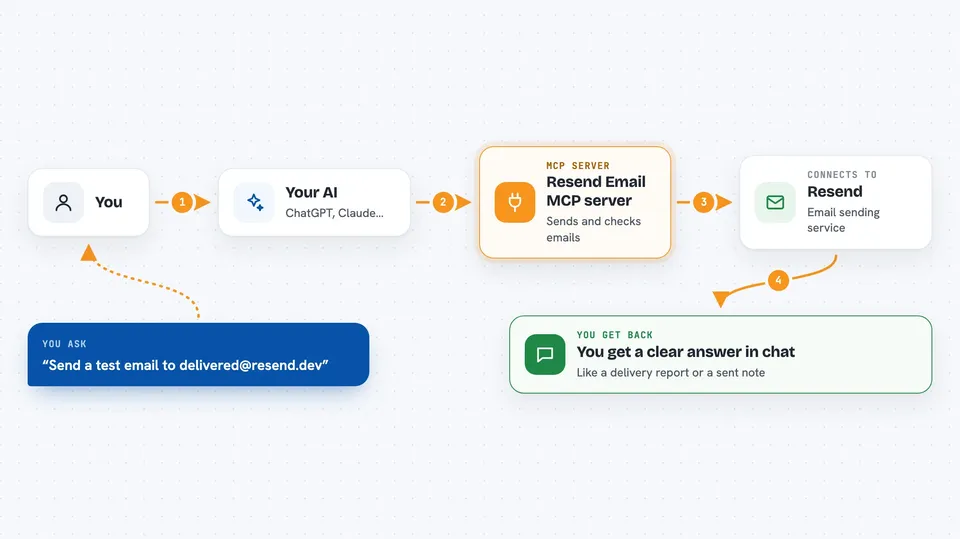
You ask your AI something in plain words, like send a test email or check why a message bounced. The AI passes your request to this helper. The helper talks to Resend using your API key, which is a kind of password for apps. Resend does the work and sends back the result. Your AI then shows you the answer in the chat, such as a list of emails, a delivery report, or a note that the email was sent.
 Click to zoom
What you can do with it
- Send a single email or a batch of emails
- Schedule an email or cancel one you already scheduled
- Preview an email before sending it, to catch problems
- List and manage your contacts, segments, and topics
- Create and send a broadcast newsletter
- Check your domains and see what DNS records are missing
- Explain why a specific email bounced and what to do next
Try asking your AI
- “Send a test email to delivered@resend.dev”
- “Diagnose why acme.com is not verified”
- “How healthy is my email sending this week”
- “Why did that email bounce and what should I do”
What it gives back to you
You get answers in the chat, in plain words. That can be a list of emails or contacts, a delivery and bounce report, a step by step timeline for one email, or a short explanation of a bounce with a suggested next step. When you ask it to send or change something, it tells you what it did and gives you the ID of the new item.
Before you start
What you need
- A Resend account
- A Resend API key (a kind of password for apps; you create one for free on the Resend website)
- An MCP client such as Claude Desktop, Cursor, or Claude Code
- Node.js installed on your computer (the helper runs through npx)
Good to know
It can send real emails and change or delete things in your Resend account, so be careful with live contacts and broadcasts. You can set RESEND_READONLY to true to explore safely without sending or deleting anything.
Install it with your AI
Add Resend Email MCP server to your AI, no technical skills needed
You don't install anything by hand. You copy one prompt, paste it into an AI that can work on your computer, and it checks, installs and connects the server for you, asking you when it needs something.
Sign in to get the install prompt
Members get a ready-made prompt that lets the Claude desktop app check Resend Email MCP server, install it and connect it for them, step by step. You don't need any technical skills: you copy, paste and answer a few questions. Your connected AI can also find and install any of the 4,609 MCP servers here for you.
Who it's for
People who send email through Resend, like marketers, support teams, and small business owners who want to check and fix their email setup without digging through a dashboard.