MCP server · Productivity
Redmine MCP server
by igorolv
Lets your AI look up Redmine issues, projects, wiki pages, and time entries, and optionally create or update them.
This is a small helper program that connects your AI assistant to your company's Redmine. Once it is set up, you can ask your AI things like "what is blocking issue 12345" or "summarize this project's open bugs" and it will fetch the real answers from Redmine. It is handy for anyone who spends their day in Redmine and wants to skip the clicking around.
What is an MCP server? The 30-second version
On its own, your AI can only chat with you using what it already knows. An MCP server is a small helper program that gives your AI a new skill or a connection to an app. This one connects your AI to Redmine, so it can look up issues, projects, wiki pages, and time entries for you. You ask in plain words, and the AI uses this helper behind the scenes to get the real data.
What this MCP server does
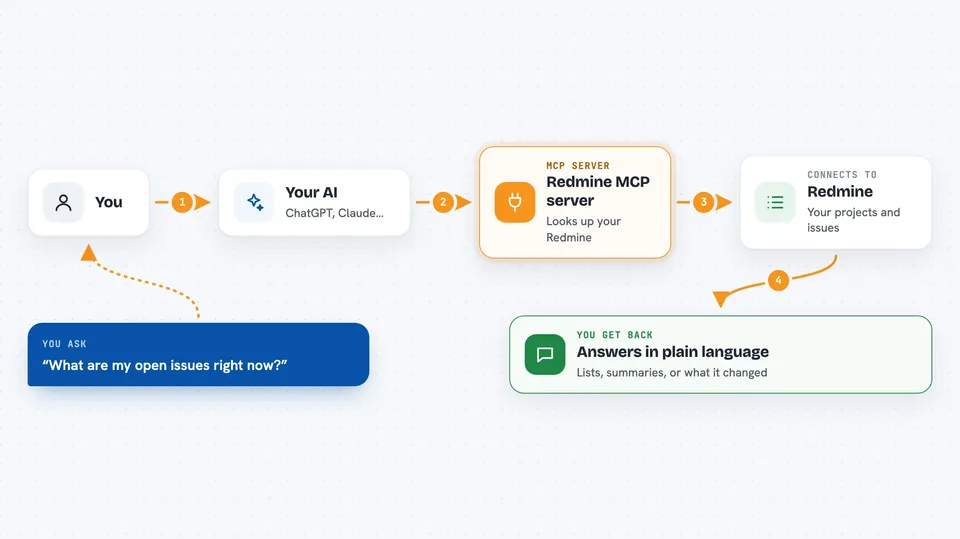
You ask your AI a question about Redmine, like "show me my open issues" or "what is the status of project X". The AI passes that request to this helper program running quietly on your computer. The helper talks to your Redmine server using your account's API key, fetches the data, and hands it back to the AI. The AI then explains the result to you in the chat, in normal language. If you turn on write mode, the AI can also create issues, add notes, log time, and edit wiki pages for you.
 Click to zoom
What you can do with it
- List your open issues and filter them by project, status, or priority
- Search all of Redmine for a word or phrase across issues, wiki, and news
- Show the full history and comments of a single issue
- Download an issue attachment and read its text (PDF, Word, Excel, and more)
- Summarize a project's open work, overdue items, and estimated hours
- Find issues that have not been updated in a while
- Create a new issue, add a note, or log time (only if write mode is on)
Try asking your AI
- “What are my open issues right now?”
- “Show me the details and comments for issue 12345.”
- “Which issues in project Website are overdue?”
- “Summarize the open bugs in version 2.0 and tell me what is blocking the release.”
What it gives back to you
You get answers written in the chat, based on real Redmine data. That can be a list of issues with their numbers and titles, a summary of a project's health, a timeline of an issue's comments, or the text inside an attachment. If write mode is on, it also tells you what it created or changed, like a new issue number or a logged time entry.
Before you start
What you need
- A Redmine account with an API key (a kind of password for apps; you find it in your Redmine profile settings)
- The web address of your Redmine site, for example https://redmine.example.com
- Java 25 or newer installed on your computer
- An AI client that supports MCP, such as Claude Code, Cursor, or VS Code Copilot
Good to know
If write mode is on, the AI can create issues, add notes, log time, and change wiki pages in your real Redmine, so double-check before saying yes to those actions.
Install it with your AI
Add Redmine MCP server to your AI, no technical skills needed
You don't install anything by hand. You copy one prompt, paste it into an AI that can work on your computer, and it checks, installs and connects the server for you, asking you when it needs something.
Sign in to get the install prompt
Members get a ready-made prompt that lets the Claude desktop app check Redmine MCP server, install it and connect it for them, step by step. You don't need any technical skills: you copy, paste and answer a few questions. Your connected AI can also find and install any of the 4,361 MCP servers here for you.
Who it's for
Project managers, developers, QA testers, and support staff who use Redmine every day and want quick answers without clicking through the web interface.