MCP server · Productivity · official
Kelvia MCP server
by gonnagetapower · official
Lets your AI create and move tasks, log time, and plan your day in Kelvia for you.
Kelvia is a shared task manager where people and AI helpers work on the same boards. This MCP server is the official connection from Kelvia, so your AI can read and change your tasks instead of just talking about them. It is handy if you already use Kelvia and want your AI to do the boring parts of keeping the board tidy.
What is an MCP server? The 30-second version
On its own, your AI can only chat with you. An MCP server is a small helper that gives your AI one new skill, like a plug that connects it to an app. This one connects your AI to Kelvia, your task manager, so it can look up your boards and tasks and make changes there when you ask. You stay in charge: the AI does the clicking, and everything it does shows up in Kelvia with its name on it.
What this MCP server does
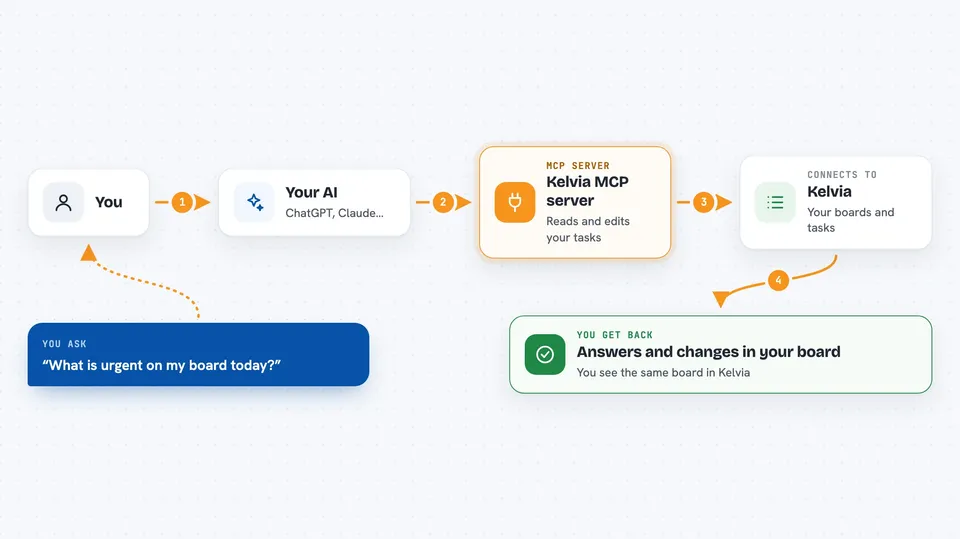
You ask your AI something about your work, like what is urgent today. The AI uses this helper to talk to Kelvia and pull the right boards and tasks. Then it can act: create a task, move it across the board, add a comment, or log time. Whatever it does lands in Kelvia right away, so you see the same board your AI just changed. Nothing happens quietly in the background.
 Click to zoom
What you can do with it
- List your Kelvia boards and see what is on them
- Create new tasks with a title, priority, and assignee
- Move tasks across your Kanban board and reorder them
- Add comments and log time on a task
- Start, complete, or reopen a sprint stage
- Plan your day by blocking out time for your most urgent tasks
- Invite people to a board and change their roles
Try asking your AI
- “List my Kelvia boards.”
- “On board product, show open high-priority tasks and suggest a triage order. Do not modify anything.”
- “Create a task on board product titled Fix the login redirect, set it to high priority, and show me the created task.”
- “Plan today using my three most urgent assigned tasks. Show the proposed blocks before creating them.”
What it gives back to you
You get answers in the chat: lists of boards and tasks, short summaries, and the details of anything the AI created or changed. If it makes a change, it shows you what it did, like the new task number and title. You can then open Kelvia and see the same thing on your board, with the AI's name on the change.
Before you start
What you need
- A Kelvia account (there is a free trial)
- An MCP client that can connect to remote servers, such as Claude Code, Codex, or Cursor
- For the local option: Node.js 20 or newer
- For an agent key setup: a Kelvia agent key, created in Kelvia under Profile then Agents
Good to know
This server can change and delete things in your Kelvia account, so review what the AI wants to do before you approve it and give it only the boards and permissions it really needs.
Install it with your AI
Add Kelvia MCP server to your AI, no technical skills needed
You don't install anything by hand. You copy one prompt, paste it into an AI that can work on your computer, and it checks, installs and connects the server for you, asking you when it needs something.
Sign in to get the install prompt
Members get a ready-made prompt that lets the Claude desktop app check Kelvia MCP server, install it and connect it for them, step by step. You don't need any technical skills: you copy, paste and answer a few questions. Your connected AI can also find and install any of the 4,361 MCP servers here for you.
Who it's for
People who already run their work in Kelvia and want their AI to handle the small board chores, like triaging, commenting, and planning the day.