MCP server · Browser automation
Website Screenshot MCP server
by just-every
Let your AI take screenshots of web pages and look at them for you.

This is a small helper that lets your AI take pictures of web pages. You give it a web address, and it opens that page in a hidden browser and snaps a screenshot. It is handy when you want your AI to actually see what a page looks like, not just read its text.
What is an MCP server? The 30-second version
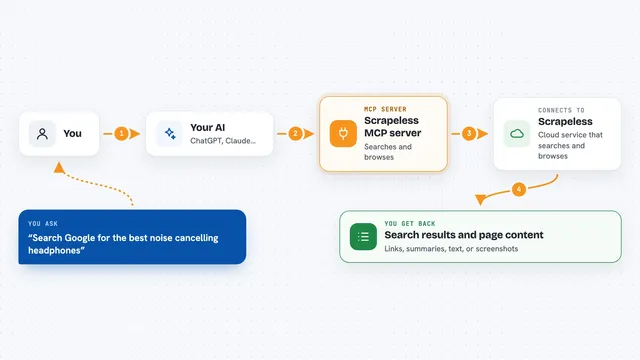
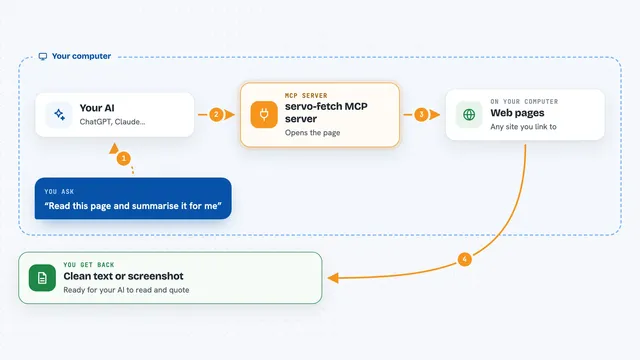
On its own, your AI can only chat with you. An MCP server is a small helper program that gives your AI a new skill or a connection to an app or service. This one connects your AI to a hidden web browser, so it can open a page and take a screenshot for you. You just ask in plain words, and the helper does the clicking and picture-taking behind the scenes.
What this MCP server does
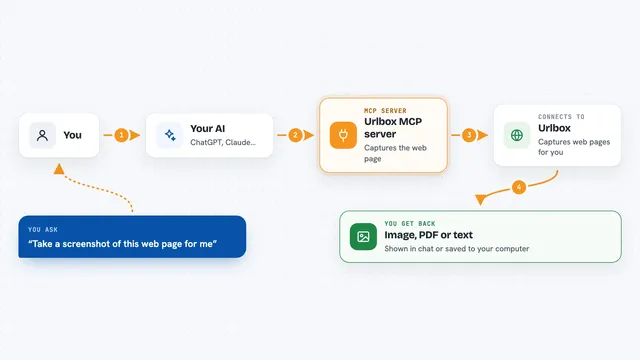
You ask your AI to take a screenshot of a web page. Your AI passes that request to this helper. The helper opens the page in a hidden browser, waits for it to load, and takes a picture. If the page is long, it splits the picture into square chunks so your AI can look at each part. Then it hands the image or the saved file back to your AI, which can describe it or answer your questions about it.
 Click to zoom
What you can do with it
- Take a screenshot of any web page by giving its address
- Capture a whole long page, split into square pieces your AI can read
- Take a picture of just one part of a page, like a button or a box
- Record a short series of screenshots over time to see how a page changes
- Save the screenshots as files in a folder you choose
- Set the browser window size to check how a page looks on different screens
- Wait a little longer for pages that load slowly
Try asking your AI
- “Take a screenshot of example.com and tell me what the homepage looks like”
- “Grab a picture of the pricing section on this page and read the prices for me”
- “Screenshot this page every 2 seconds for 10 seconds so I can see the loading animation”
- “Capture just the main heading of this page and describe it”
What it gives back to you
You get back a picture of the page, either shown right in the chat or saved as a file on your computer. If the page is long, you get several square images, one for each part. Your AI can then look at them and describe what is on the page, read text, or answer your questions. When you ask it to save files, it tells you the folder and file names.
Before you start
What you need
- Node.js version 20 or newer
- A tool called npx (it comes with Node.js)
- Chrome or Chromium (the helper downloads it for you the first time)
Good to know
It opens real web pages in a hidden browser, so only point it at pages you are allowed to visit, and be careful with pages behind a login.
Install it with your AI
Add Website Screenshot MCP server to your AI, no technical skills needed
You don't install anything by hand. You copy one prompt, paste it into an AI that can work on your computer, and it checks, installs and connects the server for you, asking you when it needs something.
Sign in to get the install prompt
Members get a ready-made prompt that lets the Claude desktop app check Website Screenshot MCP server, install it and connect it for them, step by step. You don't need any technical skills: you copy, paste and answer a few questions. Your connected AI can also find and install any of the 4,361 MCP servers here for you.
Who it's for
Anyone who wants their AI to actually see a web page, like people checking how a site looks, comparing pages, or reading content that is hard to copy as text.