MCP server · Browser automation
Webpage Screenshot MCP server
by ananddtyagi
Lets your AI take pictures of web pages so it can see what a site looks like.
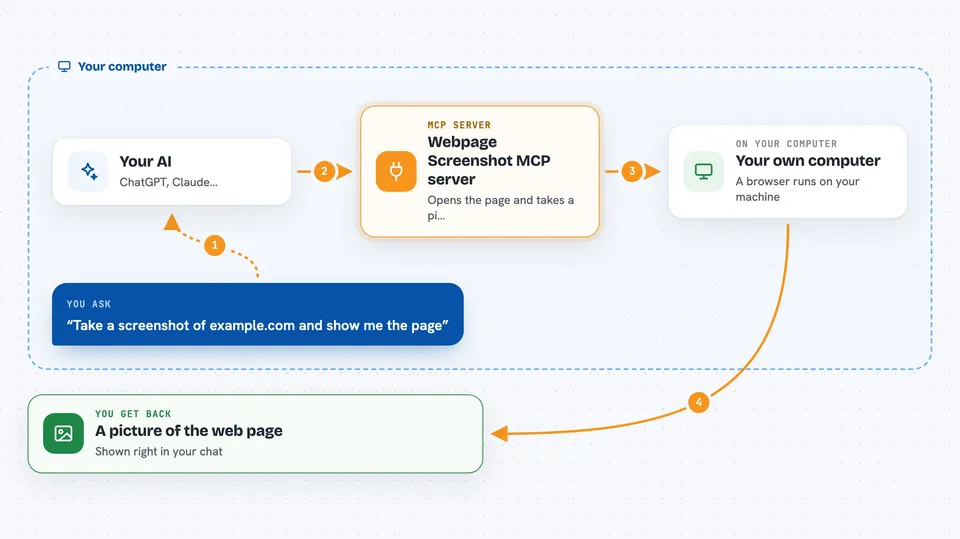
This is a small helper that lets your AI take screenshots of web pages. You give it a web address, and it opens the page in a browser and snaps a picture. It is handy if you build or check websites and want your AI to actually see the page instead of just reading its code.
What is an MCP server? The 30-second version
On its own, your AI can only chat with you. An MCP server is a small helper program that gives your AI a new skill or a connection to an app or service. This one connects your AI to a web browser, so it can open a page and take a picture of it. When you ask for a screenshot, your AI uses this helper to do the work and shows you the result.
What this MCP server does
You ask your AI to take a screenshot of a web address. Your AI passes that request to this helper program. The helper opens the page in a browser, waits for it to load, and takes a picture. It can grab the whole page or just one part of it, like a button or a profile box. Then it hands the image back to your AI, which shows it to you in the chat.
 Click to zoom
What you can do with it
- Take a full-page screenshot of any web address
- Capture just one element on a page, like a button or a form
- Save screenshots as PNG, JPEG, or WebP images
- Set the browser window size before taking the shot
- Log in to a site manually once and reuse that login for later screenshots
- Clear saved logins when you are done
- Keep a browser session open for several screenshots in a row
Try asking your AI
- “Take a screenshot of https://example.com and show me the whole page”
- “Screenshot just the signup form on https://example.com/signup”
- “Open https://example.com/login so I can log in, then screenshot the dashboard”
- “Take a screenshot of my site at 1920 by 1080 and save it as a JPEG”
What it gives back to you
You get an image back in the chat, like a picture of the page. If you asked for one element, you get a picture of just that part. The image is sent as encoded data that your AI turns into a viewable picture. You can also ask for the whole page or just the visible part.
Before you start
What you need
- Node.js installed on your computer
- The Claude desktop app or Cursor
- A web address you want to screenshot
Good to know
It can open real websites and save login cookies on your computer, so only use it on sites you trust and clear the saved logins when you are done.
Install it with your AI
Add Webpage Screenshot MCP server to your AI, no technical skills needed
You don't install anything by hand. You copy one prompt, paste it into an AI that can work on your computer, and it checks, installs and connects the server for you, asking you when it needs something.
Sign in to get the install prompt
Members get a ready-made prompt that lets the Claude desktop app check Webpage Screenshot MCP server, install it and connect it for them, step by step. You don't need any technical skills: you copy, paste and answer a few questions. Your connected AI can also find and install any of the 4,361 MCP servers here for you.
Who it's for
Web developers, designers, and anyone who checks or builds websites and wants their AI to see the page.