MCP server · Design tools
mockit MCP server
by karyaboyraz
Turn a written description into a phone app screen mockup, delivered as an image and HTML code.

mockit is a small helper you add to your AI so it can draw iPhone-style app screens from a written description. You describe the screen you want, and you get back a picture of it plus the code behind it. It is handy for designers, founders, and anyone who wants to show an app idea without opening a design tool.
What is an MCP server? The 30-second version
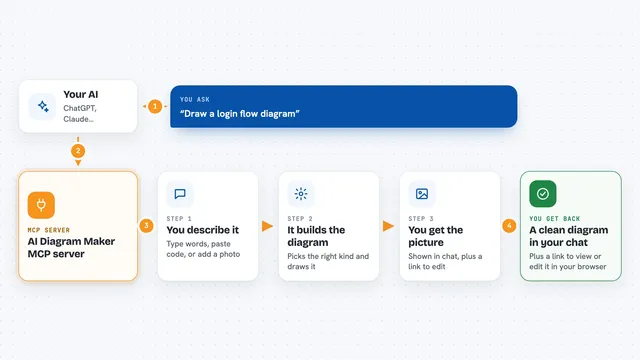
On its own, your AI can only chat and write text. An MCP server is a small helper program that gives your AI a new skill or a connection to another tool. This one connects your AI to a screen renderer, so when you ask for an app screen, the AI writes the design code and the helper turns it into a real image. You just ask in normal words, and the picture shows up in the chat.
What this MCP server does
You type a description of the screen you want, like a fitness dashboard or a calculator. Your AI writes the design as HTML code, then mockit opens that code in a hidden browser and takes a screenshot. The screenshot comes back to you as a PNG image, and the HTML file is saved on your computer. If you want changes, you ask again and it makes a new version, keeping track of the old one.
 Click to zoom
What you can do with it
- Generate a phone screen mockup from a written description
- Get both a PNG image and the HTML code for each screen
- Ask for changes to a screen and get a new version
- List all the screens you have made so far
- Look up the details or full HTML of a past screen
- Group screens by project so they stay organized
- Choose a custom screen size if the default iPhone size does not fit
Try asking your AI
- “Design a fitness tracker dashboard with activity rings, a weekly chart, and a recent workouts list. Dark mode with neon green accents.”
- “Create a login screen for a meditation app. Calm colors, a big welcome message, and a continue button.”
- “Make a recipe detail screen with a photo area, ingredients list, and a start cooking button.”
- “Iterate on that fitness dashboard: replace the chart with heart rate over time and add a share workout button.”
What it gives back to you
You get a PNG image of the screen right in the chat, sized like an iPhone screen. The HTML code behind it is saved to a folder on your computer, along with a small file of details like the prompt and version. When you ask for a list, you get a simple list of your screens with their names and IDs.
Before you start
What you need
- Node.js 20 or newer installed on your computer
- Either the claude command line tool logged in, or an Anthropic API key (a kind of password for apps; you get one from Anthropic's website)
- A one-time download of a browser component called Chromium (about 170 MB)
Good to know
Each generation uses your Claude subscription or your Anthropic key, so heavy use can cost money or eat into your quota.
Install it with your AI
Add mockit MCP server to your AI, no technical skills needed
You don't install anything by hand. You copy one prompt, paste it into an AI that can work on your computer, and it checks, installs and connects the server for you, asking you when it needs something.
Sign in to get the install prompt
Members get a ready-made prompt that lets the Claude desktop app check mockit MCP server, install it and connect it for them, step by step. You don't need any technical skills: you copy, paste and answer a few questions. Your connected AI can also find and install any of the 4,361 MCP servers here for you.
Who it's for
Designers, product managers, and founders who want quick app screen ideas without learning a design tool.