MCP server · Productivity
Kibela MCP server
Lets your AI search, read, and like Kibela notes for you.
This is a small helper that connects your AI assistant to Kibela, the team wiki and note tool. Once it is set up, you can ask your AI to find notes, read them, and even like them, without clicking around Kibela yourself. It is handy if your team keeps its knowledge in Kibela and you want answers fast.
What is an MCP server? The 30-second version
On its own, your AI can only chat with you. An MCP server is a small helper program that gives your AI a new skill or a connection to an app or service. This one connects your AI to Kibela, so it can look up notes and do small things there when you ask. You stay in the chat, and the helper does the running around.
What this MCP server does
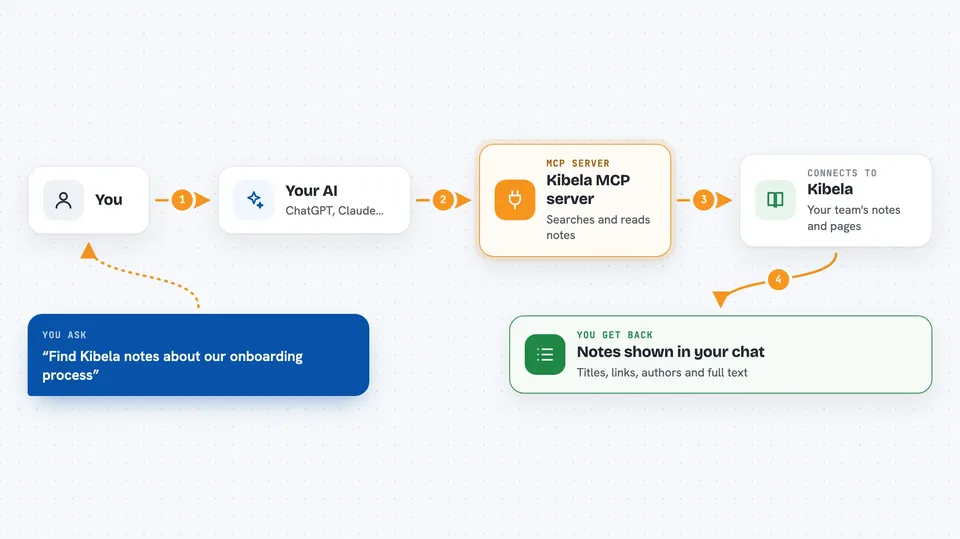
You ask your AI something about Kibela, like find a note or show your latest notes. The AI passes your request to this helper. The helper talks to Kibela using your team name and a personal token. Kibela sends back the notes, comments, or user lists, and the AI shows them to you in the chat. For small actions like liking a note, the helper makes the change in Kibela and tells you it is done.
 Click to zoom
What you can do with it
- Search Kibela notes by keyword, author, folder, or archive status
- Read a full note, including its comments and attachments
- List your latest notes or the notes you viewed recently
- Browse groups, folders, and the notes inside them
- Look up people in your Kibela team
- Like or unlike a note
- Open a note directly from its link or path
Try asking your AI
- “Find Kibela notes about our onboarding process”
- “Show me my latest Kibela notes”
- “Read the note at this link and summarize the comments”
- “Like the note about the Q3 planning meeting”
What it gives back to you
You get back lists of notes with their titles, links, authors, and groups, or the full text of a note with its comments. For actions like liking a note, you get a short confirmation and the updated list of people who liked it. Everything appears right in your chat, so you can keep asking follow-up questions.
Before you start
What you need
- A Kibela account with access to your team
- Your Kibela team name
- A Kibela API token (a kind of password for apps; you create it in your Kibela account settings)
- The Claude desktop app or another AI app that supports MCP servers
Good to know
It can like or unlike notes in your Kibela account, so check before you ask it to change anything.
Install it with your AI
Add Kibela MCP server to your AI, no technical skills needed
You don't install anything by hand. You copy one prompt, paste it into an AI that can work on your computer, and it checks, installs and connects the server for you, asking you when it needs something.
Sign in to get the install prompt
Members get a ready-made prompt that lets the Claude desktop app check Kibela MCP server, install it and connect it for them, step by step. You don't need any technical skills: you copy, paste and answer a few questions. Your connected AI can also find and install any of the 4,609 MCP servers here for you.
Who it's for
Teams that keep their internal knowledge in Kibela and want quick answers without searching by hand.