MCP server · Notes
Google Keep MCP server
by feuerdev
Lets your AI read, create, update, and delete your Google Keep notes for you.
This is a small helper that connects your AI assistant to Google Keep, the notes app from Google. Once it is set up, you can ask your AI to find, write, or tidy up your notes without opening Keep yourself. It is handy if you keep shopping lists, ideas, or reminders in Google Keep and want to manage them by just chatting.
What is an MCP server? The 30-second version
On its own, your AI can only chat with you. An MCP server is a small helper program that gives your AI a new skill or a connection to an app. This one connects your AI to Google Keep, so it can look up your notes or make changes there when you ask. You set it up once, and after that your AI can work with your Keep notes like a helpful assistant.
What this MCP server does
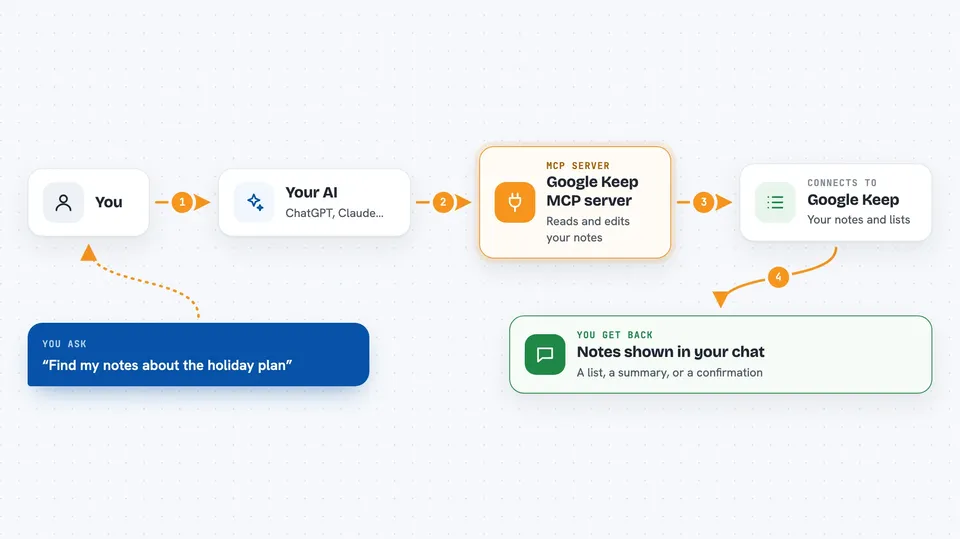
You ask your AI something about your Google Keep notes, like finding a note or adding a new one. The AI passes your request to this helper program. The helper talks to Google Keep using your Google account details. Then it sends the result back, and your AI shows it to you in the chat, as a list of notes, a summary, or a confirmation that something changed.
 Click to zoom
What you can do with it
- Search your notes by words, labels, colors, or dates
- Create new text notes and checklist notes
- Update a note's title, text, or checklist items
- Pin, archive, trash, or restore notes
- Add or remove labels on notes
- Add or remove collaborators on a note
- Download images, drawings, or audio attached to a note
Try asking your AI
- “Find my notes about the holiday plan”
- “Create a shopping list with milk, bread, and eggs”
- “Pin my note called Weekly goals”
- “Show me all notes with the label Work from last month”
What it gives back to you
You get answers in the chat, like a list of matching notes with their titles and text, or a short summary of what it found. When you create or change something, it tells you what it did, for example that a note was created or a list item was checked off. If you download media, it saves the files to a folder on your computer and tells you where.
Before you start
What you need
- A Google account with Google Keep
- Your Google email address
- A Google master token (a special password-like code you get through a browser step; the README explains how)
- An MCP client like Claude Desktop, Cursor, or Cline
Good to know
The master token gives full access to your Google account, so treat it like a password and never share it; also, some actions can delete or change your notes, so check before you confirm.
Install it with your AI
Add Google Keep MCP server to your AI, no technical skills needed
You don't install anything by hand. You copy one prompt, paste it into an AI that can work on your computer, and it checks, installs and connects the server for you, asking you when it needs something.
Sign in to get the install prompt
Members get a ready-made prompt that lets the Claude desktop app check Google Keep MCP server, install it and connect it for them, step by step. You don't need any technical skills: you copy, paste and answer a few questions. Your connected AI can also find and install any of the 4,361 MCP servers here for you.
Who it's for
Anyone who uses Google Keep for notes, lists, and reminders and wants to manage them by chatting with an AI instead of clicking around.