MCP server · Apple, iOS and Mac
Apple Notes MCP server
Let your AI read, write, search and organize your Apple Notes for you.
This is a small helper that connects your AI assistant to the Apple Notes app on your Mac. Once it is set up, you can ask your AI to make a note, find one, change it, or tidy up your folders, and it will actually do it inside Apple Notes. It is handy if you keep meeting notes, to-do lists or ideas in Apple Notes and want to manage them by just talking.
What is an MCP server? The 30-second version
On its own, your AI can only chat with you. An MCP server is a small helper program that gives your AI a new skill or a connection to an app. This one connects your AI to Apple Notes on your Mac, so it can look things up or make changes there when you ask. You stay in your normal chat window; the helper does the work in the background.
What this MCP server does
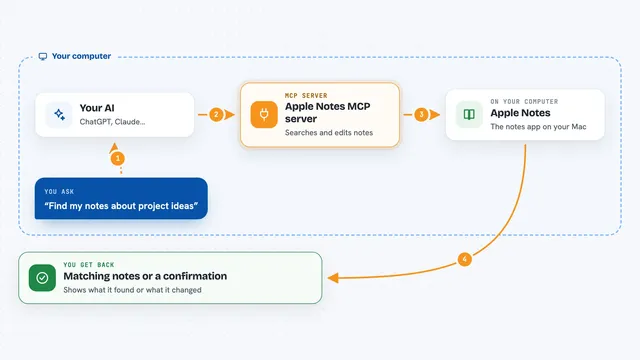
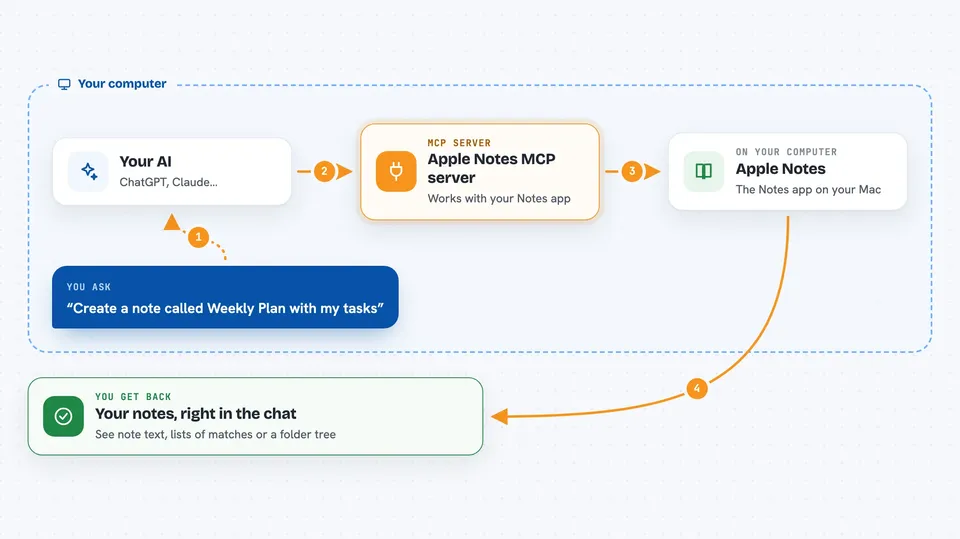
You type a request in your AI chat, like asking it to create a note or find one about a topic. Your AI passes that request to this helper program. The helper talks to the Apple Notes app on your Mac using Apple's own automation system, called AppleScript. Apple Notes then creates, reads, updates or deletes the note, and the helper sends the result back. You see the answer or the confirmation right in the chat.
 Click to zoom
What you can do with it
- Create new notes with headings, bold text, lists and tables
- Read a note by its ID so you can see what is inside
- Update an existing note with new content
- Delete a note you no longer need
- Move notes between folders
- Create, rename, move or delete folders
- Search your notes by keyword and list everything in a folder
Try asking your AI
- “Create a note called Weekly Plan with a heading and a bullet list of my tasks”
- “Find all my notes that mention the word budget”
- “Move my note about the client meeting into the Work folder”
- “Show me the folder structure of my Apple Notes”
What it gives back to you
You get answers back in the chat, like a list of matching notes, the text inside a note, or a folder tree. When it makes a change, it tells you what it did, for example that a note was created or moved. For reading, you see the note content, including any formatting like headings or lists. For searching, you get a list of notes that match your words.
Before you start
What you need
- A Mac (this only works on macOS)
- Python 3.10 or newer
- The Apple Notes app, which comes with your Mac
- An MCP-compatible AI client like Claude Desktop or Continue.dev
- Permission for your terminal or AI app to control Apple Notes, which you turn on in System Settings under Privacy and Security, then Accessibility
Good to know
This helper can change or delete your notes and folders, so it is a good idea to keep a backup and to check what your AI is about to do before you say yes.
Install it with your AI
Add Apple Notes MCP server to your AI, no technical skills needed
You don't install anything by hand. You copy one prompt, paste it into an AI that can work on your computer, and it checks, installs and connects the server for you, asking you when it needs something.
Sign in to get the install prompt
Members get a ready-made prompt that lets the Claude desktop app check Apple Notes MCP server, install it and connect it for them, step by step. You don't need any technical skills: you copy, paste and answer a few questions. Your connected AI can also find and install any of the 4,361 MCP servers here for you.
Who it's for
Anyone who uses a Mac and keeps notes in Apple Notes, especially people who want to organize or search their notes by chatting instead of clicking.