MCP server · Productivity
Eodly MCP server
by layergen
Ask your AI who shipped, who is silent and who is slipping, using your team's Eodly reports.
Eodly is a tool that sends team leads one evening report about their team: who shipped real work, who went quiet, and who is falling behind. This MCP server lets your AI read those reports for you. It is handy if you already use Eodly and want to ask questions in plain words instead of clicking around.
What is an MCP server? The 30-second version
On its own, your AI can only chat with you. An MCP server is a small helper that gives your AI one new skill or one new connection. This helper connects your AI to Eodly, so when you ask about your team's reports, the AI can go and read them for you. Think of it as giving your AI a key to one specific door, and only to look, not to change anything.
What this MCP server does
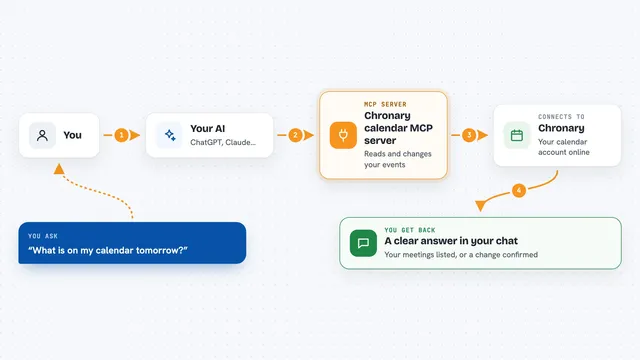
You ask your AI something about your team's end-of-day reports. The AI uses this helper to reach your Eodly workspace. The helper asks Eodly for the report summaries, one full report, or the team roster. Eodly sends the answer back, and the AI shows it to you in the chat. In some apps the report even appears as a small card you can look at.
What you can do with it
- See recent end-of-day report summaries, newest first
- Open one full report to read the details
- Check who shipped, who is silent and who is slipping
- Look up your team roster with names, roles and departments
- Confirm which Eodly workspace your AI is connected to
Try asking your AI
- “Who is slipping this week?”
- “Show me the last three end-of-day reports.”
- “Who shipped something yesterday?”
- “List my team and their roles.”
What it gives back to you
You get answers in the chat, like a short list of recent reports or a summary of who shipped and who did not. If you ask for one report, you get its full content, broken into the same parts Eodly uses. In apps that support the interactive view, the report shows up as a card instead of plain text. Nothing in your workspace is changed, because this connection can only read.
Before you start
What you need
- An Eodly account (the free plan works)
- For the sign-in option: a founder or lead on your team to approve the connection
- For the API key option: an Eodly API key created in the app under Settings, Developer, API keys
Good to know
This connection can only read your Eodly reports and roster, so it cannot change or delete anything, but the reports do contain private team information, so be careful who you share the chat with.
Install it with your AI
Add Eodly MCP server to your AI, no technical skills needed
You don't install anything by hand. You copy one prompt, paste it into an AI that can work on your computer, and it checks, installs and connects the server for you, asking you when it needs something.
Sign in to get the install prompt
Members get a ready-made prompt that lets the Claude desktop app check Eodly MCP server, install it and connect it for them, step by step. You don't need any technical skills: you copy, paste and answer a few questions. Your connected AI can also find and install any of the 4,361 MCP servers here for you.
Who it's for
Founders and team leads who already use Eodly and want quick answers about their team without opening the app.