MCP server · Productivity
Filestash MCP server
Let your AI read and work with files on your remote storage, like SFTP, S3, FTP, WebDAV or Git.
Filestash is a web app that connects to storage you already have, like an FTP server, an S3 bucket, a WebDAV folder or a Git repository. This MCP server is a small add-on that lets your AI assistant reach that same storage and do things with your files. It is handy if your files live somewhere online and you want your AI to help you look through them without downloading everything first.
What is an MCP server? The 30-second version
On its own, your AI can only chat. An MCP server is a small helper program that gives your AI a new skill or a connection to another app. This one connects your AI to Filestash, which in turn connects to your remote storage. So when you ask your AI something about your files, it can go through Filestash and look at the real files on your server.
What this MCP server does
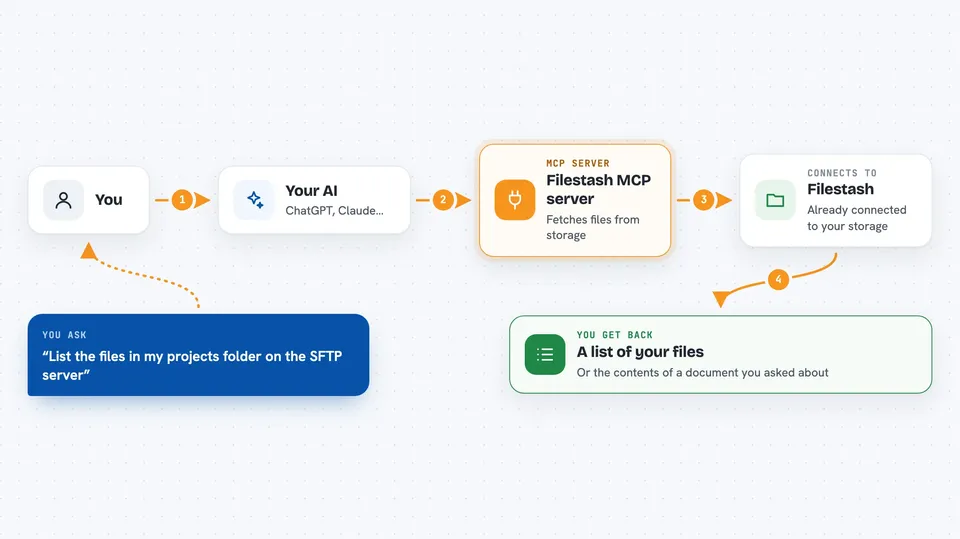
You ask your AI a question about your files, like listing a folder or reading a document. Your AI sends that request to this MCP server. The MCP server talks to Filestash, which is already connected to your storage, such as your SFTP server or S3 bucket. Filestash fetches what is needed and sends it back. Your AI then shows you the answer in the chat, like a list of files or the contents of a document.
 Click to zoom
What you can do with it
- List files and folders on your remote storage
- Read the contents of a file
- Search for files by name or content
- Check details like file size or last modified date
- Work with many kinds of storage, including SFTP, S3, FTP, WebDAV, SMB, NFS and Git
- Use the same storage you already set up in Filestash
Try asking your AI
- “List the files in my projects folder on the SFTP server”
- “Read the readme file in my S3 bucket and summarize it”
- “Find any files with invoice in the name on my WebDAV storage”
- “What is the size of the backup folder on my FTP server”
What it gives back to you
You get answers in the chat, like a list of file names, the text inside a document, or a short summary. If you ask about a specific file, your AI can show you its contents or key details. For search questions, you get a list of matching files. Everything appears as normal chat text, so you can keep asking follow-up questions.
Before you start
What you need
- A Filestash account with at least one storage connection already set up
- The address of the Filestash MCP server (there is a demo at https://demo.filestash.app/sse)
- An AI app that can connect to MCP servers, like Claude Desktop
Good to know
Your AI can read files on your remote storage, so only connect storage you are comfortable letting it look at.
Install it with your AI
Add Filestash MCP server to your AI, no technical skills needed
You don't install anything by hand. You copy one prompt, paste it into an AI that can work on your computer, and it checks, installs and connects the server for you, asking you when it needs something.
Sign in to get the install prompt
Members get a ready-made prompt that lets the Claude desktop app check Filestash MCP server, install it and connect it for them, step by step. You don't need any technical skills: you copy, paste and answer a few questions. Your connected AI can also find and install any of the 4,609 MCP servers here for you.
Who it's for
Anyone who keeps files on a remote server or cloud storage and wants their AI to help read and search them, like IT admins, developers, or office workers with shared drives.