MCP server · Generative art
Gemini Media MCP server
by mordor-forge
Lets your AI make images, videos, voice clips and music through Google's Gemini and Veo models.
This is a small helper program that connects your AI assistant to Google's media-making models. Once it is set up, you can ask your AI in plain words to create a picture, a short video, a spoken audio clip or a piece of music, and it will do the work for you. It is handy for anyone who needs quick visuals, voiceovers or background music without learning a design or video tool.
What is an MCP server? The 30-second version
On its own, your AI can only chat with you. An MCP server is a small helper program that gives your AI a new skill or a connection to another service. This one connects your AI to Google's Gemini and Vertex AI media models, so it can actually make images, videos, speech and music when you ask. You talk to your AI like normal, and the helper quietly does the media work behind the scenes.
What this MCP server does
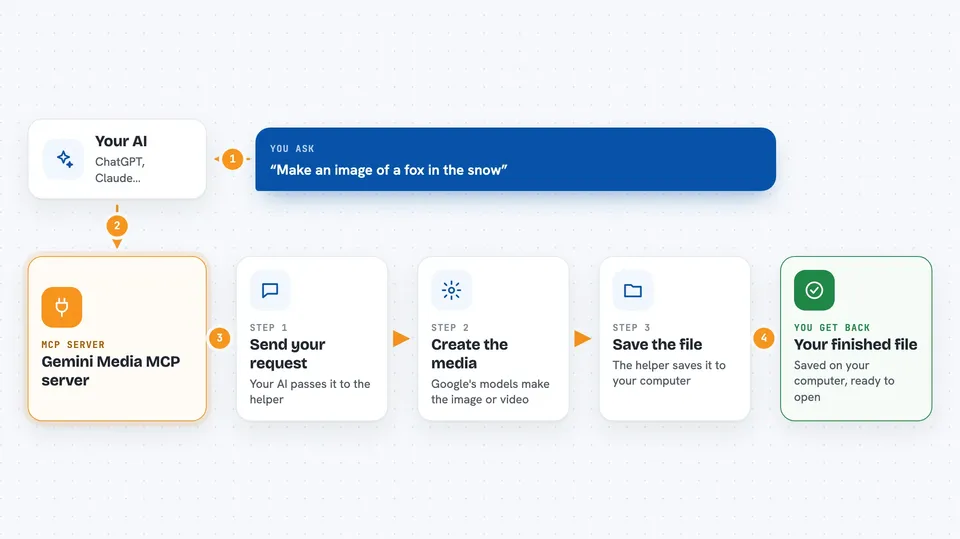
You type a request in your chat, like asking for a picture of a fox in the snow. Your AI passes that request to this helper program, which sends it to Google's Gemini or Vertex AI service. Google's models create the image, video, audio or music and send it back. The helper saves the finished file to a folder on your computer and tells your AI where it is, so you can open it. For videos, which take longer, you get a job number first and can check back until it is ready.
 Click to zoom
What you can do with it
- Create an image from a written description
- Edit an existing image by describing the change you want
- Combine up to three reference images into one new picture
- Turn a written scene into a short video clip
- Animate a still image into a moving video
- Generate spoken audio from text with a chosen voice and language
- Create a short music clip or a full song from a description
Try asking your AI
- “Make a 16:9 image of a cozy reading nook with warm afternoon light”
- “Turn this photo into a video where the clouds slowly drift by”
- “Read this paragraph out loud in a calm female voice”
- “Create a 30 second lo-fi hip-hop track with soft piano and vinyl crackle”
What it gives back to you
For images, audio and music you get a saved file on your computer plus a short note in the chat telling you where it is. For videos, you first get a job number, then you can ask your AI to check progress and download the finished clip when it is done. The chat also shows you details like the model used and the file path, so you can find and open what was made.
Before you start
What you need
- A Google Gemini API key (a kind of password for apps; you get one from Google's AI studio) or a Google Cloud project set up for Vertex AI
- The gemini-media-mcp program installed on your computer
- An MCP client that can run it, such as the Claude desktop app or Claude Code
- A folder where you want the generated files saved (optional, it defaults to one)
Good to know
Making media costs money on your Google account, and video especially adds up fast since it is billed per second, so check the prices before you generate a lot.
Install it with your AI
Add Gemini Media MCP server to your AI, no technical skills needed
You don't install anything by hand. You copy one prompt, paste it into an AI that can work on your computer, and it checks, installs and connects the server for you, asking you when it needs something.
Sign in to get the install prompt
Members get a ready-made prompt that lets the Claude desktop app check Gemini Media MCP server, install it and connect it for them, step by step. You don't need any technical skills: you copy, paste and answer a few questions. Your connected AI can also find and install any of the 4,361 MCP servers here for you.
Who it's for
People who need quick images, videos, voice clips or music for work or side projects but do not want to learn a full design, video or audio tool.