MCP server · Developer tools
GitLab CI/CD MCP server
by mshegolev
Lets your AI check pipelines, jobs, merge requests and files in your GitLab project for you.

This is a small helper that connects your AI assistant to GitLab, the place where your team stores code and runs its automated builds. Once it is set up, you can just ask your AI things like what broke in the last build, and it will go look it up in GitLab for you. It is handy for developers, testers and anyone who keeps an eye on whether the builds are passing.
What is an MCP server? The 30-second version
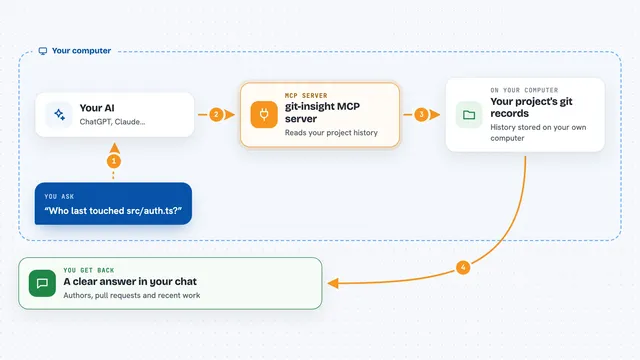
On its own, your AI can only chat with you. An MCP server is a small helper program that gives your AI a new skill, in this case a connection to your GitLab project. You install it once and tell it your GitLab address and a special password. After that, when you ask a question about your project, your AI quietly asks this helper, the helper talks to GitLab, and the answer comes back into your chat.
What this MCP server does
You ask your AI something about your GitLab project, like what failed in the last build. Your AI passes that request to this helper program. The helper logs into GitLab with the address and password you gave it, and asks GitLab for the pipelines, jobs, branches, merge requests or files you mentioned. GitLab sends the answer back, and the helper hands it to your AI, which explains it to you in plain words. For some actions, like creating a merge request, the helper also makes the change in GitLab for you.
 Click to zoom
What you can do with it
- List recent pipelines and see which ones passed or failed
- Read the log of a failed job and filter it down to the lines that matter
- Get a short health summary of your builds over the last 7 or 30 days
- List branches, tags and compare two branches
- List merge requests and read the changes inside one
- Create a merge request or merge an existing one
- Read a file from the repository, like your .gitlab-ci.yml
Try asking your AI
- “What broke in the last pipeline on master?”
- “Show me the health of master for the last 7 days”
- “Create a merge request from feature/foo into master titled feat: foo”
- “Show me the contents of .gitlab-ci.yml from master”
What it gives back to you
You get answers in your chat, not files to download. For example, a list of pipelines with their status and dates, a health line like 96.4% up over the last 7 days, or the few log lines around an error. When you ask it to create or merge something, it tells you what it changed in GitLab.
Before you start
What you need
- Python 3.10 or newer installed on your computer
- The uvx tool (a small runner that fetches and starts the helper for you)
- A GitLab personal access token with api scope (a kind of password you create in your GitLab settings)
- The address of your GitLab and the project path, like my-org/my-repo
Good to know
Some actions change things in GitLab, like starting or cancelling a pipeline, creating or merging a merge request, or deleting a schedule, so check before you say yes.
Install it with your AI
Add GitLab CI/CD MCP server to your AI, no technical skills needed
You don't install anything by hand. You copy one prompt, paste it into an AI that can work on your computer, and it checks, installs and connects the server for you, asking you when it needs something.
Sign in to get the install prompt
Members get a ready-made prompt that lets the Claude desktop app check GitLab CI/CD MCP server, install it and connect it for them, step by step. You don't need any technical skills: you copy, paste and answer a few questions. Your connected AI can also find and install any of the 4,361 MCP servers here for you.
Who it's for
Developers, testers and team leads who use GitLab and want quick answers about builds, branches and merge requests without clicking around the website.