MCP server · Customer communication
WhatsApp Business MCP server
by nakulben
Let your AI create, check and send WhatsApp Business message templates through Meta.
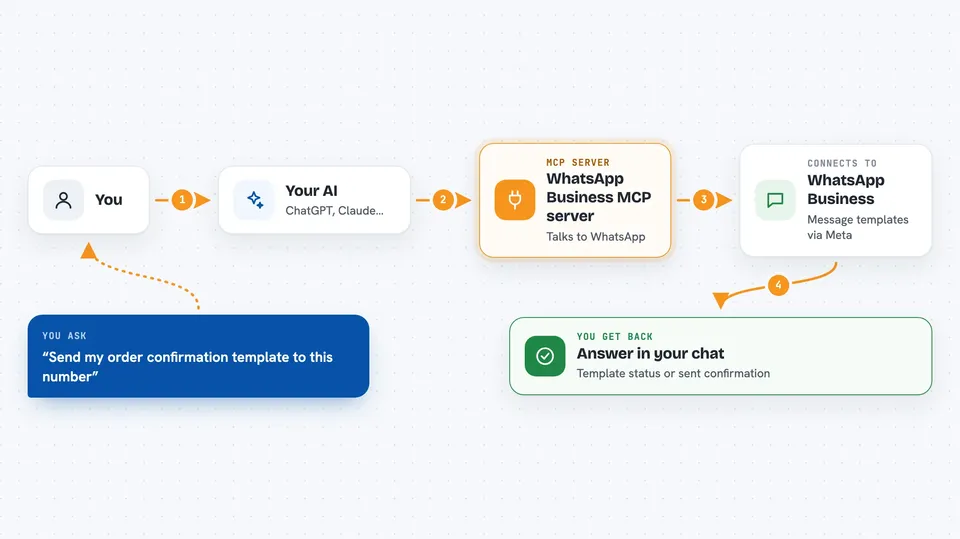
This is a helper that connects your AI assistant to your WhatsApp Business account on Meta. Once it is set up, you can ask your AI to build message templates, look up their status, and send them to phone numbers. It is handy for anyone who runs WhatsApp Business messages for customers and wants to do it by chatting instead of clicking around Meta's website.
What is an MCP server? The 30-second version
On its own, your AI can only chat with you. An MCP server is a small helper program that gives your AI a new skill or a connection to an app or service. This one connects your AI to your WhatsApp Business account on Meta, so the AI can look things up there or do things for you when you ask. You stay in the chat, and the helper does the back-and-forth with Meta behind the scenes.
What this MCP server does
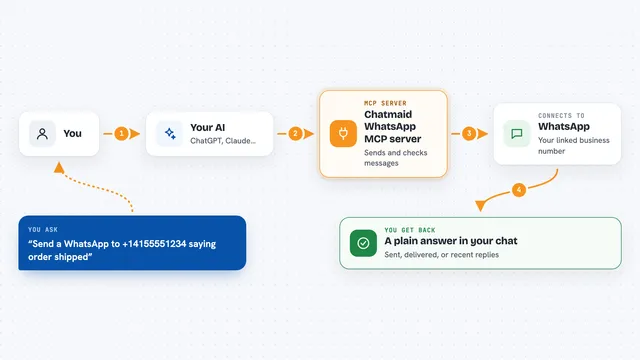
You ask your AI in plain words, for example to create a template or send one to a number. The AI passes your request to this helper program. The helper talks to Meta's WhatsApp Cloud API using the credentials you set up. Meta then creates the template, returns its status, or delivers the message. The helper sends the result back, and your AI shows it to you in the chat.
 Click to zoom
What you can do with it
- Create WhatsApp message templates for Meta to review
- Check a template's approval status
- List your templates and filter by status, category or name
- Get full details of one template by its ID
- Send an approved template to a phone number
- Send the same template to many phone numbers at once
- Delete a template by name
- Validate a template before you submit it
Try asking your AI
- “Create a marketing template called summer_sale with a header image, body text about 50% off, and a Shop Now button”
- “List all my approved templates”
- “Send the order_confirmation template to +919876543210 with order number ORD-456”
- “Check the status of template ID 123456789”
What it gives back to you
You get answers in the chat: lists of templates, the status of one template, full details of a template, or a confirmation that a message was sent. When you create a template, it tells you what Meta said back, such as whether it was accepted for review. When you send, it tells you whether the message went through for each number.
Before you start
What you need
- A Meta WhatsApp Business Account
- A Meta access token with whatsapp_business_messaging and whatsapp_business_management permissions
- Your WhatsApp Business Account ID and phone number ID (found in Meta for Developers under WhatsApp, API Setup)
- Python 3.10 or newer if you run it yourself
Good to know
It can create, delete and send real WhatsApp messages, and sending may cost money on your Meta account, so double-check names and phone numbers before you confirm.
Install it with your AI
Add WhatsApp Business MCP server to your AI, no technical skills needed
You don't install anything by hand. You copy one prompt, paste it into an AI that can work on your computer, and it checks, installs and connects the server for you, asking you when it needs something.
Sign in to get the install prompt
Members get a ready-made prompt that lets the Claude desktop app check WhatsApp Business MCP server, install it and connect it for them, step by step. You don't need any technical skills: you copy, paste and answer a few questions. Your connected AI can also find and install any of the 4,361 MCP servers here for you.
Who it's for
People who manage WhatsApp Business messaging for customers, like marketing or support teams, and small business owners who want to handle templates by chatting with an AI.