MCP server · Analytics
Nile MCP server
by niledatabase
Lets your AI create, list, and query Nile Postgres databases and manage tenants and users for you.
This is a small helper that connects your AI assistant to Nile, a service that runs Postgres databases in the cloud. Once it is set up, you can ask your AI in plain English to create databases, run queries, or look at your tables. It is handy if you work with Nile and want to skip clicking around the dashboard.
What is an MCP server? The 30-second version
On its own, your AI can only chat. An MCP server is a small helper program that gives your AI a new skill or a connection to an app or service. This one connects your AI to Nile, so it can look things up and do things there when you ask. You stay in the chat and the helper does the talking to Nile behind the scenes.
What this MCP server does
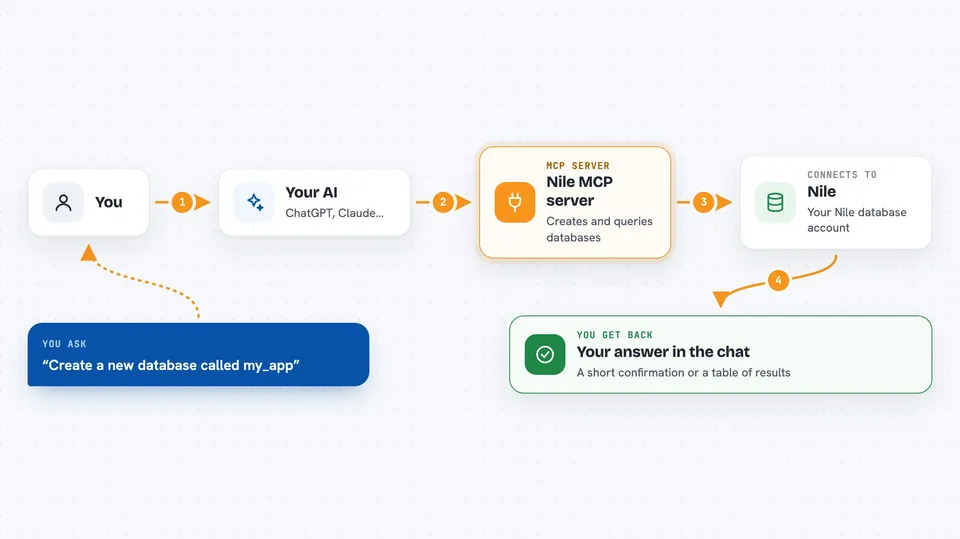
You type a request in plain English, like asking to create a database or run a query. Your AI passes that request to this helper program. The helper then talks to Nile using your Nile account details. Nile does the work, and the helper sends the result back to your AI. You see the answer right in the chat, often as a neat table or a short confirmation.
 Click to zoom
What you can do with it
- Create a new Nile database in a region you pick
- List all your databases and see their details
- Delete a database you no longer need
- Run SQL queries and see the results as a table
- List tables and views in a database
- Show the schema of a table, including columns and keys
- Create, list, and delete tenants in a database
- Create and list database credentials
Try asking your AI
- “Create a new database named my_app in the AWS_US_WEST_2 region”
- “List all my databases”
- “Run this query on my_app: SELECT * FROM users LIMIT 5”
- “Show me the schema for the users table in my_app”
What it gives back to you
You get answers back in the chat, written in plain words. Lists of databases, tenants, or tables come back as simple lists. SQL query results come back as a markdown table with column headers and a row count. When you create or delete something, you get a short confirmation message.
Before you start
What you need
- A Nile account (free to start)
- A Nile API key from your workspace Security page
- Your Nile workspace slug (the short name of your workspace)
- Node.js installed on your computer, plus the Claude Desktop or Cursor app
Good to know
It can create and delete databases, tenants, and credentials, and run SQL that changes your data, so double-check before saying yes to anything destructive.
Install it with your AI
Add Nile MCP server to your AI, no technical skills needed
You don't install anything by hand. You copy one prompt, paste it into an AI that can work on your computer, and it checks, installs and connects the server for you, asking you when it needs something.
Sign in to get the install prompt
Members get a ready-made prompt that lets the Claude desktop app check Nile MCP server, install it and connect it for them, step by step. You don't need any technical skills: you copy, paste and answer a few questions. Your connected AI can also find and install any of the 4,609 MCP servers here for you.
Who it's for
Developers and technical folks who already use Nile and want to manage databases, tenants, and queries from their AI chat instead of the dashboard.