MCP server · Developer tools
Terraform MCP server (tfmcp)
by nwiizo
Lets your AI read, plan, review and apply Terraform changes in your project for you.

This is a helper program called tfmcp that connects your AI assistant to Terraform, the tool many teams use to set up and manage cloud infrastructure. Once it is connected, you can ask your AI in plain words to check your Terraform files, show what a change would do, and even apply it. It is handy for anyone who works with cloud setups but does not want to memorize every Terraform command.
What is an MCP server? The 30-second version
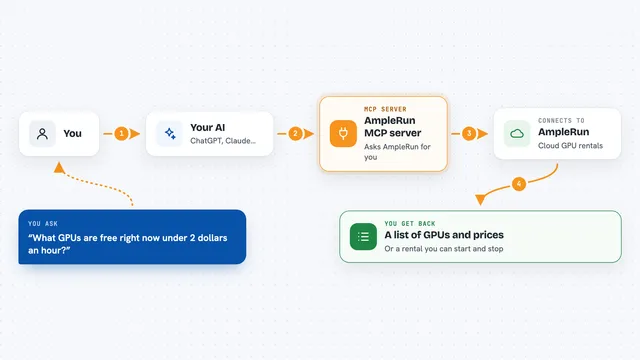
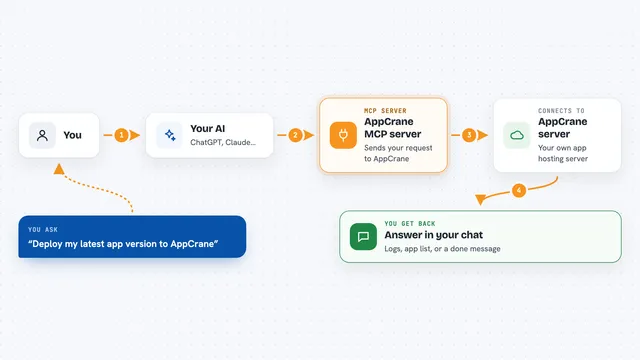
On its own, your AI can only chat. It cannot touch your files or your cloud accounts. An MCP server is a small helper program that gives your AI a new skill, and here that skill is talking to Terraform on your computer. So when you ask your AI to look at your Terraform project, it passes the request to tfmcp, and tfmcp runs the real Terraform commands for you.
What this MCP server does
You ask your AI something like "what would this change do?" The AI sends that request to tfmcp, which runs Terraform inside your project folder. tfmcp reads your configuration, prepares the run, creates a plan, and shows what would be added, changed or removed. It can also review the plan for risks, apply it after you approve, and check the result. Everything happens locally on your machine, using the Terraform you already have installed.
 Click to zoom
What you can do with it
- Read and analyze your Terraform configuration files
- Create a plan and explain what it would change
- Review a plan for risks, blockers and destructive changes
- Apply a reviewed plan and check the result
- Inspect the current state and look for drift
- Format your Terraform code and show a dependency graph
- Look up providers, modules and policies in the Terraform registry
Try asking your AI
- “Look at my Terraform project in ~/work/infra and tell me what it sets up”
- “Create a plan for this project and explain what would change”
- “Review the plan and warn me about anything risky or destructive”
- “Apply the plan we just reviewed and confirm it worked”
What it gives back to you
You get back plain answers in the chat: a summary of your configuration, a list of what a plan would add, change or remove, and any warnings or blockers. For a review, it gives you a risk assessment with recommendations. After an apply, it tells you whether it succeeded, the exit code, and whether the state was verified.
Before you start
What you need
- Terraform installed on your computer (version 1.15.8 or newer)
- Rust 1.88 or newer if you install from source
- An AI client that supports MCP, like Claude Desktop
- Your Terraform project folder on the same machine
Good to know
It can change or destroy real cloud infrastructure and apply plans without further prompts, so always review the plan before you let it apply anything.
Install it with your AI
Add Terraform MCP server (tfmcp) to your AI, no technical skills needed
You don't install anything by hand. You copy one prompt, paste it into an AI that can work on your computer, and it checks, installs and connects the server for you, asking you when it needs something.
Sign in to get the install prompt
Members get a ready-made prompt that lets the Claude desktop app check Terraform MCP server (tfmcp), install it and connect it for them, step by step. You don't need any technical skills: you copy, paste and answer a few questions. Your connected AI can also find and install any of the 4,609 MCP servers here for you.
Who it's for
Developers, DevOps engineers and cloud teams who already use Terraform and want their AI assistant to help read, plan and apply changes.