MCP server · Analytics
MCPR MCP server
by phisanti
Lets your AI run R code in a live session, keep results between steps, and make plots for you.
MCPR is a helper that connects your AI assistant to R, the tool many people use for statistics and data analysis. Instead of running each line on its own and forgetting everything in between, your AI gets one R session that stays open, so it can build on what it did before. It is handy for anyone doing data work in R who wants the AI to actually run the code and show the results.
What is an MCP server? The 30-second version
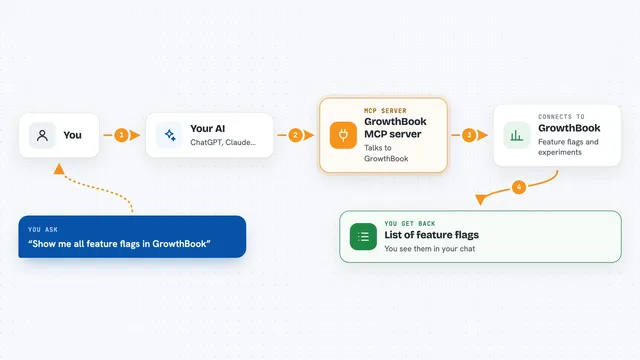
On its own, your AI can only chat. It cannot open R, run a line of code, or see what happened. An MCP server is a small helper program that gives your AI a new skill, and here that skill is talking to a live R session on your computer. Once it is set up, you ask in plain words and the AI uses this helper to run R code, keep the results, and show you plots.
What this MCP server does
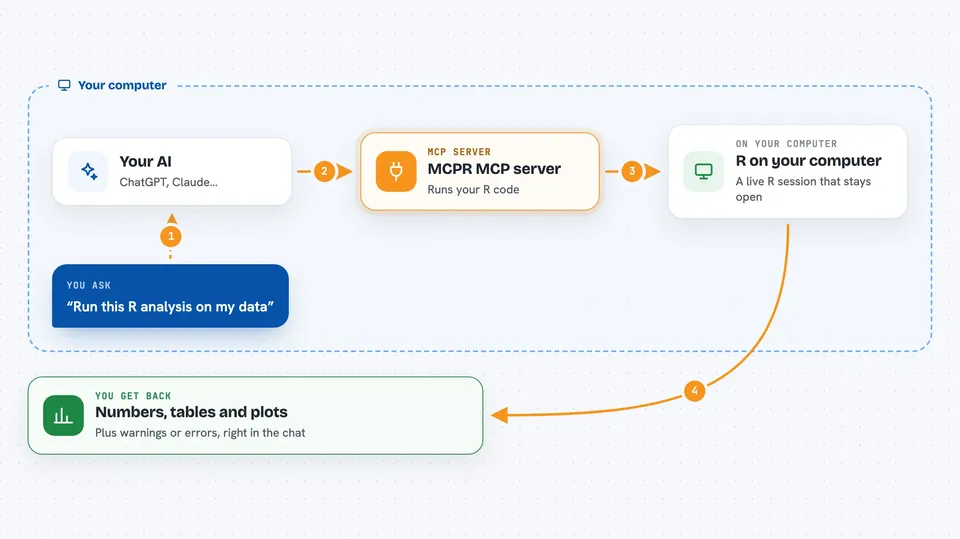
You ask your AI something like run this analysis in R or make a plot of this data. The AI sends the R code to MCPR, which runs it in an R session that stays alive between requests. Because the session is persistent, objects you created earlier are still there when the next step runs. The AI then reads back the results, warnings, or errors and tells you what happened. If you want, it can also attach to an R console you already have open, so you and the AI work in the same session.
 Click to zoom
What you can do with it
- Run R code and see the output, warnings, and errors
- Keep variables and data frames alive between steps
- Create plots and show them to you in the chat
- Render a plot for the AI to look at and describe
- List your R objects with quick summaries
- Attach to an R console you already have open
- Check which R packages are installed
Try asking your AI
- “Load mtcars and show me the average miles per gallon by number of cylinders”
- “Run a linear regression of mpg on weight and horsepower, then summarise the model”
- “Make a scatter plot of weight versus mpg with a trend line and show it to me”
- “List the objects in the R session and tell me what each one is”
What it gives back to you
You get back the results of your R code as text in the chat: numbers, tables, model summaries, warnings, or error messages. Plots can appear as an image in the chat, or be shown in your R graphics window if you asked for that. When the AI inspects the session, it gives you a short list of objects with their types and sizes. Everything stays in the same session, so the next request can build on it.
Before you start
What you need
- R installed on your computer
- The MCPR package installed from GitHub
- An AI app that supports MCP, such as Claude Desktop, Gemini, Copilot, or Codex
Good to know
The AI runs real R code on your computer, so it can change or delete files and objects in the session it is attached to.
Install it with your AI
Add MCPR MCP server to your AI, no technical skills needed
You don't install anything by hand. You copy one prompt, paste it into an AI that can work on your computer, and it checks, installs and connects the server for you, asking you when it needs something.
Sign in to get the install prompt
Members get a ready-made prompt that lets the Claude desktop app check MCPR MCP server, install it and connect it for them, step by step. You don't need any technical skills: you copy, paste and answer a few questions. Your connected AI can also find and install any of the 4,361 MCP servers here for you.
Who it's for
Data analysts, statisticians, students, and researchers who work in R and want an AI to run code and keep the session going.