MCP server · Productivity
PipesHub MCP server
by pipeshub-ai
Lets your AI search across your work apps like Google Workspace, Microsoft 365, Slack and Jira, and answer with the sources it found.
PipesHub is a search tool for your company's apps. This MCP server connects your AI assistant to PipesHub, so it can look things up in your connected work tools and answer questions using what it finds. It is handy if your team keeps information spread across email, chat, documents and tickets.
What is an MCP server? The 30-second version
On its own, your AI can only chat with you using what it already knows. An MCP server is a small helper that gives your AI one extra skill or connection. This one connects your AI to PipesHub, which in turn is connected to your business apps. So when you ask a question, your AI can go and look things up in PipesHub and bring the answer back to you.
What this MCP server does
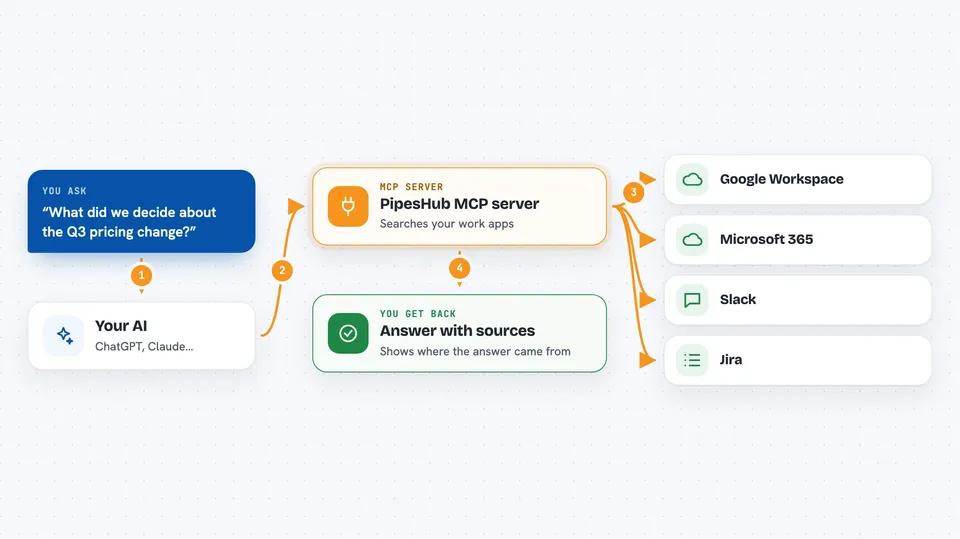
You ask your AI a question in plain words, like where a certain project decision was made. Your AI passes that question to this helper, which talks to your PipesHub instance. PipesHub searches across the apps your company has connected, such as Google Workspace, Microsoft 365, Slack and Jira, and only shows results you are allowed to see. Your AI then reads those results and writes an answer for you, usually with the sources it used.
 Click to zoom
What you can do with it
- Search across your connected work apps from inside your AI chat
- Ask questions and get answers that cite the documents or messages they came from
- Open the full content of a record the search found
- Download a file that a search result points to
- Browse the people and teams in your PipesHub directory
- See which apps and sources are connected to PipesHub
- Run one of your saved PipesHub agents from the chat
Try asking your AI
- “What did we decide about the Q3 pricing change, and where was it discussed?”
- “Find the latest onboarding checklist for new engineers.”
- “Who in the company works on the payments team?”
- “Search Slack and Jira for anything about the login bug from last month.”
What it gives back to you
You get a written answer in your chat, usually with links or names of the documents, messages or tickets it used. If you asked for a file, your AI can hand you the file itself. If you asked about people or sources, you get a list. Nothing in your apps is changed unless you use a tool that is meant to change something.
Before you start
What you need
- A running PipesHub instance, either your company's or the local demo
- An OAuth app created inside PipesHub by an admin, which gives you a client ID and client secret
- An MCP client that supports remote servers, such as Cursor, Claude Code, Gemini CLI, Codex CLI or Claude.ai on the web
Good to know
It can read company content that you have permission to see, so treat answers and downloaded files as private to your organisation, and be careful when sharing them outside it.
Install it with your AI
Add PipesHub MCP server to your AI, no technical skills needed
You don't install anything by hand. You copy one prompt, paste it into an AI that can work on your computer, and it checks, installs and connects the server for you, asking you when it needs something.
Sign in to get the install prompt
Members get a ready-made prompt that lets the Claude desktop app check PipesHub MCP server, install it and connect it for them, step by step. You don't need any technical skills: you copy, paste and answer a few questions. Your connected AI can also find and install any of the 4,361 MCP servers here for you.
Who it's for
Anyone whose company uses PipesHub and who wants to search company knowledge from inside their AI assistant, especially support, sales, engineering and operations staff.