MCP server · Developer tools
pty-mcp terminal server
by raychao-oao
Let your AI open real terminal sessions on your computer, servers, and network devices, and keep them running.
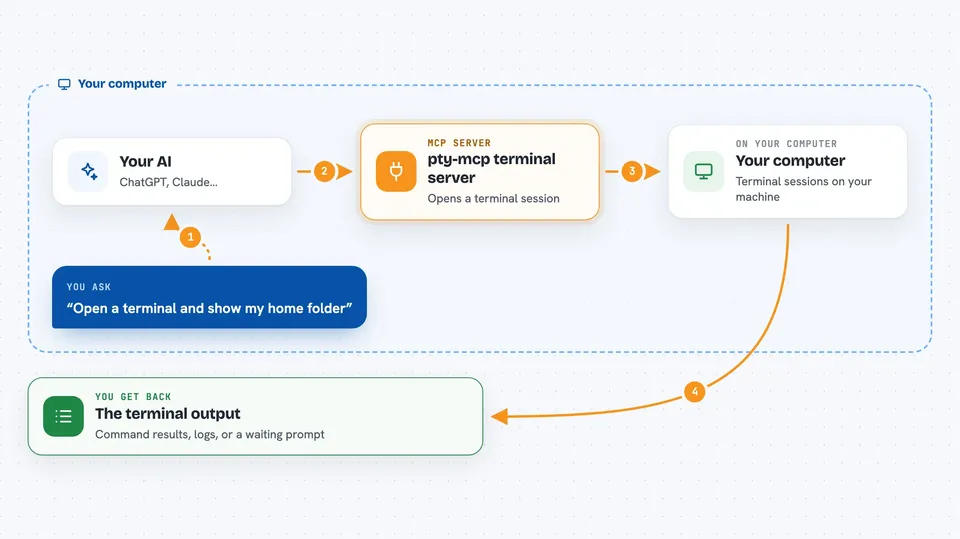
pty-mcp is a small helper program that gives your AI assistant real, interactive terminal sessions. Instead of just chatting, your AI can open a shell on your own machine, log into a server over SSH, or talk to a device through a serial cable. It is made for people who manage servers and network gear, like sysadmins and network engineers.
What is an MCP server? The 30-second version
On its own, your AI can only chat with you. An MCP server is a small helper program that gives your AI a new skill or a connection to something else. This one connects your AI to real terminals: your local shell, remote servers over SSH, and serial ports. So when you ask it to check a server or watch a log, it can actually go and do that for you.
What this MCP server does
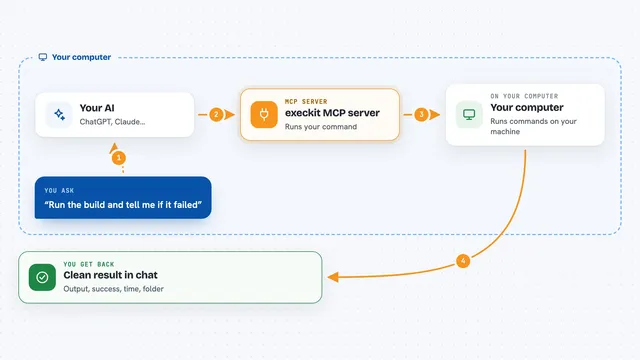
You ask your AI to run something, like checking a server or watching a log file. The AI uses this helper to open a terminal session, either on your own computer, on a remote server, or on a device plugged in with a cable. It then types the command for you and reads what comes back. You can also tell it to wait until a certain word appears in the output, like an error or a login prompt, instead of checking over and over. When you are done, the session can be closed, or kept running in the background for later.
 Click to zoom
What you can do with it
- Open an interactive shell on your own computer
- Log into a remote server over SSH
- Connect to a router or switch through a serial cable
- Watch a log file and tell you when an error shows up
- Wait until a server comes back online after a reboot
- Keep a long task running even if you close your AI app
- Send control keys like Ctrl+C or the arrow keys
Try asking your AI
- “Open a local terminal and show me the files in my home folder”
- “SSH into myserver as admin and run top, then stop it”
- “Watch /var/log/app.log and tell me when an ERROR line appears”
- “Reboot myserver and let me know when it responds to ping again”
What it gives back to you
You get back the text that the terminal printed, like command output, log lines, or a prompt waiting for input. When you ask it to wait for a pattern, it returns the matching line plus a few lines around it. For long tasks it can tell you the session is still running and let you check on it later. If it asks you for a password, you type it into a small popup window and the AI only sees that it worked, not the password itself.
Before you start
What you need
- A Mac, Linux machine, or Windows with WSL2
- The Claude Code app (or another AI app that supports MCP servers)
- For persistent remote sessions, the ai-tmux helper installed on your server
Good to know
This gives your AI real control over your computer and servers, so it can run commands, change settings, or delete things, and you should only connect it to machines you are allowed to work on.
Install it with your AI
Add pty-mcp terminal server to your AI, no technical skills needed
You don't install anything by hand. You copy one prompt, paste it into an AI that can work on your computer, and it checks, installs and connects the server for you, asking you when it needs something.
Sign in to get the install prompt
Members get a ready-made prompt that lets the Claude desktop app check pty-mcp terminal server, install it and connect it for them, step by step. You don't need any technical skills: you copy, paste and answer a few questions. Your connected AI can also find and install any of the 4,361 MCP servers here for you.
Who it's for
System administrators, network engineers, and anyone who manages servers or hardware devices and wants AI help with the real work.