MCP server · Video editing
DaVinci Resolve MCP server
by samuelgursky
Let your AI assistant open projects, build timelines, set up renders and check your media inside DaVinci Resolve.

This is a helper that connects your AI assistant to DaVinci Resolve, the video editing program. Once it is set up, you can ask your AI in plain words to do things inside Resolve, like open a project or build a timeline. It is handy for editors, colorists and anyone who spends their day in Resolve and wants less clicking.
What is an MCP server? The 30-second version
On its own, your AI can only chat. It cannot see or touch the programs on your computer. An MCP server is a small helper program that gives your AI one new skill, in this case a connection to DaVinci Resolve. So when you ask your AI to do something in Resolve, it passes the request to this helper, and the helper does it in your open Resolve session.
What this MCP server does
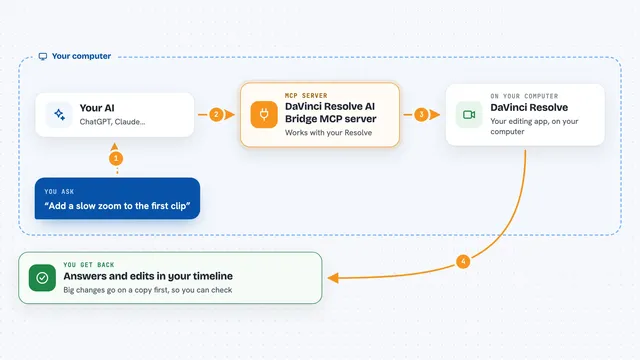
You ask your AI something like open my project called My Film. Your AI sends that request to this helper. The helper talks to DaVinci Resolve on your computer using Resolve's own scripting connection. Resolve does the work, and the helper sends the result back to your AI, which tells you what happened in the chat. It can also read things back, like listing your projects or reporting what is on a timeline.
 Click to zoom
What you can do with it
- List your projects and open one by name
- Create a timeline from clips in a bin
- Check a timeline for gaps, overlaps and missing media
- Set up a render plan and queue the job
- Copy review markers and export a review report
- Read audio channel info and subtitle support for a clip
- Organize imported media into bins and tidy clip metadata
Try asking your AI
- “List all my projects and open the one called My Film”
- “Create a timeline called Assembly Cut from all clips in the current bin”
- “Probe this timeline for gaps, overlaps and missing media”
- “Build a ProRes 422 HQ render plan, check the settings and queue the job”
What it gives back to you
You get answers in the chat, in plain words. That might be a list of projects, a summary of what is on a timeline, a report of problems found, or a confirmation that a job was queued. For some tasks you also get a report or a file, like a review report or a temp LUT.
Before you start
What you need
- DaVinci Resolve Studio installed (the free edition works only through an in-app bridge, with limits)
- In Resolve, set Preferences > General > External scripting using to Local
- Node.js installed, so the npx setup command can run
- Python installed, which the installer sets up for you
Good to know
This helper can change your projects, timelines and renders, so save your work and try things on a copy first.
Install it with your AI
Add DaVinci Resolve MCP server to your AI, no technical skills needed
You don't install anything by hand. You copy one prompt, paste it into an AI that can work on your computer, and it checks, installs and connects the server for you, asking you when it needs something.
Sign in to get the install prompt
Members get a ready-made prompt that lets the Claude desktop app check DaVinci Resolve MCP server, install it and connect it for them, step by step. You don't need any technical skills: you copy, paste and answer a few questions. Your connected AI can also find and install any of the 4,609 MCP servers here for you.
Who it's for
Video editors, colorists and post-production people who already work in DaVinci Resolve and want to ask their AI to handle routine tasks.