MCP server · Video editing
DaVinci Resolve AI Bridge MCP server
by flamexnreal
Let your AI assistant inspect and edit the timeline open in DaVinci Resolve, on a duplicate first.
This is a small helper that connects your AI assistant to the project you have open in DaVinci Resolve, both the Free and Studio versions. You can ask your AI to look at your timeline, place media, animate a zoom, or adjust color, and it does the work inside Resolve. It is handy for editors who already use an AI assistant and want it to help with the actual edit instead of just chatting.
What is an MCP server? The 30-second version
On its own, your AI can only chat. An MCP server is a small helper program that gives your AI a new skill or a connection to an app. This one connects your AI to DaVinci Resolve, so it can look things up and make changes in the project you have open. You start it from a menu inside Resolve, and then your AI can use it when you ask.
What this MCP server does
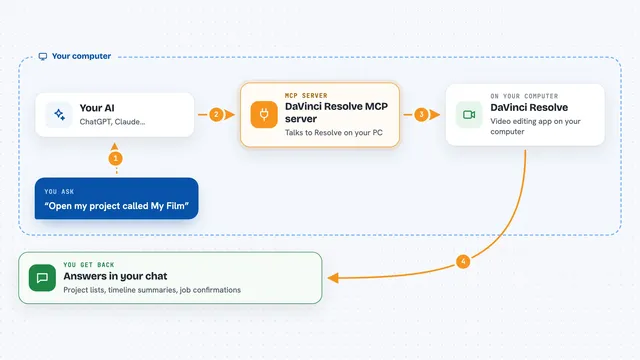
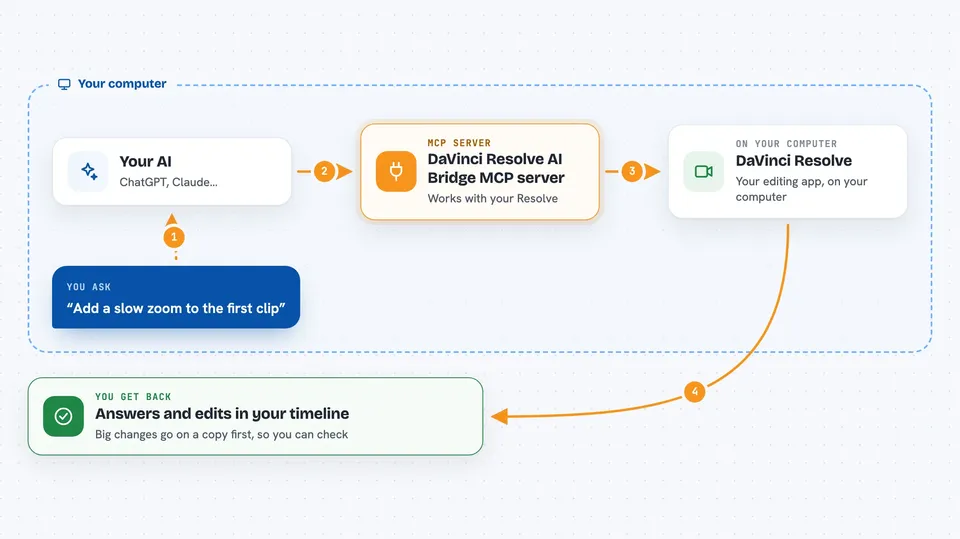
You ask your AI something about your edit, like what clips are on the timeline or to add a zoom. The AI sends that request to this helper, which runs on your own computer. The helper talks to DaVinci Resolve through Resolve's own scripting, and Resolve does the work. Then you get an answer or a change back, shown in your chat or visible in your timeline. For bigger changes, it can make a copy of the timeline first so you can review before touching the original.
 Click to zoom
What you can do with it
- Inspect your timeline, clips, tracks, markers and project settings
- Import media and place images or overlays on the timeline
- Animate a zoom or set a clip transform
- Read and adjust supported color grades and saturation
- Try edits on a duplicate timeline and compare it with the original
- Check source audio for silence and activity, and mark candidate cuts
- Queue a render using one of your existing render presets
Try asking your AI
- “Call resolve_status, then bridge_capabilities and timeline_overview.”
- “Make a duplicate of my current timeline and add a slow zoom on the first clip.”
- “Check the timeline for missing media and gaps, and tell me what you find.”
- “Look at the source audio on the dialogue clip and mark where the silence is.”
What it gives back to you
You get answers in your chat: lists of clips, tracks and markers, summaries of timeline health, and notes about what changed. It can also return a still frame from the timeline as an image, and audio details like silence intervals or a trimmed WAV file. When it makes an edit, it tells you what it did, and you can see the result in Resolve. For reviews, it can show a comparison between two timelines.
Before you start
What you need
- DaVinci Resolve installed, Free or Studio
- Python 3.10 or newer
- An MCP-compatible AI assistant like Claude, Codex or Cursor
- A project open in Resolve, and a timeline open for timeline tools
Good to know
It can change, delete or render things in your project, so try big edits on a duplicate timeline first and keep your own backups.
Install it with your AI
Add DaVinci Resolve AI Bridge MCP server to your AI, no technical skills needed
You don't install anything by hand. You copy one prompt, paste it into an AI that can work on your computer, and it checks, installs and connects the server for you, asking you when it needs something.
Sign in to get the install prompt
Members get a ready-made prompt that lets the Claude desktop app check DaVinci Resolve AI Bridge MCP server, install it and connect it for them, step by step. You don't need any technical skills: you copy, paste and answer a few questions. Your connected AI can also find and install any of the 4,609 MCP servers here for you.
Who it's for
Video editors who use DaVinci Resolve and want their AI assistant to help with inspecting and editing timelines.