MCP server · Developer tools
Claude Code MCP server
by SDGLBL
Let your AI read, search, edit and run things inside your project files, right from the chat.
This is a helper that gives your AI assistant the ability to work on the files in a project folder on your own computer. It can read files, search through them, make edits and run commands, all after asking your permission. It is handy for developers, analysts and anyone who keeps a folder of code or text files and wants the AI to help directly instead of copying things back and forth.
What is an MCP server? The 30-second version
On its own, your AI can only chat with you. An MCP server is a small helper program that gives your AI a new skill or a connection to something, and here that something is a folder of files on your computer. Once this helper is running, your AI can look inside that folder, search it, change files and run commands when you ask. You stay in control because it asks before it changes anything.
What this MCP server does
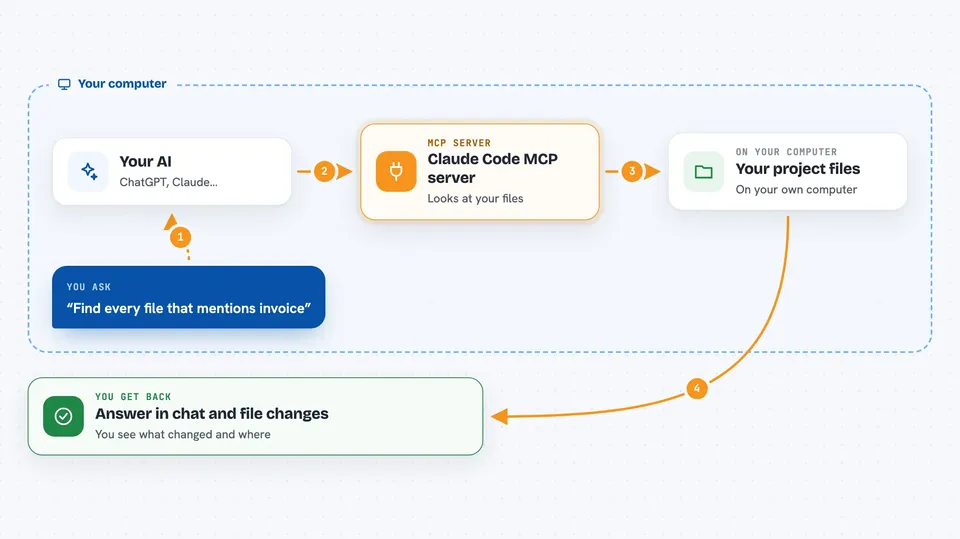
You ask your AI something about your project, like finding where a word appears or fixing a small mistake in a file. The AI uses this helper to look at your files, search through them and read the parts it needs. The helper then makes the change or runs the command, after showing you what it wants to do and getting your OK. When it is done, you get a short answer in the chat, plus the actual change in your files.
 Click to zoom
What you can do with it
- Read the contents of a file, with line numbers
- Search your whole project for a word or pattern
- Create new files or overwrite existing ones
- Make small, targeted edits to a file
- Run a command or script in your project folder
- Read and edit Jupyter notebook cells
- Keep a simple to-do list while working on a task
Try asking your AI
- “Find every file in this project that mentions the word invoice and show me the lines.”
- “Add a comment at the top of report.py explaining what the script does.”
- “Show me the folder structure of this project as a tree.”
- “Run the tests and tell me which ones failed.”
What it gives back to you
You get answers in the chat, like a list of matching lines, a summary of a file, or the output of a command you asked it to run. When it edits or creates a file, you see what changed and where. For notebooks, it can show the code and outputs from the cells. Everything happens in your project folder, so you can open the file yourself and check.
Before you start
What you need
- A computer where you can install and run a small program
- An MCP client, such as the Claude desktop app, that can connect to local servers
- A project folder you are happy for the AI to read and change
- Python and the setup steps from the project's INSTALL.md
Good to know
This helper can change and delete files and run commands on your computer, so only point it at a folder you are willing to let it touch and read each permission prompt before you say yes.
Install it with your AI
Add Claude Code MCP server to your AI, no technical skills needed
You don't install anything by hand. You copy one prompt, paste it into an AI that can work on your computer, and it checks, installs and connects the server for you, asking you when it needs something.
Sign in to get the install prompt
Members get a ready-made prompt that lets the Claude desktop app check Claude Code MCP server, install it and connect it for them, step by step. You don't need any technical skills: you copy, paste and answer a few questions. Your connected AI can also find and install any of the 4,609 MCP servers here for you.
Who it's for
Developers, data analysts and anyone who works with a folder of code or text files and wants their AI to help directly inside it.