MCP server · Meetings
SeaMeet MCP server
by seameet-ai
Lets your AI record meetings, read transcripts and summaries, and transcribe audio or video files for you.

SeaMeet is a meeting recorder and transcription service. This MCP server connects your AI assistant to SeaMeet, so you can ask it to start a recording, pull up a transcript, or transcribe a file you already have. It is handy if you sit in a lot of meetings and want your notes and action items without digging through apps yourself.
What is an MCP server? The 30-second version
On its own, your AI can only chat with you. An MCP server is a small helper program that gives your AI a new skill or a connection to an app. This one connects your AI to SeaMeet, so it can look up your recordings, read your transcripts and summaries, and even control the recorder when the SeaMeet desktop app is running. You just ask in plain words, and the helper does the clicking behind the scenes.
What this MCP server does
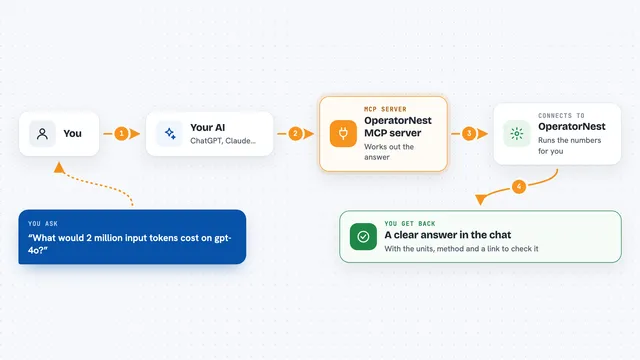
You ask your AI something like what were the action items from my last meeting. The AI passes that request to this helper program. The helper talks to SeaMeet, either to the desktop app on your computer or to your synced library online. SeaMeet sends back the transcript, summary, action items, or whatever you asked for, and the AI shows it to you in the chat. If you ask it to record or transcribe, it does that too and tells you when the result is ready.
 Click to zoom
What you can do with it
- Start, pause, resume, and stop a meeting recording
- Read the live transcript while a recording is still going
- List your recordings and take screenshots through SeaMeet
- Fetch summaries, transcripts, chapters, action items, and key decisions
- Search across your meeting text for a word or phrase
- Transcribe an audio or video file from your computer
- Manage webhooks that notify another service when results are ready
Try asking your AI
- “Record my screen for 2 minutes, then give me the transcript.”
- “What were the action items from my last meeting?”
- “Take a screenshot and describe what's on it.”
- “Transcribe ~/Downloads/interview.m4a”
What it gives back to you
You get answers in the chat: lists of recordings, summaries, speaker-labeled transcripts, action items, key decisions, and chapters. It can also hand back a temporary link to stream or download a recording's media, or a storage usage number. When it starts a recording or a transcription, it tells you the status and where to check back. Changes it makes, like renaming a file or creating a webhook, are confirmed in the reply.
Before you start
What you need
- Node.js 18 or newer
- For recording and local files: the SeaMeet desktop app installed and running (version 3.2.0 or newer)
- For cloud features: a SeaMeet account; the first cloud request walks you through a one-time sign-in, no key to copy
Good to know
It can start and stop recordings, rename files, create or delete webhooks, and use your transcription allowance, so check with your AI before letting it make changes or upload large files.
Install it with your AI
Add SeaMeet MCP server to your AI, no technical skills needed
You don't install anything by hand. You copy one prompt, paste it into an AI that can work on your computer, and it checks, installs and connects the server for you, asking you when it needs something.
Sign in to get the install prompt
Members get a ready-made prompt that lets the Claude desktop app check SeaMeet MCP server, install it and connect it for them, step by step. You don't need any technical skills: you copy, paste and answer a few questions. Your connected AI can also find and install any of the 4,361 MCP servers here for you.
Who it's for
Anyone who records or attends a lot of meetings and wants their AI to pull out notes, transcripts, and action items without switching apps.