
MCP server · Developer tools
rlg MCP server
Let your AI read log files, filter events by level or component, and summarize errors for you.
This is a small helper that lets your AI read log files written by programs that use the rlg logging library. Instead of scrolling through a huge log file yourself, you can just ask your AI what went wrong. It is handy for anyone who has to look at logs when something breaks, like people on call or support engineers.
What is an MCP server? The 30-second version
On its own, your AI can only chat. It cannot open files on your computer or look at your logs. An MCP server is a small helper program that gives your AI a new skill. This one gives your AI the skill of reading rlg log files, so it can look things up there for you when you ask.
What this MCP server does
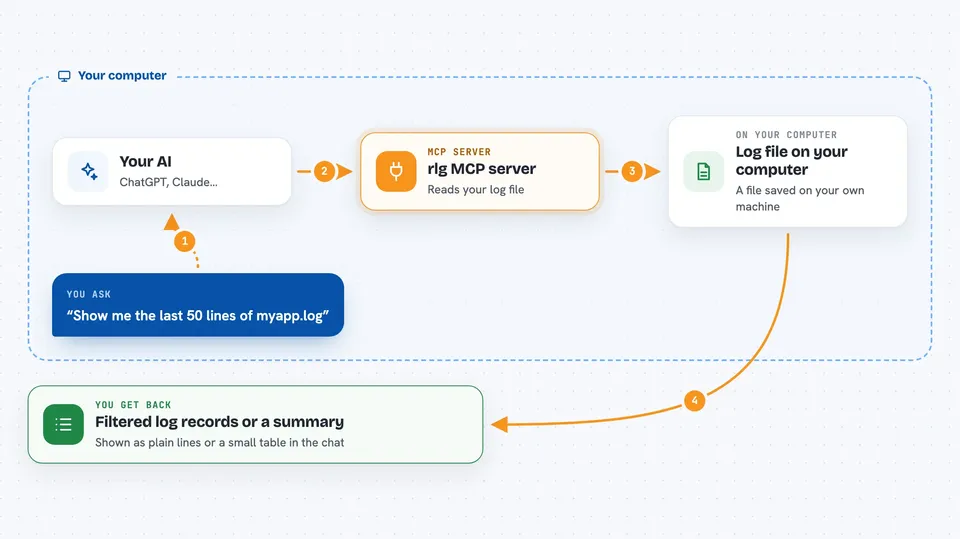
You point your AI at a log file on your computer. Your AI asks this helper to open that file. The helper reads the records inside, picks out the ones you asked about, and hands them back. Your AI then shows you the results in the chat, as a list of events or a small summary of errors.
 Click to zoom
What you can do with it
- Show the last few log records from a file
- Filter records by level, like only errors or warnings
- Filter records by which part of the program wrote them
- Count how many errors each component produced
- Render records in a format you choose
- Get a quick summary of what went wrong
Try asking your AI
- “Show me the last 50 lines of /var/log/myapp.log”
- “Which components had the most errors in myapp.log?”
- “Show only warning and error records from the payments component”
- “Summarize the errors in today's log file”
What it gives back to you
You get back a list of log records, shown as plain lines in the chat, or a small table that counts errors per component. The records are already filtered, so you only see what you asked for. If you asked for a summary, you get numbers instead of lines.
Before you start
What you need
- A log file written by a program that uses rlg
- The rlg-mcp server installed (the README shows a cargo install command)
- An AI app that supports MCP servers, like Claude Desktop or Cursor
Good to know
It can read any log file you point it at, so avoid pointing it at files with private or sensitive information unless you are fine with your AI seeing them.
Install it with your AI
Add rlg MCP server to your AI, no technical skills needed
You don't install anything by hand. You copy one prompt, paste it into an AI that can work on your computer, and it checks, installs and connects the server for you, asking you when it needs something.
Sign in to get the install prompt
Members get a ready-made prompt that lets the Claude desktop app check rlg MCP server, install it and connect it for them, step by step. You don't need any technical skills: you copy, paste and answer a few questions. Your connected AI can also find and install any of the 4,361 MCP servers here for you.
Who it's for
People who look at logs when something breaks, like on-call engineers, support staff, and developers debugging a service.



