MCP server · Notes
TokenMizer MCP server
Your AI remembers decisions, tasks and files from past sessions and picks up where you left off.

TokenMizer is a small helper that sits between your AI and the app you use it in, and quietly keeps notes about what you worked on. When a chat gets too long and the AI starts forgetting things, TokenMizer hands back a short recap so you do not have to explain your project all over again. It is handy for anyone who works on the same project across many chat sessions.
What is an MCP server? The 30-second version
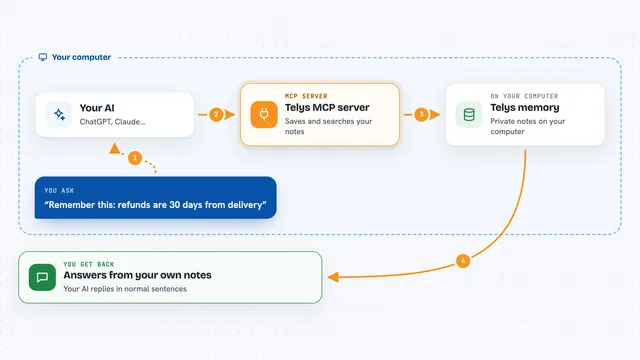
On its own, your AI can only chat with you in the moment. An MCP server is a small helper program that gives your AI a new skill or a connection to something else. This one connects your AI to TokenMizer, a local memory tool that keeps track of your sessions. Once connected, your AI can save a session, load it back later, and look up why a decision was made.
What this MCP server does
You ask your AI to save or resume a session, and the AI uses this helper to do it. The helper talks to TokenMizer, which stores your decisions, tasks, files and errors as connected notes in a local file on your computer. When you come back later, it pulls out the important parts and gives them to your AI in a few hundred words. You get a short recap in the chat instead of a long history, and you can ask why something was decided.
 Click to zoom
What you can do with it
- Save a session so it can be picked up later
- Load a saved session back into a new chat
- See how many notes and connections a session has
- Ask why a decision was made and get the reason
- Digest a large file so it fits in the chat
- Check how many tokens you have saved
What it gives back to you
You get short, plain answers in the chat. A resume comes back as a few lines listing your goal, what you are working on, what is done, what was decided, and what changed. A why-question returns the chain of reasons behind a decision. A file analysis returns a summary of the file instead of the whole thing.
Before you start
What you need
- Python installed on your computer
- TokenMizer installed (pip install tokenmizer)
- An API key for your AI provider, or Ollama running locally for free use
- The Claude Desktop app, Cursor, VS Code, Zed, or Claude Code to add the MCP server
Good to know
It stores notes about your sessions in a local file on your computer, so anything you discuss with your AI can end up saved there.
Install it with your AI
Add TokenMizer MCP server to your AI, no technical skills needed
You don't install anything by hand. You copy one prompt, paste it into an AI that can work on your computer, and it checks, installs and connects the server for you, asking you when it needs something.
Sign in to get the install prompt
Members get a ready-made prompt that lets the Claude desktop app check TokenMizer MCP server, install it and connect it for them, step by step. You don't need any technical skills: you copy, paste and answer a few questions. Your connected AI can also find and install any of the 4,609 MCP servers here for you.
Who it's for
People who work on the same project across many AI chat sessions, like developers, analysts and anyone who keeps re-explaining their work.