MCP server · Health and learning
pktctl: Packet Tracer for AI
by TantiE100
Let your AI build, cable and configure Cisco Packet Tracer networks for you in the lab.
pktctl connects your AI assistant to Cisco Packet Tracer, the simulator used for CCNA practice. Instead of clicking through menus, you describe the network you want and the AI places devices, cables them and types the iOS commands. It is handy for students doing CCNA labs, instructors preparing activities, and anyone who wants to save time setting up practice networks.
What is an MCP server? The 30-second version
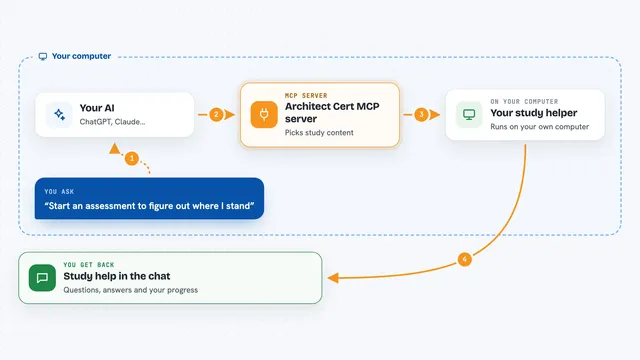
On its own, your AI can only chat. An MCP server is a small helper program that gives your AI a new skill or a connection to another app. pktctl is that helper, and the app it connects to is Cisco Packet Tracer. Once it is set up, your AI can look at your Packet Tracer window and make changes there when you ask.
What this MCP server does
You tell your AI what network you want, for example two routers joined together. The AI uses pktctl to place the devices in Packet Tracer, add the right cables, and type the configuration commands at each console. It can also run pings from the computers, turn on simulation mode, and read back what happened. Then it tells you the result, such as whether the routers became neighbors or whether the ping succeeded.
What you can do with it
- Add routers, switches and computers to your Packet Tracer canvas
- Cable devices together and install extra modules
- Type IOS configuration into routers and switches for you
- Set up DHCP, DNS, web pages, email and FTP on servers
- Run pings and traceroutes from the end devices and report the results
- Step through a packet in simulation mode and explain each hop
- Check how much of a .pka activity you have completed
Try asking your AI
- “Add a 2911 router and two 2960 switches and cable them together.”
- “Configure OSPF area 0 on both routers and show the neighbors.”
- “Give the PCs addresses by DHCP and ping the server from each one.”
- “Send a ping from PC1 to PC4 in simulation mode and explain each hop.”
What it gives back to you
You get answers in the chat, written in normal sentences. The AI can list the devices that were added, paste the console output from a router, or show the result of a ping with success or failure. It can also report a summary, such as whether OSPF reached the FULL state, or how far along a Packet Tracer activity you are.
Before you start
What you need
- Cisco Packet Tracer 9.0.1 installed (free from Cisco Networking Academy)
- An MCP client such as Claude Code, Claude Desktop or Cursor
- Rust 1.88 or newer only if you build from source, otherwise use a prebuilt release
- An app id and a random secret you make up yourself, kept private
Good to know
The secret you create gives full control of Packet Tracer to pktctl, so keep it private and only use this on a copy of your lab file if you care about the original.
Install it with your AI
Add pktctl: Packet Tracer for AI to your AI, no technical skills needed
You don't install anything by hand. You copy one prompt, paste it into an AI that can work on your computer, and it checks, installs and connects the server for you, asking you when it needs something.
Sign in to get the install prompt
Members get a ready-made prompt that lets the Claude desktop app check pktctl: Packet Tracer for AI, install it and connect it for them, step by step. You don't need any technical skills: you copy, paste and answer a few questions. Your connected AI can also find and install any of the 4,609 MCP servers here for you.
Who it's for
Students practicing CCNA labs, instructors preparing Packet Tracer activities, and anyone who wants to set up or document network scenarios without clicking through the whole interface.