MCP server · Email
QMailing MCP server
Lets your AI read and send email, and manage mailboxes, domains and webhooks in your QMailing account.

This is a small helper that connects your AI assistant to QMailing, an email service. Once it is set up, you can ask your AI to look through your mail, send a message, or check your mailboxes, and it will do it for you. It is handy if you run a business or a team inbox on QMailing and want to skip clicking around the website.
What is an MCP server? The 30-second version
On its own, your AI can only chat. It cannot see your email or do anything in your QMailing account. An MCP server is a small helper program that gives your AI a new skill, in this case a connection to QMailing. You connect it once, and after that your AI can look things up and take actions in QMailing when you ask.
What this MCP server does
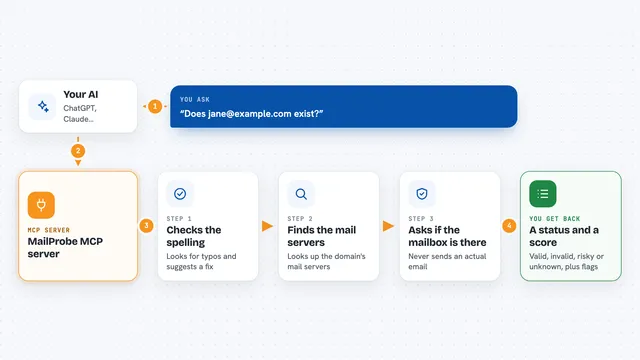
You ask your AI something about your email, like listing your mailboxes or reading a message. Your AI passes that request to this helper. The helper talks to the QMailing service using your account details. QMailing sends back the answer, and your AI shows it to you in the chat. If you ask it to send an email, the helper tells QMailing to send it, and you get a confirmation back.
 Click to zoom
What you can do with it
- List all the mailboxes on your QMailing account
- Read emails in a mailbox folder, including muted ones
- Open a single email with its full text and attachment details
- Send an email with recipients, subject, text or HTML and attachments
- Create a new mailbox on qmailing.com or your own verified domain
- Check your custom domains and their verification state
- Add, list or remove webhooks for events
Try asking your AI
- “List my QMailing mailboxes and tell me which ones have unread mail”
- “Show me the last five emails in my support mailbox”
- “Send an email to anna@example.com with the subject Meeting tomorrow and a short reminder in the body”
- “Check my custom domains and tell me which ones are not verified yet”
What it gives back to you
You get answers in plain chat text: lists of mailboxes, lists of emails with sender, subject and date, or the full text of one message. If you asked for an attachment, you get its contents. When you send an email or create a mailbox, you get a short confirmation that it worked. Everything appears as normal messages from your AI, not as files you have to open.
Before you start
What you need
- A QMailing account on the PLUS tier or higher
- For the Claude Desktop and other desktop apps: an API token from Settings, Developers in QMailing (a long password-like code the site shows you once)
- For Claude.ai on the web or mobile: nothing extra, you just sign in when Claude asks
- For the desktop app route: Node.js version 18.17 or later installed on your computer
Good to know
Your AI can send email and change things in your account, and email you receive was written by strangers, so do not let it act on instructions found inside a message without checking with you first.
Install it with your AI
Add QMailing MCP server to your AI, no technical skills needed
You don't install anything by hand. You copy one prompt, paste it into an AI that can work on your computer, and it checks, installs and connects the server for you, asking you when it needs something.
Sign in to get the install prompt
Members get a ready-made prompt that lets the Claude desktop app check QMailing MCP server, install it and connect it for them, step by step. You don't need any technical skills: you copy, paste and answer a few questions. Your connected AI can also find and install any of the 4,361 MCP servers here for you.
Who it's for
People who run a business or team inbox on QMailing and want their AI to handle reading and sending email without opening the website.