MCP server · API
ThinAir Geo MCP server
Look up addresses, plan routes, check traffic and weather, and find places, all from your AI chat.
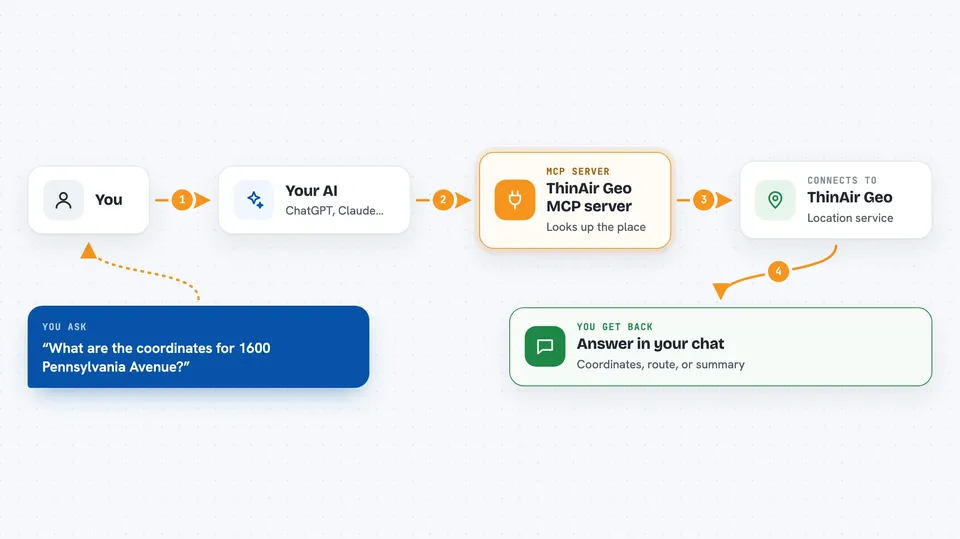
ThinAir Geo is a helper for your AI that answers location questions. You can ask it to turn an address into map coordinates, plan a driving route, check traffic or weather, or find nearby places. It is handy if you work with deliveries, drivers, service visits, or anything that involves addresses and travel.
What is an MCP server? The 30-second version
On its own, your AI can only chat. An MCP server is a small helper program that gives your AI a new skill or a connection to an app or service. This one connects your AI to ThinAir Geo, a location service. Once it is connected, your AI can look up addresses, plan routes, and check traffic or weather for you when you ask.
What this MCP server does
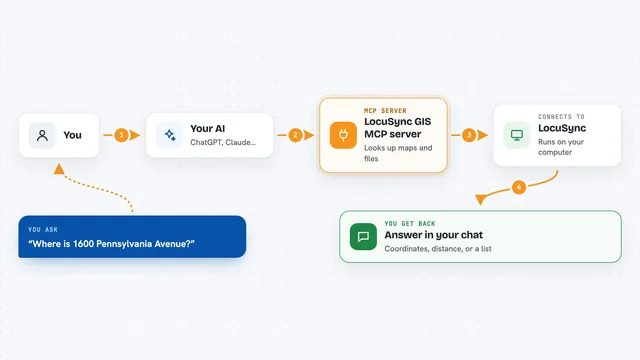
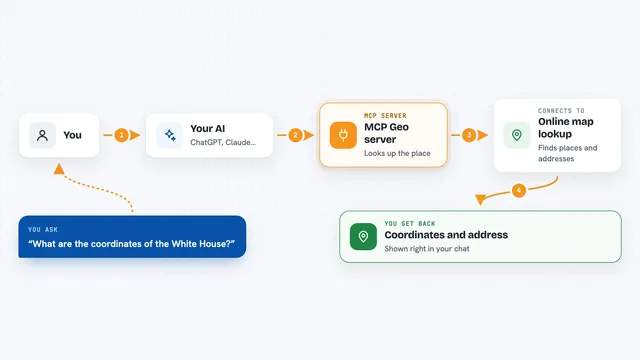
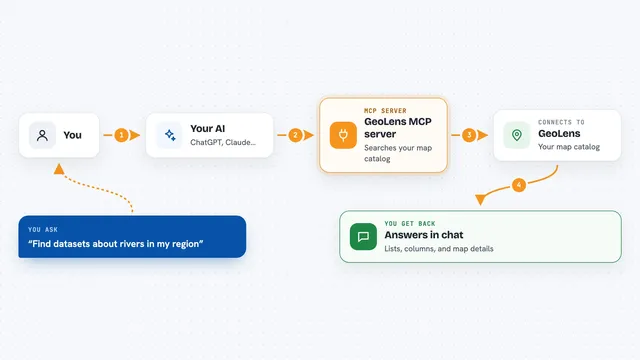
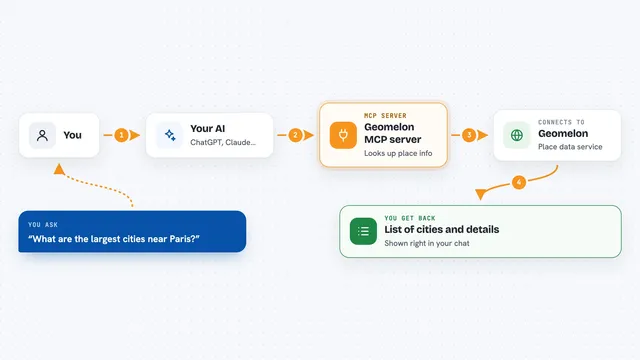
You ask your AI a location question in plain words, like turning an address into coordinates or planning a route. Your AI passes that request to the ThinAir Geo helper. The helper talks to the ThinAir Geo service, which looks up the address, calculates the route, or checks the conditions. Then the answer comes back into your chat, so you see the result without leaving the conversation.
 Click to zoom
What you can do with it
- Turn an address or intersection into map coordinates
- Turn coordinates back into a street address
- Plan a driving route for a car, truck, bike, or walking
- Check live traffic in major US cities
- Check current weather and forecasts
- Find nearby places like gas stations, charging spots, or food
- Measure drive time or distance to an area on a map
Try asking your AI
- “What are the coordinates for 1600 Pennsylvania Avenue?”
- “Plan a truck route from Dallas to Houston with hazmat restrictions”
- “How long does it take to drive from Denver to Salt Lake City right now?”
- “Find gas stations near the Bayport Terminal in Texas”
What it gives back to you
You get answers right in your chat. That can be a set of coordinates, a full address, a route with turn-by-turn steps, a list of nearby places, or a simple traffic or weather summary. Some results also include a confidence score, so you can tell how sure the service is about the match. If it is not sure, it may return nothing instead of guessing.
Before you start
What you need
- A ThinAir account or API key from geo.thinair.co/connect (a kind of password for apps; the site gives you one)
- An AI client that supports MCP servers, like Claude Desktop, Cursor, or Windsurf
- An internet connection
Good to know
It can use up your daily request allowance, and some tools like issuing a new API key count as a query.
Install it with your AI
Add ThinAir Geo MCP server to your AI, no technical skills needed
You don't install anything by hand. You copy one prompt, paste it into an AI that can work on your computer, and it checks, installs and connects the server for you, asking you when it needs something.
Sign in to get the install prompt
Members get a ready-made prompt that lets the Claude desktop app check ThinAir Geo MCP server, install it and connect it for them, step by step. You don't need any technical skills: you copy, paste and answer a few questions. Your connected AI can also find and install any of the 4,361 MCP servers here for you.
Who it's for
People who work with addresses, deliveries, drivers, or service visits, like dispatchers, fleet planners, and operations staff.