MCP server · Design tools
Image MCP server
by TOBYCAI
Let your AI edit pictures on your own computer: resize, crop, convert, compress, rotate and add watermarks.

This is a small helper that lets your AI work with image files sitting on your own computer. You ask in plain words, and it does the actual editing: making pictures smaller, changing the file type, adding a watermark, and so on. It is handy for anyone who deals with images at work but does not want to open a photo editor for every little change.
What is an MCP server? The 30-second version
On its own, your AI can only chat. It cannot open a picture on your laptop or save a new version of it. An MCP server is a small helper program that gives your AI one new skill. This one gives it the skill of handling image files on your machine, so when you ask for a smaller version of a photo, the AI can actually make it.
What this MCP server does
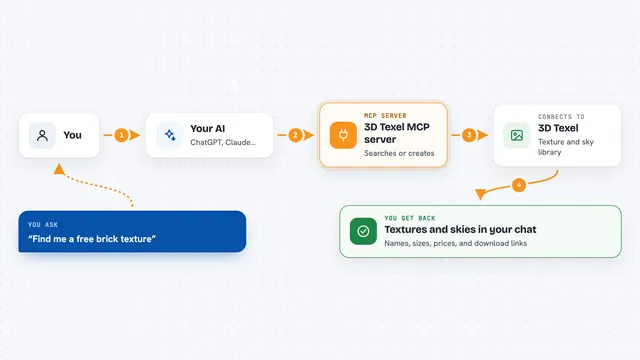
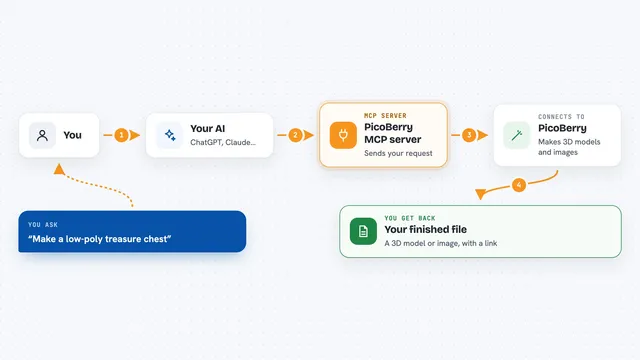
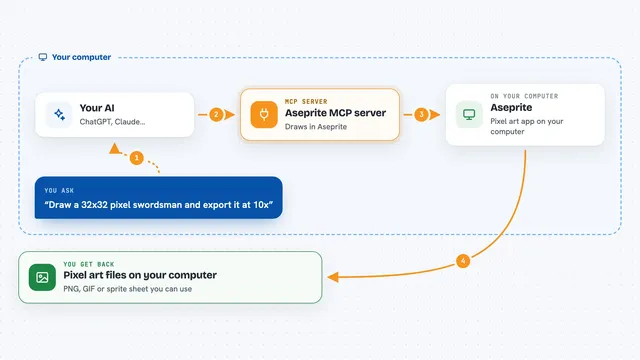
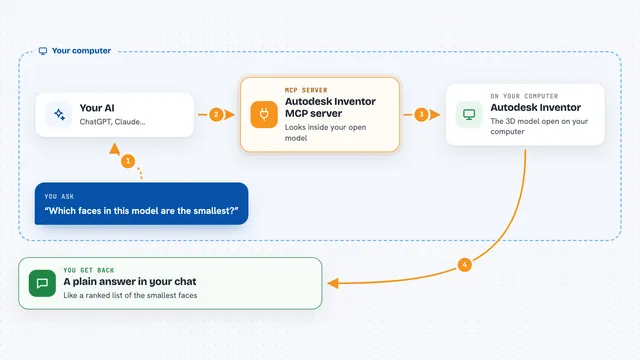
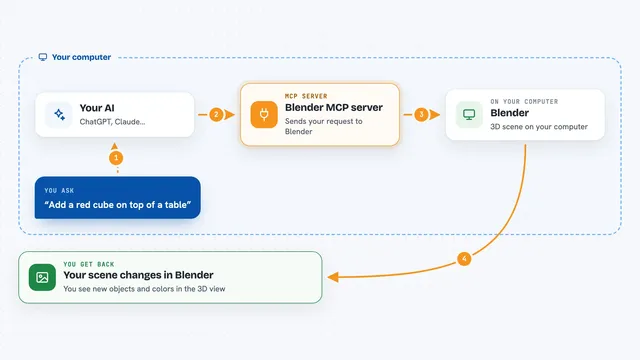
You tell your AI what you want done to an image, for example make this picture 800 pixels wide. The AI passes that request to this helper program, which runs quietly on your own computer. The helper opens the image file and does the work using a well known image library called Pillow. Then it saves the result, and the AI tells you what it did and where the new file is.
 Click to zoom
What you can do with it
- Check an image's format, size and dimensions
- Resize a picture to a width, height or ratio
- Crop a picture to a rectangle you describe
- Convert a picture between PNG, JPEG, WEBP, GIF, BMP and TIFF
- Compress a picture to make the file smaller
- Rotate or flip a picture
- Add a text watermark, or place one image on top of another
Try asking your AI
- “Resize this photo to 1200 pixels wide and save it as a new file”
- “Convert all these PNG files to JPEG and compress them a bit”
- “Add the text Draft in the bottom right corner of this image”
- “Make a small thumbnail of this picture, longest side 300 pixels”
What it gives back to you
You get a short answer in the chat saying what was done, plus the details of the result, like the new size, format or file location. For the info tool, you get a small summary of the image: its format, dimensions, colour mode and file size. The edited image itself is saved as a file on your computer, so you can open it or send it on.
Before you start
What you need
- Python 3 installed on your computer
- The Pillow library (installed with one short command)
- An AI app that can talk to MCP servers over stdio, such as DeepSeek Harness or another compatible client
Good to know
It saves new files on your computer and can overwrite an existing file if you point it at the same name, so keep a copy of any image you care about.
Install it with your AI
Add Image MCP server to your AI, no technical skills needed
You don't install anything by hand. You copy one prompt, paste it into an AI that can work on your computer, and it checks, installs and connects the server for you, asking you when it needs something.
Sign in to get the install prompt
Members get a ready-made prompt that lets the Claude desktop app check Image MCP server, install it and connect it for them, step by step. You don't need any technical skills: you copy, paste and answer a few questions. Your connected AI can also find and install any of the 4,361 MCP servers here for you.
Who it's for
Anyone who handles images at work, like marketing, admin or design support staff, and wants quick edits without opening a photo editor.