MCP server · Design tools
UXLoom MCP server
by uxloom-dev
Checks your app's screens and user journeys for missing states, contrast problems, and small tap targets.
UXLoom is a helper that looks over your app's screens and user journeys and points out what is missing or broken. It is made for people building apps with AI tools like v0, Lovable, Figma Make, or Claude, where you often get a few nice screens but no error, loading, or empty states. If you want to catch those gaps before writing real code, this is for you.
What is an MCP server? The 30-second version
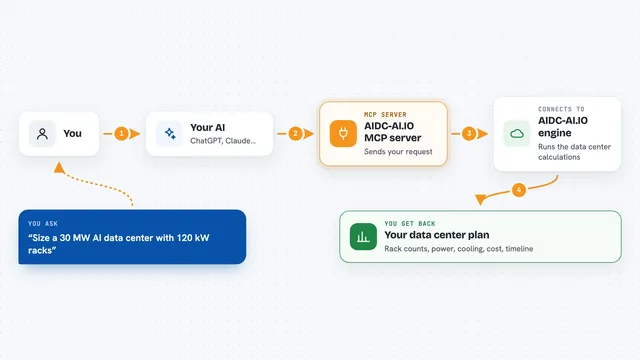
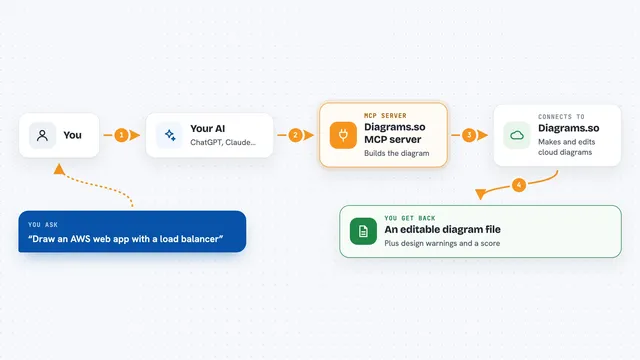
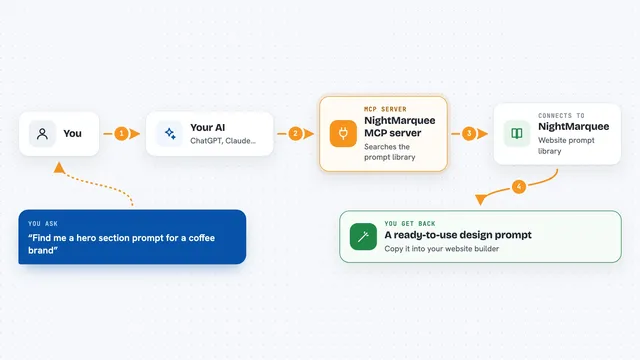
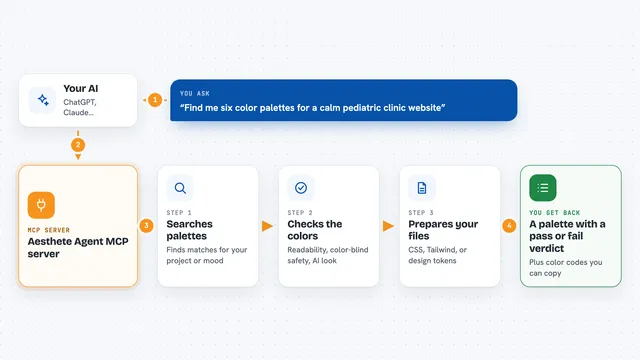
On its own, your AI can only chat with you. An MCP server is a small helper program that gives your AI a new skill or a connection to a tool. This one connects your AI to UXLoom, a design checker. So when you ask your AI to look at your screens or journeys, it can use UXLoom to actually inspect them and tell you what is wrong.
What this MCP server does
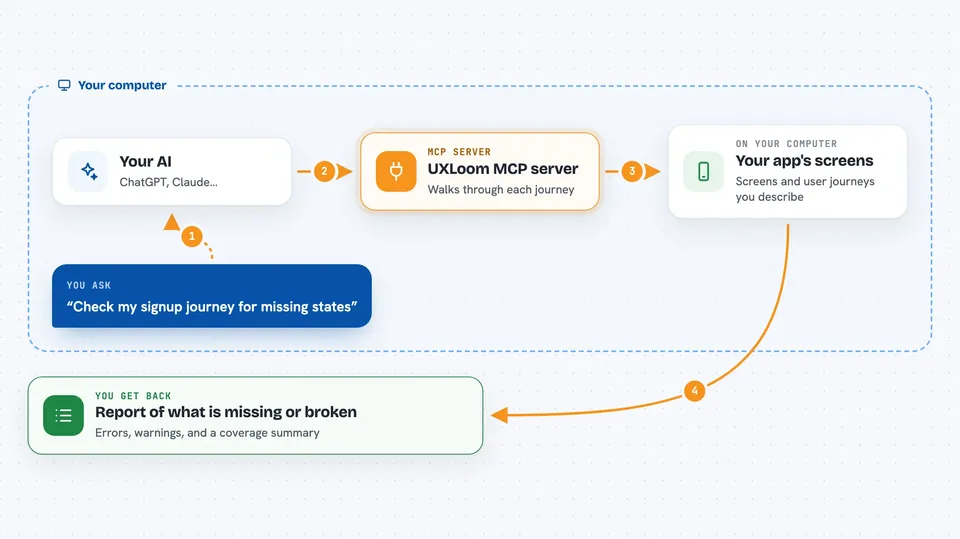
You tell your AI about your app's screens and the journeys a user takes, like signing up or checking out. The AI passes that to UXLoom through this helper. UXLoom then walks through the journeys like a state machine and checks each screen for missing states, dead ends, contrast problems, small tap targets, and labels that might break in other languages. It gives you back a clear report of what is missing or broken, so you can fix it before writing code.
 Click to zoom
What you can do with it
- Find missing error, empty, and loading states in your screens
- Spot screens that are unreachable or lead to dead ends
- Check color contrast against WCAG rules
- Flag tap targets that are too small for fingers
- See which labels will overflow when translated
- Compare your built code against the design contract
- Generate a shareable preview of your design
Try asking your AI
- “Check my signup journey for missing states”
- “Does my checkout screen have enough contrast?”
- “Are any of my screens unreachable?”
- “Audit my code against the design contract”
What it gives back to you
You get a report in the chat listing errors and warnings, like missing states, contrast failures, or small tap targets. It can also show a coverage summary and, if you ask, a shareable preview or exported files. The report is the same every time for the same input, so you can trust it in a team setting.
Before you start
What you need
- Node.js installed on your computer
- An MCP client like Claude Code or Codex CLI
- A project file (uxloom.project.json) in your workspace
Good to know
It can change your project file and mark findings as resolved, so keep the file in git and review changes before committing.
Install it with your AI
Add UXLoom MCP server to your AI, no technical skills needed
You don't install anything by hand. You copy one prompt, paste it into an AI that can work on your computer, and it checks, installs and connects the server for you, asking you when it needs something.
Sign in to get the install prompt
Members get a ready-made prompt that lets the Claude desktop app check UXLoom MCP server, install it and connect it for them, step by step. You don't need any technical skills: you copy, paste and answer a few questions. Your connected AI can also find and install any of the 4,361 MCP servers here for you.
Who it's for
Product designers, UX writers, and front-end developers who use AI to generate screens and want to catch gaps before coding.