MCP server · Productivity
Google Sheets MCP server
by xing5
Lets your AI read, write, and manage your Google Sheets for you, right from the chat.
This is a small helper program that connects your AI assistant to Google Sheets. Once it is set up, you can ask your AI in plain words to look things up, add data, or make a new spreadsheet, and it will do it. It is handy for anyone who works with spreadsheets but would rather type a sentence than click around.
What is an MCP server? The 30-second version
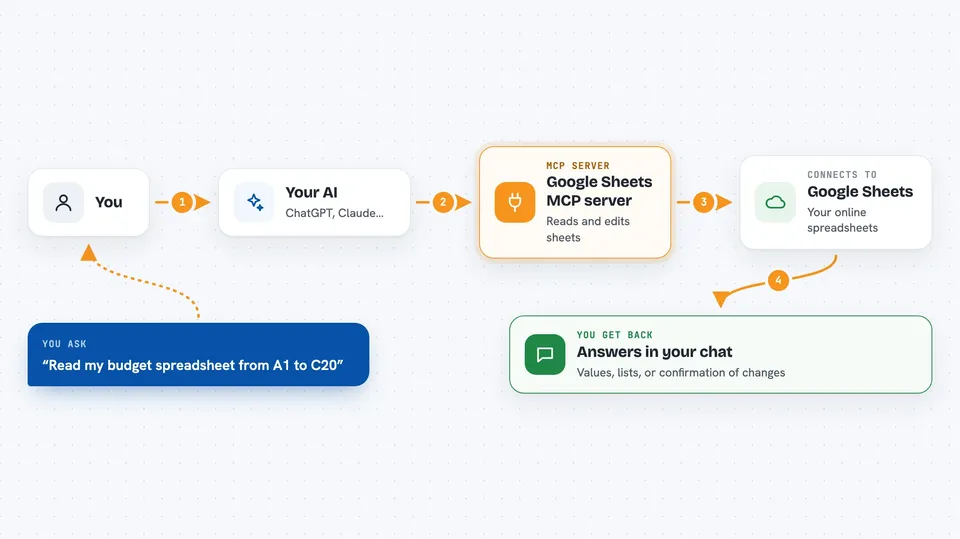
On its own, your AI can only chat. It cannot open your Google Sheets or change anything there. An MCP server is a small helper program that gives your AI a new skill, in this case a connection to Google Sheets. You ask your AI something, the AI passes the request to this helper, and the helper talks to Google Sheets for you.
What this MCP server does
You ask your AI something about your spreadsheets, like reading a range of cells or adding a new row. The AI sends that request to this helper program. The helper signs in to Google Sheets with the credentials you set up, does the work, and sends the result back. Then your AI shows you the answer or confirms the change in the chat. You never have to touch the spreadsheet yourself unless you want to.
 Click to zoom
What you can do with it
- List the spreadsheets in a Google Drive folder
- Create a brand new spreadsheet with a title you choose
- Read data or formulas from any range in a sheet
- Write or overwrite values in specific cells
- Add rows or columns to a sheet
- Create, rename, or copy a tab inside a spreadsheet
- Share a spreadsheet with someone by email
Try asking your AI
- “List my spreadsheets in the folder called Reports”
- “Read the data in Sheet1 of my budget spreadsheet from A1 to C20”
- “Add a new tab called March to my sales spreadsheet”
- “Share my Q4 report with ana@example.com as a writer”
What it gives back to you
You get answers in the chat, like a list of spreadsheet names, the values from a range, or the formulas in cells. When you ask it to change something, it tells you what it did, such as which cells were updated or which tab was created. For sharing, it tells you who it worked for and who it did not. Everything shows up as normal text in your conversation.
Before you start
What you need
- A Google account with access to the spreadsheets you want to use
- Google Cloud credentials set up (the README walks you through it; a Service Account is recommended)
- The uv tool installed on your computer (the README shows the one-line install)
- An MCP-compatible app like Claude Desktop
Good to know
This helper can change your spreadsheets, including overwriting cells and sharing files with others, so double-check what you ask it to do before you say yes.
Install it with your AI
Add Google Sheets MCP server to your AI, no technical skills needed
You don't install anything by hand. You copy one prompt, paste it into an AI that can work on your computer, and it checks, installs and connects the server for you, asking you when it needs something.
Sign in to get the install prompt
Members get a ready-made prompt that lets the Claude desktop app check Google Sheets MCP server, install it and connect it for them, step by step. You don't need any technical skills: you copy, paste and answer a few questions. Your connected AI can also find and install any of the 4,361 MCP servers here for you.
Who it's for
Anyone who uses Google Sheets at work, like analysts, project managers, or admins, and wants to read or update their sheets by just asking their AI.