MCP server · Video editing
ZapCap MCP server
by bogdan01m
Let your AI upload videos to ZapCap and add captions, subtitles and B-roll for you.
This is a small helper that connects your AI assistant to ZapCap, a service that adds captions and extra footage (called B-roll) to videos. Once it is set up, you can just describe the captions you want in normal words instead of filling in forms. It is handy for anyone who edits videos and wants the boring caption work done faster.
What is an MCP server? The 30-second version
On its own, your AI can only chat with you. An MCP server is a small helper program that gives your AI a new skill or a connection to another service. This helper connects your AI to ZapCap, so when you ask for captions or B-roll, your AI can actually send your video there and check on the job. You do not need to understand how it works under the hood, you just talk to your AI like usual.
What this MCP server does
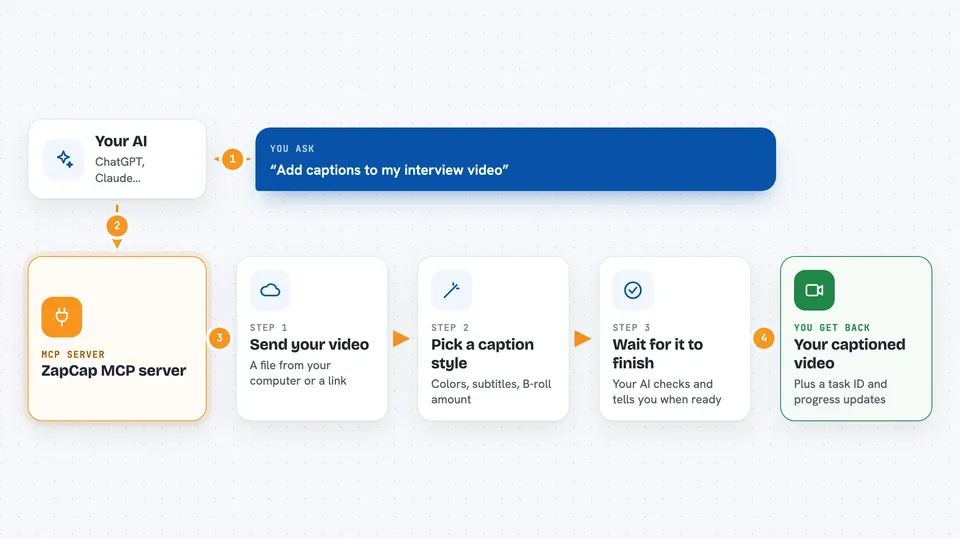
You tell your AI which video you want to work on, either a file on your computer or a link. Your AI passes that to this helper, which uploads the video to ZapCap. Then your AI asks ZapCap for the list of caption styles (called templates) and creates a processing task with the look you described, like green highlighted words or a certain amount of B-roll. Finally, your AI checks the task progress and tells you when the captioned video is ready.
 Click to zoom
What you can do with it
- Upload a video file from your computer to ZapCap
- Upload a video by pasting a link instead of a file
- See the list of caption templates ZapCap offers
- Create a captioning task with your chosen style and colors
- Turn B-roll on or off and set how much of it you want
- Pick the subtitle language for the video
- Check how far along a captioning task is
Try asking your AI
- “Upload my video at /Users/me/videos/interview.mp4 to ZapCap”
- “Show me the caption templates ZapCap has”
- “Add green highlighted subtitles with 40 percent B-roll using the viral template”
- “How is my ZapCap task going?”
What it gives back to you
You get answers in the chat, not files. When you upload a video, your AI tells you the video ID. When you ask for templates, you get a list of names and IDs. When you create a task, you get a task ID, and when you check progress, you get a status update like processing or done.
Before you start
What you need
- A ZapCap account (free to sign up at zapcap.ai)
- A ZapCap API key from your ZapCap dashboard (a kind of password for apps)
- uv installed on your computer (a small tool that runs the server)
Good to know
Uploading sends your video to ZapCap's servers, and creating tasks uses your ZapCap account, which may have usage limits or costs depending on your plan.
Install it with your AI
Add ZapCap MCP server to your AI, no technical skills needed
You don't install anything by hand. You copy one prompt, paste it into an AI that can work on your computer, and it checks, installs and connects the server for you, asking you when it needs something.
Sign in to get the install prompt
Members get a ready-made prompt that lets the Claude desktop app check ZapCap MCP server, install it and connect it for them, step by step. You don't need any technical skills: you copy, paste and answer a few questions. Your connected AI can also find and install any of the 4,609 MCP servers here for you.
Who it's for
Video editors, content creators and social media managers who caption videos often and want to skip the manual setup.