MCP server · Productivity
Quip MCP server
by bug-breeder
Lets your AI read, search, create, edit and delete your Quip documents and comments for you.
This is a small helper that connects your AI assistant to Quip, the place where your team keeps documents and notes. Once it is set up, you can ask your AI to find a doc, read it, write a new one, or add a comment, and it will do that in your Quip account. It is handy if you spend a lot of your day in Quip and want to skip the clicking around.
What is an MCP server? The 30-second version
On its own, your AI can only chat with you. It cannot see your Quip documents or change anything there. An MCP server is a small helper program that gives your AI a new skill, and in this case the skill is talking to Quip for you. You ask in plain words, the AI passes the request to this helper, and the helper goes to Quip and brings back the answer or makes the change.
What this MCP server does
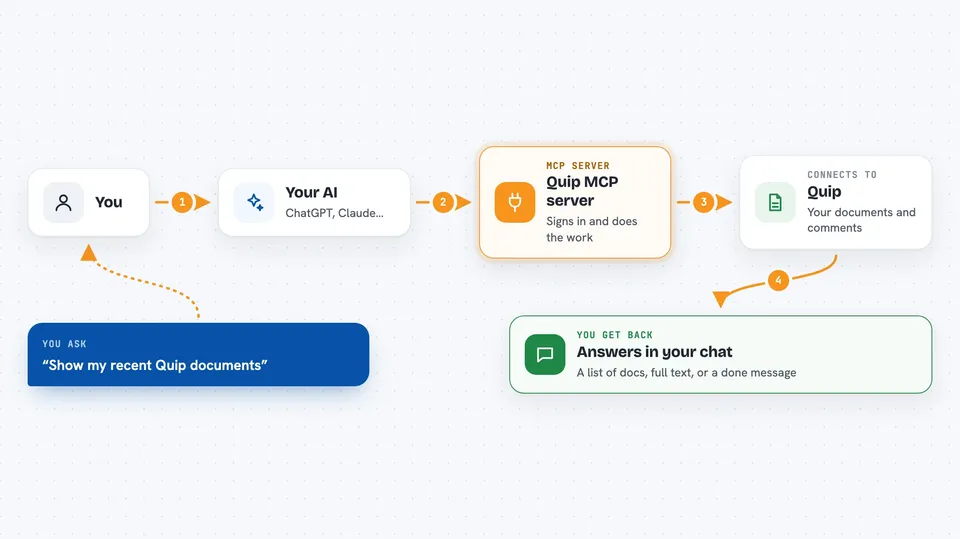
You type a request in your AI chat, like finding a document or adding a note. The AI sends that request to this helper program running on your computer. The helper signs in to Quip using your personal API token and does the work there. Then it sends the result back to your AI, which shows it to you in the chat. For changes like creating or editing a document, the helper makes the change in Quip and tells you it is done.
 Click to zoom
What you can do with it
- Search your Quip documents by keyword
- Read the full content of a document by its ID
- Create a new document with markdown text
- Edit an existing document by adding, prepending or replacing content
- Delete a document permanently
- See your recently viewed or edited documents
- Read the comments on a document
- Look up user information
Try asking your AI
- “Show my recent Quip documents”
- “Search for documents about project planning”
- “Get the full content of document V9T5AFuROlBN”
- “Create a document titled Meeting Notes with markdown content about today's team meeting”
- “Add a new section to document ABC123 about next week's goals”
What it gives back to you
You get answers in the chat, like a list of matching documents with their titles and IDs, or the full text of one document in clean markdown. For searches and recent documents, you see a short list you can pick from. When you create, edit or delete something, the AI tells you what it changed in Quip. Comments come back as a readable list of who said what.
Before you start
What you need
- A Quip account (Quip.com or your company's Quip site)
- A Quip API token, which you generate on your Quip site at /dev/token (it works like a personal password for apps)
- The quip-mcp helper program installed on your computer
- An AI app that supports MCP, like Cursor or the Claude desktop app
Good to know
It can create, edit and permanently delete documents in your Quip account, so double-check before you ask it to delete anything.
Install it with your AI
Add Quip MCP server to your AI, no technical skills needed
You don't install anything by hand. You copy one prompt, paste it into an AI that can work on your computer, and it checks, installs and connects the server for you, asking you when it needs something.
Sign in to get the install prompt
Members get a ready-made prompt that lets the Claude desktop app check Quip MCP server, install it and connect it for them, step by step. You don't need any technical skills: you copy, paste and answer a few questions. Your connected AI can also find and install any of the 4,361 MCP servers here for you.
Who it's for
People who work in Quip all day, like project managers, writers, support teams and anyone who keeps notes and docs there.