
MCP server · Developer tools
LLM Context MCP server
by cyberchitta
Let your AI pick the right files from your code project and pack them into a tidy context for a chat or another AI.
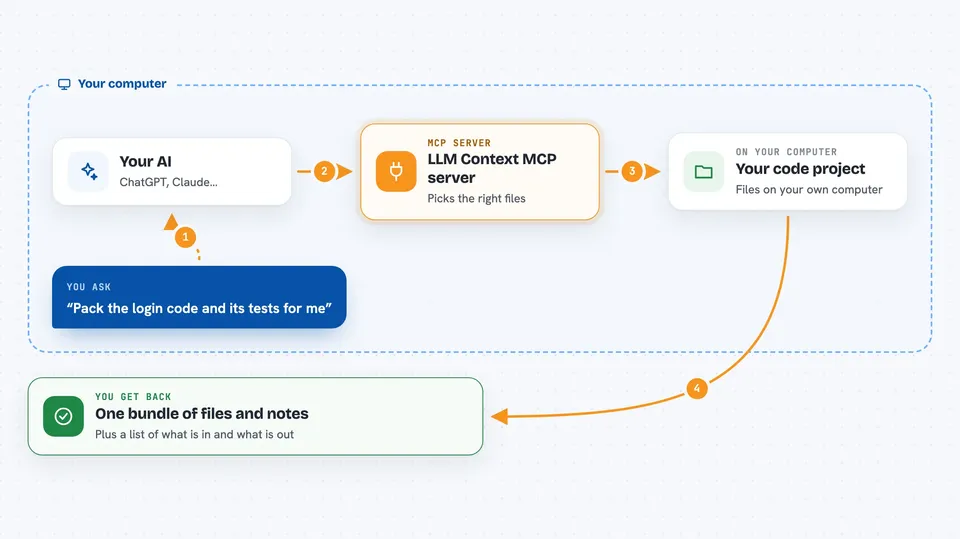
LLM Context is a small helper that gathers the right files from a code project and hands them to an AI in one tidy bundle. Instead of you hunting through folders and copying files by hand, you describe what you are working on and it picks the pieces that matter. It is handy for developers and anyone who works with a codebase and chats with an AI about it.
What is an MCP server? The 30-second version
On its own, your AI can only chat with you. An MCP server is a small helper program that gives your AI a new skill or a connection to something outside the chat. This one connects your AI to your project folder, so it can look at your files and pull the ones it needs. Once it is connected, you can ask in plain words and the AI will fetch the right files for you.
What this MCP server does
You ask your AI for context about a task, for example the login code and its tests. The AI uses this helper to look through your project and pick the files that fit. The helper packs those files into one bundle, with full contents for the ones you will edit and short summaries for the rest. Your AI gets that bundle back and can answer or keep working with it. If something is missing or a file changed, the helper can fetch it again.
 Click to zoom
What you can do with it
- Pull the files that match a task you describe
- Pack those files into one context you can paste into a chat
- Show a preview of which files a rule would pick before you use it
- Fetch files that were left out of an earlier pack
- Notice files that changed since a pack was made
- Give short outlines of files instead of full contents
- Hand a ready-made context to another AI or sub-agent
Try asking your AI
- “Get me focused context for the auth refactor”
- “Pack the login code and its tests for me”
- “What files did that rule actually pick?”
- “Which files changed since the last pack?”
What it gives back to you
You get back a bundle of file contents and short summaries, plus a list showing which files are included and which are not. The header tells you how many files are full, outlined or excerpted, so you can see what you actually received. In the chat it looks like a block of code and notes you can read or pass along. If you ask for a preview, you get a plain list of file names and sizes.
Before you start
What you need
- A code project on your computer
- The uv tool installed (a small program runner; the README shows the one-line install)
- Claude Code or another AI app that supports MCP servers, if you want the MCP path
Good to know
It reads files from your project folder, so keep it pointed at a project you are happy to share with your AI.
Install it with your AI
Add LLM Context MCP server to your AI, no technical skills needed
You don't install anything by hand. You copy one prompt, paste it into an AI that can work on your computer, and it checks, installs and connects the server for you, asking you when it needs something.
Sign in to get the install prompt
Members get a ready-made prompt that lets the Claude desktop app check LLM Context MCP server, install it and connect it for them, step by step. You don't need any technical skills: you copy, paste and answer a few questions. Your connected AI can also find and install any of the 4,361 MCP servers here for you.
Who it's for
Developers and anyone who chats with an AI about a code project and wants the right files gathered without copying them by hand.


