MCP server · Productivity
Redmine MCP server
by daiji-sshr
Lets your AI read, search, create and update Redmine issues and comments for you.
This is a small helper that connects your AI assistant to Redmine, the tool many teams use to track tasks and bugs. Once it is set up, you can ask your AI to look up issues, search comments, or write updates, and it will do that in Redmine for you. It is handy for anyone who spends part of their day in Redmine, like project managers, support staff, and developers.
What is an MCP server? The 30-second version
On its own, your AI can only chat with you. An MCP server is a small helper program that gives your AI a new skill or a connection to an app. This one connects your AI to your Redmine site, so it can look things up and make changes there when you ask. You set it up once, and after that your AI can talk to Redmine on your behalf.
What this MCP server does
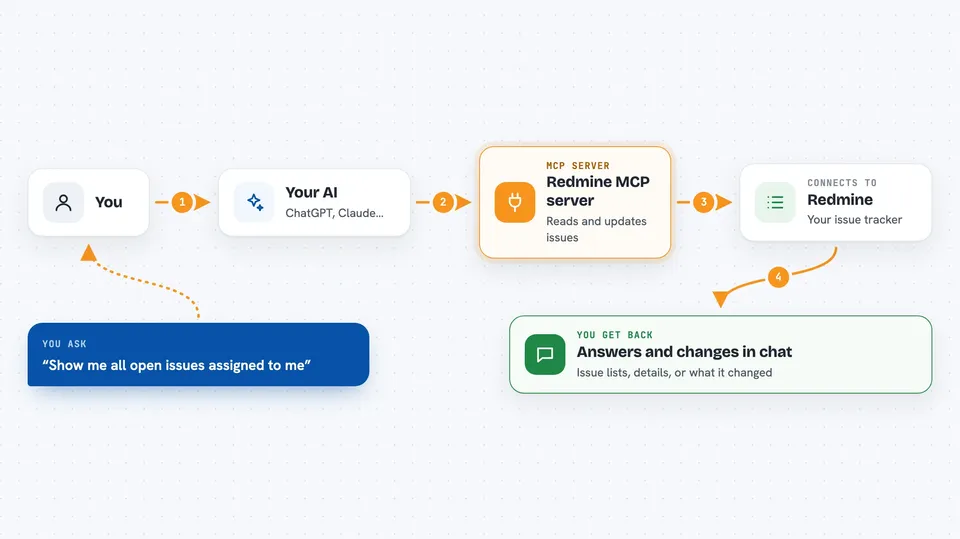
You ask your AI something about your Redmine work, like listing open issues or finding a comment. The AI sends that request to this helper, which talks to your Redmine site using your own API key. Redmine sends back the issues, comments, or project details, and the helper passes them to your AI. Your AI then shows you a clean answer in the chat, or makes the change you asked for. Nothing about your Redmine login is saved on the helper.
 Click to zoom
What you can do with it
- List issues in a project, filtered by status or assignee
- Read a single issue with all its comments and attachments
- Create a new issue with a subject and description
- Update an issue or add a comment to it
- Edit an existing comment on an issue
- Search across subjects, descriptions and comments for a word or phrase
- List projects, statuses, trackers, priorities and users
Try asking your AI
- “Show me all open issues assigned to me in the Website project”
- “Find every issue or comment that mentions the word login timeout”
- “Create a new bug in the Mobile app project titled App crashes on upload”
- “Add a comment to issue 4821 saying the fix is deployed to staging”
What it gives back to you
You get back plain answers in the chat: lists of issues with their status, assignee and dates, full issue details with comments and attachments, or search results grouped in a readable way. When you ask it to create or update something, it tells you what it changed and gives you the issue number. Everything stays in the conversation, so you can ask follow-up questions right away.
Before you start
What you need
- A Redmine account with the REST API turned on by an administrator
- Your personal Redmine API key from your account page
- Python 3.12 if you run it yourself, or Docker if you prefer containers
- The Claude Code app or another AI tool that supports MCP servers
Good to know
It can create and change issues and comments in your Redmine, so check what your AI is about to do before you say yes.
Install it with your AI
Add Redmine MCP server to your AI, no technical skills needed
You don't install anything by hand. You copy one prompt, paste it into an AI that can work on your computer, and it checks, installs and connects the server for you, asking you when it needs something.
Sign in to get the install prompt
Members get a ready-made prompt that lets the Claude desktop app check Redmine MCP server, install it and connect it for them, step by step. You don't need any technical skills: you copy, paste and answer a few questions. Your connected AI can also find and install any of the 4,609 MCP servers here for you.
Who it's for
Project managers, support teams and developers who use Redmine daily and want to ask their AI instead of clicking through the web interface.