MCP server · Coding
Jupyter MCP server
by datalayer
Let your AI open, edit and run Jupyter notebooks for you while you watch.
This is a helper that connects your AI assistant to Jupyter, the app many people use to run Python and look at data in notebooks. Once it is connected, you can ask your AI in plain words to open a notebook, change a cell or run some code, and it does it for you. It is handy for anyone who works with notebooks and would rather describe what they want than click around.
What is an MCP server? The 30-second version
On its own, your AI can only chat. An MCP server is a small helper program that gives your AI a new skill or a connection to another app. This one connects your AI to Jupyter, so when you ask it something about your notebooks, it can actually go and look or make the change there. You stay in charge: you decide which notebooks it may touch and what it is allowed to do.
What this MCP server does
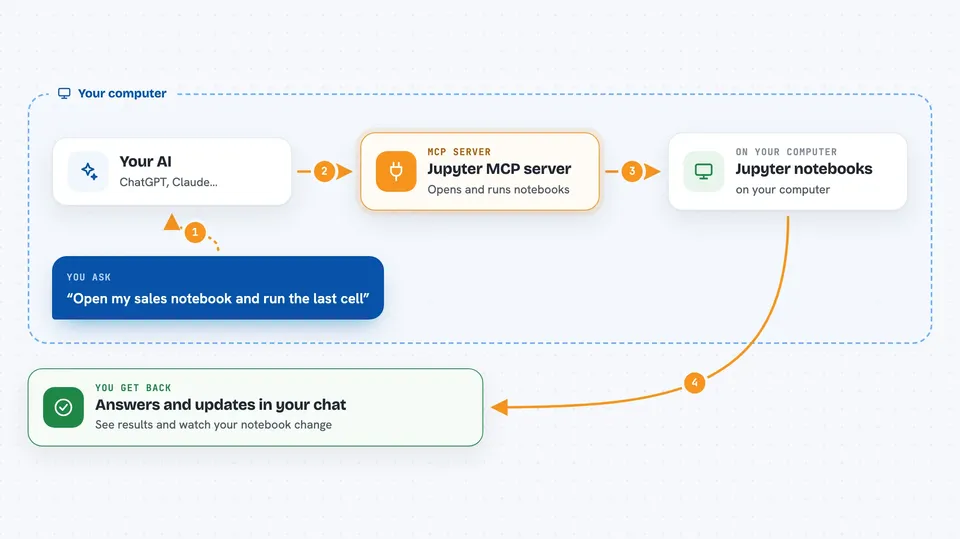
You ask your AI something about your notebooks, like opening one or running a cell. The AI passes that request to this helper. The helper talks to your Jupyter server, which is the program running your notebooks. It reads or changes the notebook and sends the result back, so you see the answer or the change right in your chat.
 Click to zoom
What you can do with it
- Open a notebook and show you what is inside
- Add, edit, move or delete cells
- Run a cell or a piece of code and show the output
- Clear the outputs of cells
- List the notebooks available on your Jupyter server
- Switch between several notebooks
- Restart a notebook's kernel when it gets stuck
Try asking your AI
- “Open my sales notebook and tell me what the last cell does”
- “Add a cell at the end that prints the average of column price”
- “Run the cell that loads the data and show me the result”
- “List all the notebooks I have and pick the one about customers”
What it gives back to you
You get answers in the chat: lists of notebooks, the text of cells, and the output of code you ran, including numbers, tables and pictures like charts when your AI can show them. If it changed something, it tells you what it changed. You can also watch the notebook itself update in JupyterLab as it happens.
Before you start
What you need
- JupyterLab running on your computer, with the collaboration and MCP tools packages installed
- The token you set when starting JupyterLab (a kind of password for your local server)
- An MCP client such as Claude Desktop, Cursor or Windsurf
- Either uv or Docker installed, depending on which setup you pick
Install it with your AI
Add Jupyter MCP server to your AI, no technical skills needed
You don't install anything by hand. You copy one prompt, paste it into an AI that can work on your computer, and it checks, installs and connects the server for you, asking you when it needs something.
Sign in to get the install prompt
Members get a ready-made prompt that lets the Claude desktop app check Jupyter MCP server, install it and connect it for them, step by step. You don't need any technical skills: you copy, paste and answer a few questions. Your connected AI can also find and install any of the 4,361 MCP servers here for you.
Who it's for
People who work with Jupyter notebooks for data, research or teaching and want to describe tasks to an AI instead of clicking through cells.