MCP server · Notes
Connapse MCP server
by Destrayon
Give your AI a private, searchable memory of your own documents that it can add to and look things up in.

Connapse is a knowledge base you run yourself. You put your documents into it, and your AI can then search them and add new ones when you ask. It is handy if you are tired of your AI forgetting everything between chats, or of pasting the same files over and over.
What is an MCP server? The 30-second version
On its own, your AI can only chat with you. An MCP server is a small helper program that gives your AI a new skill or a connection to another app. This one connects your AI to Connapse, your own document store. Once it is connected, your AI can look things up in your files or add new ones for you, just by you asking in plain words.
What this MCP server does
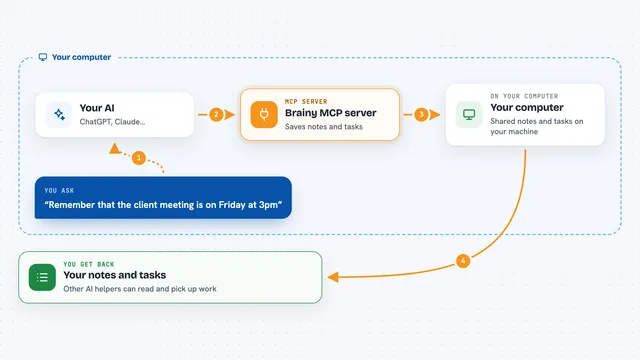
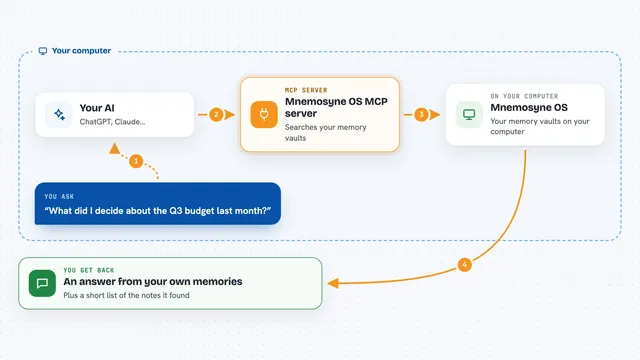
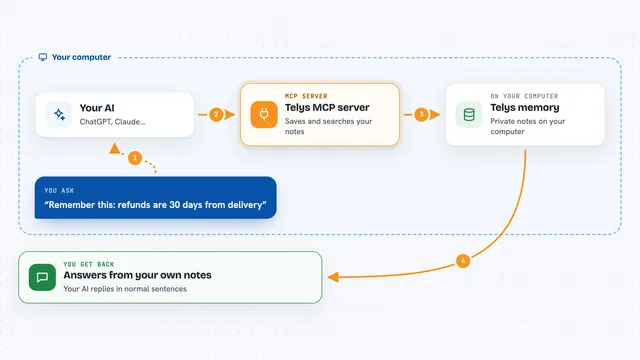
You ask your AI something about your own documents, like a question about your project notes. Your AI passes that request to the Connapse helper. The helper searches your Connapse knowledge base, which holds your uploaded files, and finds the matching pieces. Then your AI answers you using what it found, with the sources it used. You can also ask it to upload, list, or delete files, and it will do that in Connapse for you.
 Click to zoom
What you can do with it
- Create separate containers to keep each project's files apart
- Upload documents to a container, one at a time or many at once
- Search a container by meaning, by keyword, or both together
- List the files and folders inside a container
- Open a document and read its full text
- Delete files or whole containers you no longer need
- Check how many documents and chunks a container holds
Try asking your AI
- “Create a container called project-research for my architecture notes”
- “Upload all the PDFs in my downloads folder to the project-research container”
- “Search my project-research container for information about rate limiting strategies”
- “How many documents and chunks are in my project-research container?”
What it gives back to you
You get answers in the chat, written by your AI from what it found in your documents. It can also show lists, like the containers you have or the files in a folder, and simple numbers, like how many documents a container holds. When you ask it to upload or delete something, it tells you what it did. Search results come back with the source documents they came from.
Before you start
What you need
- Docker and Docker Compose installed on your computer
- The Connapse app running locally (started with one Docker command)
- An agent API key, which you create inside the Connapse web page under Settings, then Agent API Keys
- An MCP client like Claude Desktop, Claude Code, VS Code, or Cursor
Good to know
This server can delete files and whole containers, so be careful with delete requests, and remember that documents need a little time to become searchable after you upload them.
Install it with your AI
Add Connapse MCP server to your AI, no technical skills needed
You don't install anything by hand. You copy one prompt, paste it into an AI that can work on your computer, and it checks, installs and connects the server for you, asking you when it needs something.
Sign in to get the install prompt
Members get a ready-made prompt that lets the Claude desktop app check Connapse MCP server, install it and connect it for them, step by step. You don't need any technical skills: you copy, paste and answer a few questions. Your connected AI can also find and install any of the 4,609 MCP servers here for you.
Who it's for
People who want their AI to remember and search their own documents across sessions, especially those working on several projects or with private files.