MCP server · Productivity
Windows Desktop Touch MCP server
by Harusame64
Lets your AI see and control your Windows desktop: click buttons, type text, take screenshots, and run terminal commands.

This is a helper that lets your AI assistant actually use your Windows computer. Instead of just chatting, it can look at your screen, find buttons and menus, click them, and type for you. It is handy if you often repeat the same clicks in Notepad, Excel, Chrome, or a terminal and wish the AI could do it.
What is an MCP server? The 30-second version
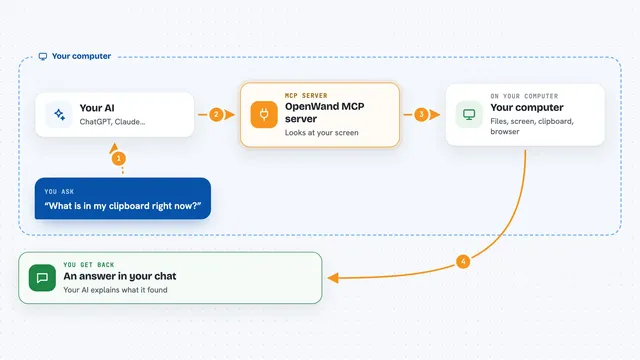
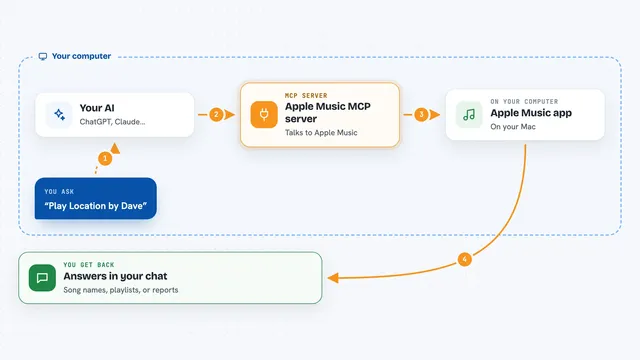
On its own, your AI can only talk. An MCP server is a small helper program that gives your AI a new skill. This helper connects your AI to your Windows desktop, so it can look at windows, find buttons, and act on them when you ask. You stay in charge: the AI only does what you tell it to do.
What this MCP server does
You ask your AI something like open Notepad and type a note. The AI uses this helper to look at your desktop and find the right window and controls. The helper then clicks or types for you, using names of buttons instead of guessing pixel positions. After each action it can check what changed and tell you what happened. You get a short report in the chat, plus screenshots or lists of what is on screen when you need them.
 Click to zoom
What you can do with it
- Open apps and switch between windows
- Click buttons and menu items by their name
- Type text into fields, including Japanese, Chinese, and Korean
- Take screenshots of your screen or a single window
- Run commands in a terminal window
- Drag and drop items and scroll through long lists
- Save and reuse SSH or sudo passwords in a secure locker
Try asking your AI
- “Open Notepad and type a short shopping list”
- “Take a screenshot of my Excel window and tell me what is on it”
- “In Chrome, click the search box and type today's weather”
- “Open a terminal and run ipconfig, then show me the result”
What it gives back to you
You get plain answers in the chat: what window is active, what buttons were found, and what changed after a click. It can also send back screenshots or a short list of on-screen elements with their positions. For terminal commands, you see the output text. Everything is described in everyday words, not code.
Before you start
What you need
- A Windows 10 or 11 computer (64-bit)
- Node.js version 20 or newer
- The Claude desktop app or another MCP client like Cursor or VS Code Copilot
- The Visual C++ Redistributable from Microsoft (if not already installed)
Good to know
This helper can click, type, and run commands on your computer, so only use it when you are watching and trust the request.
Install it with your AI
Add Windows Desktop Touch MCP server to your AI, no technical skills needed
You don't install anything by hand. You copy one prompt, paste it into an AI that can work on your computer, and it checks, installs and connects the server for you, asking you when it needs something.
Sign in to get the install prompt
Members get a ready-made prompt that lets the Claude desktop app check Windows Desktop Touch MCP server, install it and connect it for them, step by step. You don't need any technical skills: you copy, paste and answer a few questions. Your connected AI can also find and install any of the 4,361 MCP servers here for you.
Who it's for
Office workers on Windows who repeat the same clicks and typing every day and want their AI to handle those steps.