MCP server · Developer tools
GitLab MCP server
by jmrplens
Ask your AI to review merge requests, check pipelines, and manage GitLab issues in plain words.

This is a helper that connects your AI assistant to GitLab. Once it is set up, you can talk about your projects in normal language instead of clicking around the GitLab website. It is handy for anyone who works with code, merge requests, or issues on GitLab.
What is an MCP server? The 30-second version
On its own, your AI can only chat with you. An MCP server is a small helper program that gives your AI a new skill or a connection to an app. This one connects your AI to GitLab, so it can look things up and do things there when you ask. You keep talking normally, and the helper handles the technical part in the background.
What this MCP server does
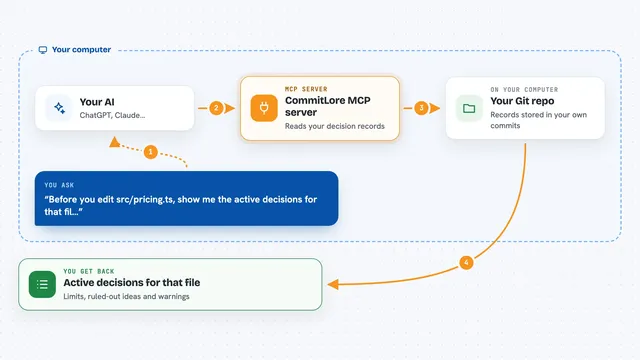
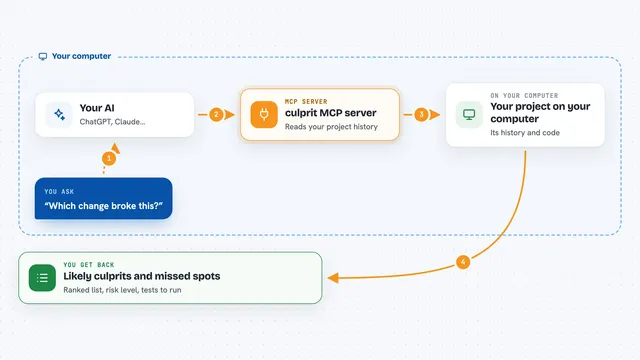
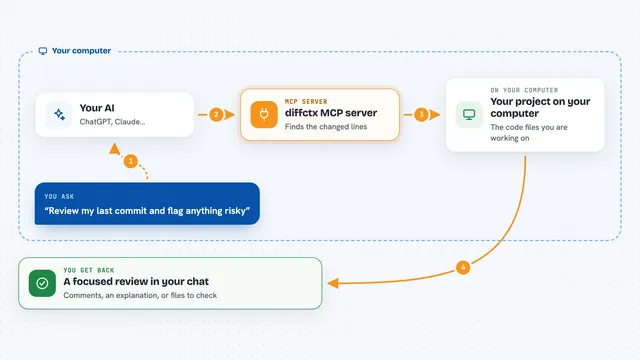
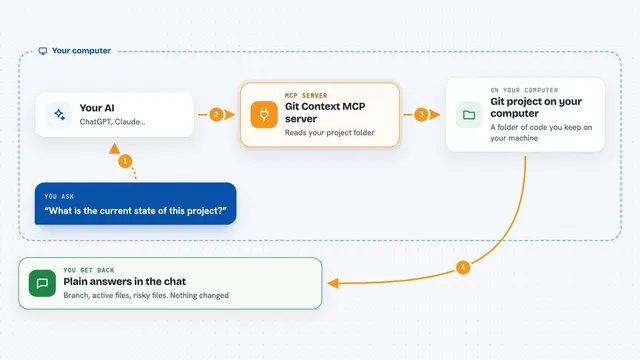
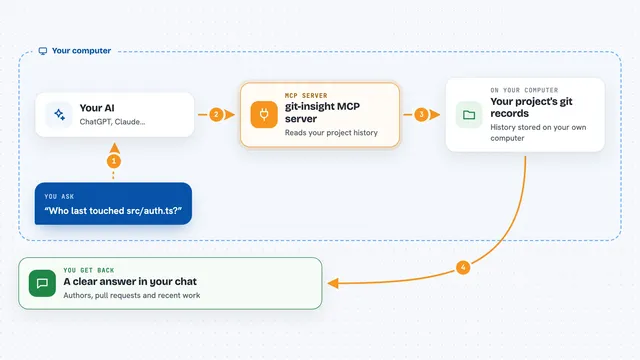
You ask your AI a question about your GitLab work, like whether a merge request is safe to merge. The AI passes your request to this helper, which talks to GitLab for you. GitLab sends back the details, such as the changes in the merge request or why a pipeline failed. The helper hands that back to the AI, and the AI explains it to you in plain words. You never have to look up project IDs or copy and paste anything.
 Click to zoom
What you can do with it
- Review a merge request and tell you if it looks safe to merge
- Explain why a pipeline failed
- List open issues assigned to you
- Draft release notes between two versions
- Look up branches, tags, and releases in a project
- Check the status of jobs and deployments
- Search for projects and groups you have access to
Try asking your AI
- “Review merge request !15 and tell me if it is safe to merge”
- “Why did the last pipeline fail?”
- “List open issues assigned to me”
- “Generate release notes from v1.0 to v2.0”
What it gives back to you
You get answers in the chat, written in normal language. That can be a summary of a merge request, a list of issues, an explanation of a pipeline failure, or draft release notes. If the AI makes a change, like adding a comment or updating an issue, it tells you what it did.
Before you start
What you need
- A GitLab account
- A GitLab personal access token (a kind of password for apps; you create it in your GitLab settings)
- An AI client that supports MCP, such as Claude Desktop, Cursor, or VS Code
- Docker, if you use the Docker install option
Good to know
If you give it a token with write access, it can change things in GitLab, like commenting on or updating issues and merge requests, so use a read-only token if you only want to look things up.
Install it with your AI
Add GitLab MCP server to your AI, no technical skills needed
You don't install anything by hand. You copy one prompt, paste it into an AI that can work on your computer, and it checks, installs and connects the server for you, asking you when it needs something.
Sign in to get the install prompt
Members get a ready-made prompt that lets the Claude desktop app check GitLab MCP server, install it and connect it for them, step by step. You don't need any technical skills: you copy, paste and answer a few questions. Your connected AI can also find and install any of the 4,609 MCP servers here for you.
Who it's for
Developers, team leads, and anyone who works with GitLab projects and wants to ask questions instead of clicking through the website.