MCP server · Design tools
3D Visualizer MCP server
by kleinicke
Open, inspect and compare 3D point clouds, meshes and depth images from your AI chat.

This is a helper that lets your AI open and look at 3D files for you: point clouds, meshes, gaussian splats and depth images. It runs on your own computer, so your files stay with you. It is handy if you work with 3D scans, drone maps, LiDAR data or reconstruction results and want a quick look without clicking through menus.
What is an MCP server? The 30-second version
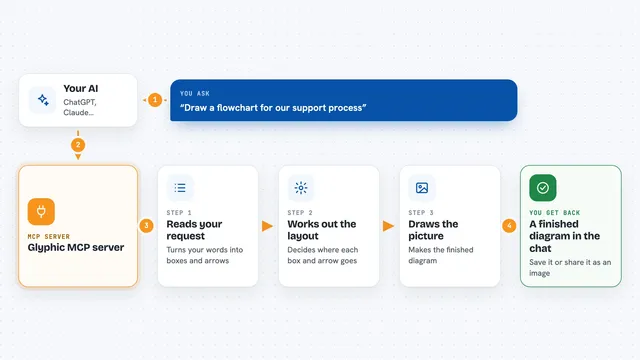
On its own, your AI can only chat. It cannot open a 3D file or show you a picture. An MCP server is a small helper program that gives your AI a new skill. This one connects your AI to the 3D Visualizer, so when you ask about a scan or a mesh, the AI can open it, move the camera, and look at what is on screen for you.
What this MCP server does
You tell your AI which 3D file to open, for example a PLY point cloud or an OBJ mesh. The AI passes that to this helper, which loads the file in the 3D Visualizer. The helper can move the camera around, take a screenshot, and send that picture back to the AI. The AI then describes what it sees or answers your question about the scene.
 Click to zoom
What you can do with it
- Open a point cloud, mesh or gaussian splat file in the viewer
- Compare two or more point clouds side by side
- Move and rotate the camera to a specific angle
- Take a screenshot of the current 3D view
- Inspect mesh surfaces, wireframes, points and normals
- Convert a depth or disparity image into a point cloud
- Measure distances between points in the scene
Try asking your AI
- “Open my scan.ply file and show me what it looks like from above”
- “Load these two point clouds and tell me if they line up”
- “Take a screenshot of the mesh from the front”
- “Turn this depth image into a point cloud and describe the shape”
What it gives back to you
You get answers in the chat, usually based on a screenshot the helper took of the 3D view. The AI can describe what it sees, point out shapes or problems, or confirm that a file opened correctly. If you asked it to move the camera or compare files, it tells you what it did and what the result looks like.
Before you start
What you need
- The 3D Visualizer installed (for example the VS Code extension or the Python package 3d-visualizer)
- An AI app that supports MCP servers, like Claude Desktop or a compatible editor
- The 3D files you want to look at, saved on your computer
Good to know
The helper can move the camera and take screenshots of whatever 3D scene is open, so avoid loading files you would not want captured in a picture.
Install it with your AI
Add 3D Visualizer MCP server to your AI, no technical skills needed
You don't install anything by hand. You copy one prompt, paste it into an AI that can work on your computer, and it checks, installs and connects the server for you, asking you when it needs something.
Sign in to get the install prompt
Members get a ready-made prompt that lets the Claude desktop app check 3D Visualizer MCP server, install it and connect it for them, step by step. You don't need any technical skills: you copy, paste and answer a few questions. Your connected AI can also find and install any of the 4,361 MCP servers here for you.
Who it's for
People who work with 3D scans, LiDAR, drone maps, photogrammetry or reconstruction results and want a quick way to check them without leaving their chat or editor.