MCP server · Productivity
Jira MCP server
by KS-GEN-AI
Let your AI read, search, create, edit, and assign Jira tickets for you.

This is a small helper that connects your AI assistant to Jira. Once it is set up, you can ask your AI to look up tickets, create new ones, or change details, and it will do that in your Jira account. It is handy for anyone who spends part of the day in Jira, like project managers, support staff, or team leads.
What is an MCP server? The 30-second version
On its own, your AI can only chat with you. An MCP server is a small helper program that gives your AI a new skill or a connection to an app. This one connects your AI to Jira, so when you ask about a ticket or want one created, the AI can actually go and do it in Jira for you.
What this MCP server does
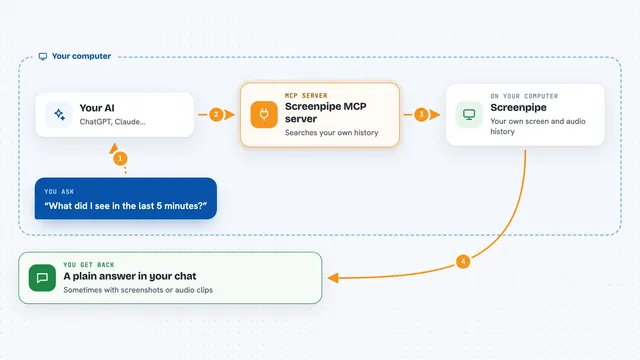
You ask your AI something about Jira, like show me open bugs in project X. The AI passes your request to this helper. The helper talks to Jira using your Jira login details. Jira sends back the ticket info, and the helper hands it to the AI. The AI then shows you the answer or makes the change you asked for, like creating a ticket or assigning one to a teammate.
 Click to zoom
What you can do with it
- Search Jira tickets with a JQL query
- Read a ticket's name and description
- Create a new ticket in a project
- Edit a ticket's summary, description, labels, or parent
- Assign a ticket to a teammate
- List Jira projects and available statuses
- Add an attachment to a ticket from a public link or a Confluence page
- Delete a ticket
Try asking your AI
- “Show me the last 5 open bugs in the PROJ project”
- “Create a ticket in project PROJ titled Fix login page on mobile, describe it as users cannot log in on small screens”
- “Assign ticket PROJ-123 to me”
- “Add this image link as an attachment to ticket PROJ-456”
What it gives back to you
You get answers in the chat, like a list of tickets with their names and descriptions, or a short confirmation that a ticket was created, edited, assigned, or deleted. If you asked for statuses or projects, you get those lists back. For attachments, you get a note that the file was added.
Before you start
What you need
- A Jira account (Atlassian cloud)
- Your Jira site URL, like https://yourcompany.atlassian.net
- The email address you use for Jira
- A Jira API token (a kind of password for apps; you create one for free on the Atlassian website)
Good to know
This helper can create, change, and delete tickets in your Jira account, so double check before you say yes to a delete or a big edit.
Install it with your AI
Add Jira MCP server to your AI, no technical skills needed
You don't install anything by hand. You copy one prompt, paste it into an AI that can work on your computer, and it checks, installs and connects the server for you, asking you when it needs something.
Sign in to get the install prompt
Members get a ready-made prompt that lets the Claude desktop app check Jira MCP server, install it and connect it for them, step by step. You don't need any technical skills: you copy, paste and answer a few questions. Your connected AI can also find and install any of the 4,361 MCP servers here for you.
Who it's for
Project managers, support teams, developers, and anyone who works with Jira tickets every day.