MCP server · Developer tools
tmux MCP server
by laszlopere
Lets your AI open and drive real tmux terminal sessions on your machine or a remote server.
This is a helper that connects your AI assistant to tmux, the tool that lets you keep several terminal sessions running in one window. Once it is set up, your AI can start sessions, type commands into them, and read what comes back. It is handy if you work in a terminal a lot, or if you want to watch the AI work in a session you can also type into yourself.
What is an MCP server? The 30-second version
On its own, your AI can only chat with you. An MCP server is a small helper program that gives your AI one new skill or one new connection. This helper connects your AI to tmux, so it can open terminal sessions, send keystrokes, and read the output for you. You just ask in plain words, and the helper does the terminal work behind the scenes.
What this MCP server does
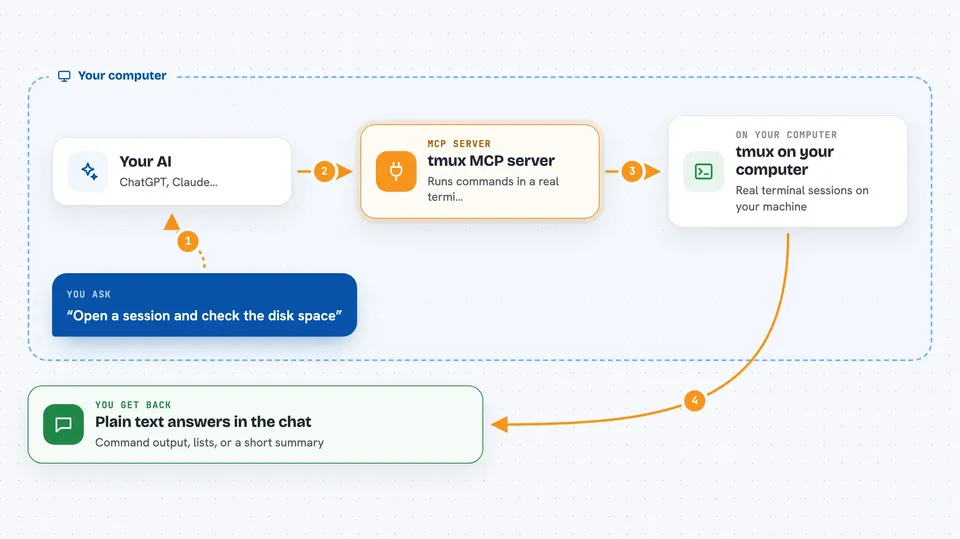
You ask your AI something like "open a session and check the disk space". The AI uses this helper, and the helper talks to tmux on your computer or on a remote machine over SSH. tmux runs the command, and the helper reads the text that appears in that terminal pane. The AI then shows you the result in the chat, or keeps going with the next step. Because the session is real and visible, you can attach to it and watch or type along.
 Click to zoom
What you can do with it
- Start a new tmux session, with or without a window attached
- Send keystrokes or whole commands into a pane and press Enter
- Read what a pane currently shows, like a screenshot of the terminal
- Split a window into panes and move between them
- List your sessions, windows, and panes, and rename or close them
- Wait until a command finishes or until certain text appears
- Run the same actions on a remote server over SSH
Try asking your AI
- “Open a tmux session called work and show me what is in my home folder”
- “Run the tests in the project folder and tell me if they pass”
- “Start a log tail in a new pane and show me the last few lines”
- “Check the disk space on my prod server over SSH”
What it gives back to you
You get back plain text answers in the chat: lists of sessions, windows, or panes, and the contents of a terminal pane when the AI reads it. When the AI runs a command, you see the output it captured, or a short summary of what happened. If it changed something, like creating a session or renaming a window, it tells you what it did. For long jobs, it can keep checking a pane and report new lines as they appear.
Before you start
What you need
- Python 3.10 or newer on the computer running the helper
- The tmux program installed on the machine you want to control
- ssh installed if you want to reach a remote server
- An MCP client such as Claude Code to register the server
Good to know
It drives real tmux sessions, so anything the AI types actually runs, including commands that can change or delete files, and you can watch it happen live in the same terminal.
Install it with your AI
Add tmux MCP server to your AI, no technical skills needed
You don't install anything by hand. You copy one prompt, paste it into an AI that can work on your computer, and it checks, installs and connects the server for you, asking you when it needs something.
Sign in to get the install prompt
Members get a ready-made prompt that lets the Claude desktop app check tmux MCP server, install it and connect it for them, step by step. You don't need any technical skills: you copy, paste and answer a few questions. Your connected AI can also find and install any of the 4,609 MCP servers here for you.
Who it's for
Developers, system administrators, and anyone who lives in a terminal and wants an AI to help run and watch commands.